Step by Step
Setting the Recording Quality
Before you start recording, select the recording quality you prefer. Repeatedly
press the MODE for less than one second to switch between the 3 possible
qualities Good, Better and Best.
The best recording quality is achieved if the input signal is clear and without
noise and hissing, and if the Pinnacle Video Transfer S-Video input is used.
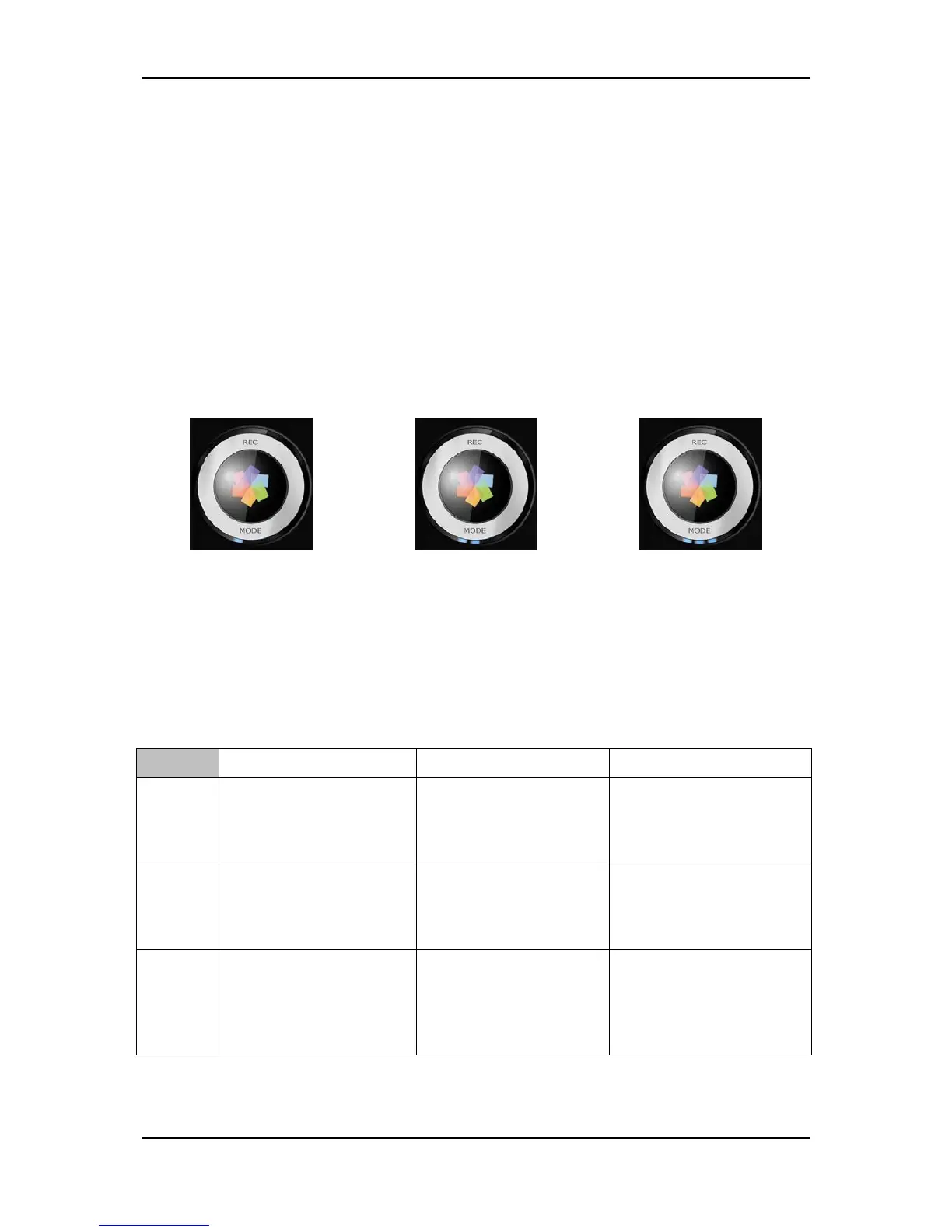
The currently selected quality is indicated by the LEDs beneath the MODE
button:
Good
One LED is constantly
lit in blue.
Better
Two LEDs are
constantly lit in blue.
Best
All three LEDs are
constantly lit in blue.
Depending on the USB device, the following describes these 3 qualities in
detail:
iPod® PSP™ Other devices
Good*
Video 320x240
512 kbps video
96 kbps stereo audio
48 KHz
Video 320x240
512 kbps video
64 kbps stereo audio
48 KHz
Video 320x240
768 kbps video
64 kbps stereo audio
48 KHz
Better*
Video 320x240
768 kbps video
128 kbps stereo audio
48 KHz
Video 320x240
768 kbps video
96 kbps stereo audio
48 KHz
Video 640x480
1.2 Mbps video
128 kbps stereo audio
48 KHz
Best*
Video 640x480
1.5 Mbps video
128 kbps stereo audio
48 KHz
Video 320x240
1 Mbps video
128 kbps stereo audio
48 KHz
Video 720x576 (PAL,
SECAM) / 480 (NTSC)
1.5 Mbps video
192 kbps stereo audio
48 KHz
* In view of the constant technical further development and improvement of this
product we reserve the right to make changes.
11


 To Next Page