EasyManua.ls Logo

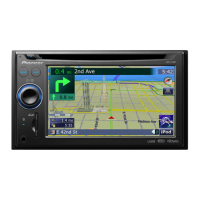
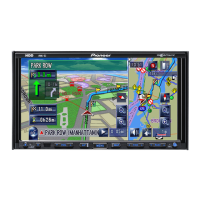
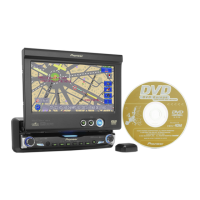
Pioneer AVIC-X1 - User Manual

Pioneer AVIC-X1
137 pages
Print Icon
To Next Page IconTo Next Page
Loading...
Operation Manual
DVD Map
CNDV-50MT
ENGLISH
This operation manual can be used with the following models:
AVIC-X1, AVIC-X1R

Table of Contents

Other manuals for Pioneer AVIC-X1

Questions and Answers

  • H
    Heather ByrdJul 26, 2025
    What to do if the rear display picture disappears on my Pioneer AVIC-X1 Car Receiver?
    • D
      davidmarshallJul 26, 2025
      The rear display picture might disappear on your Pioneer Car Receiver for several reasons: * The source disc may have been ejected, in which case you should switch the source before ejecting the disc. * The REAR button might have been pressed, switching REAR ON mode off; press the REAR button to turn REAR ON. * There might be a problem with the rear display mode or a faulty wiring connection; check the rear display and its connection. * Rear View might be selected on the screen; select a view mode other than Rear View. * The gearstick might be in [R], displaying rear view camera images; move the gearstick to a position other than [R].
  • M
    Michaela ChavezAug 2, 2025
    How to fix a stretched or incorrect aspect ratio picture on my Pioneer Car Receiver?
    • J
      Jennifer McgeeAug 2, 2025
      If the picture appears stretched or the aspect ratio is incorrect on your Pioneer Car Receiver, the aspect setting might be incorrect for the display. Select the appropriate setting for your display to correct this.
  • R
    Ronald ReeseAug 9, 2025
    How to stop the LCD Panel from knocking against the vehicle's console or dashboard on my Pioneer AVIC-X1?
    • L
      Laurie PruittAug 10, 2025
      If the LCD Panel is knocking against your vehicle’s console or dashboard, it might be due to an incorrect angle setting. Press the ANGLE (+/–) buttons to adjust the LCD angle.
  • S
    Stacy BenitezAug 18, 2025
    What to do if the picture stops (pauses) and the unit cannot be operated on my Pioneer Car Receiver?
    • C
      Calvin HarveyAug 18, 2025
      If the picture stops (pauses) and the unit cannot be operated, press 7 once, then start playback again.

Summary

Introduction

Pioneer Navigation System License Agreement

Details the terms and conditions for using the navigation software and its included database.

Important Safety Information

System Usage Precautions and Additional Safety Info

Provides critical notes before using the system, including troubleshooting and safe driving advice.

Chapter 1 Basic Operation

System Startup and Basic Navigation Flow

Guides users through the initial startup process and fundamental navigation operations.

Chapter 2 Menu and Map Display

Map Display Modes

Covers different map views like Map Mode, Driver's View, Mixed, and St.List.

Chapter 3 Setting a Route to Your Destination

Destination Search Methods

Details various ways to search for destinations, including POI, post code, and saved locations.

Route Calculation and Modification Options

Explains how to modify route calculation conditions, check routes, and manage way points.

Chapter 4 Editing the Navigation Utilities

Chapter 6 Using the AV Source (Built-in DVD drive and Radio)

Chapter 8 Customising the Audio Source Setting

Audio Adjustments and Equaliser Settings

Covers adjusting audio levels, equaliser curves, bass, treble, loudness, and subwoofer settings.

Chapter 9 Operating Your Navigation System with Voice

Voice Operation Basics and Safety Precautions

Explains the fundamentals of voice operation, safety considerations, and voice command recognition.

Appendix

Troubleshooting Common Problems and Errors

Provides solutions for common issues encountered with the navigation system's screen, audio, and playback.

Pioneer AVIC-X1 Specifications

General IconGeneral
AutoYes
Marine (chartplotters, sounders)-
Address inputCity, House number, Street
Routes quantity6
Languages supportDAN, DEU, DUT, ENG, ESP, FRE, ITA, SWE
Map view options2D/3D
Display diagonal6.5 \
Display resolution1440 x 234 pixels
Native aspect ratio16:9
Placement supportedHorizontal
BluetoothNo
Form factorPlug-in
Product colorBlack
Power source typeDC
AM band range531 - 1602 kHz
FM band range87.5 - 108 MHz
Supported radio bandsAM, FM, LW, MW
Weight and Dimensions IconWeight and Dimensions
Depth50 mm
Width178 mm
Height160 mm
Weight2500 g

Related product manuals