EasyManua.ls Logo

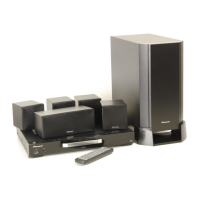
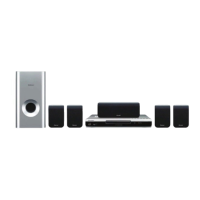
Pioneer XV-DV360 - User Manual

Pioneer XV-DV360
92 pages
Print Icon
To Next Page IconTo Next Page
Loading...
Operating Instructions
Mode d’emploi
HTZ-360DV
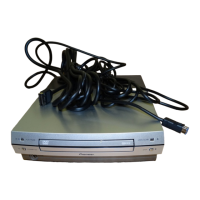
DVD/CD Receiver
Récepteur-lecteur DVD/CD
XV-DV360
Speaker System
Système Acoustique
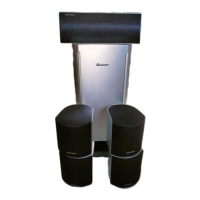
S-DV353
Register your product at:
www.pioneerelectronics.com (US)
www.pioneerelectronics.ca (Canada)
• Protect your new investment
The details of your purchase will be on file for reference in the event of an insurance claim such as loss or theft.
• Improve product development
Your input helps us continue to design products that meet your needs.
• Receive a free Pioneer newsletter
Registered customers can opt in to receive a monthly newsletter.
• Receive free tips, updates and service bulletins on your new product
(US)
XV-DV360.book 1 ページ 2006年2月24日 金曜日 午前11時59分

Table of Contents

Other manuals for Pioneer XV-DV360

Questions and Answers

  • J
    Jason CollinsAug 14, 2025
    What to do if an opening screen is not displayed on Pioneer Receiver, but the FL display lights and the mechanism works?
    • B
      brandyandersonAug 15, 2025
      If the opening screen isn't showing on your Pioneer Receiver, yet the FL display lights up and the mechanism is functional, examine the video signal path between the DVD IC (DVDMAIN Assy IC201) and the video-out terminal, referring to the block diagram. Also, check the DVD IC (IC201).
  • B
    Beth NguyenAug 17, 2025
    Why is there no sound on my Pioneer Receiver, but the picture is normal?
    • E
      Edward MurphyAug 18, 2025
      If your Pioneer Receiver has no sound but the picture is normal, verify the waveforms at the following points: ALCK (IC201-pin 212), ALRCK (IC201-pin 209), ABCK (IC201-pin 210), and ASDATA0 (IC201-pin 197).
  • E
    enashAug 21, 2025
    How to troubleshoot a Pioneer Receiver that the power is not turned on?
    • A
      Amanda WilliamsAug 21, 2025
      If your Pioneer Receiver is not turning on, verify the wires of the output connector (POWER SUPPLY Unit) and CN1001 (DVDMAIN Assy) are neither disconnected nor damaged. Also, check that the voltage output at Q1202-source on the DVDMAIN Assy is 3.3V.
  • C
    Charles HarringtonAug 25, 2025
    What to do if the opening screen is not displayed on the Pioneer Receiver monitor, but the FL display lights and the mechanism works?
    • P
      pereztheresaAug 25, 2025
      If the opening screen is not displayed on the monitor of your Pioneer Receiver, yet the FL display lights and the mechanism works, check the video signal path between the DVD IC (DVDMAIN Assy IC201) and the video-out terminal, referring to the block diagram.
  • B
    brian22Aug 27, 2025
    What to do if there is picture disturbance during playback (block noise, freeze, other) on Pioneer Receiver?
    • B
      Brenda BurkeAug 27, 2025
      To troubleshoot picture disturbances during playback on your Pioneer Receiver, check the disc for scratches or dirt and ensure the disc format is correct. Additionally, inspect the composite video signal at IC401-pin 25, the S video signal at IC401-pin 21 and pin 26, and the RGB video signal at IC401-pin 16, pin 18, and pin 20.
  • K
    Karen RamosAug 31, 2025
    What to do if playback stops on Pioneer Receiver?
    • T
      tracy50Aug 31, 2025
      If your Pioneer Receiver's playback stops unexpectedly, the 650-nm LD may be deteriorating. If the voltage at each end of R322 and R325 on the DVD MAIN Assy is 0.4 V or more, the 650-nm LD is likely deteriorated. Also, the 780-nm LD may be deteriorating. If the voltage at each end of R321 and R326 on the DVD MAIN Assy is 0.4 V or more, the 780-nm LD is likely deteriorated. Check for abnormalities in the FG waveform at IC201-pin 50. Finally, ensure that the disc is free of scratches or dirt.
  • T
    Tommy SchultzSep 6, 2025
    What to do if Pioneer Receiver playback is impossible because the spindle does not turn?
    • A
      angelawardSep 7, 2025
      If playback is impossible on your Pioneer Receiver due to the spindle not turning, check the signals output from IC101-pin 30 (W), pin 33 (V), and pin 35 (U) on the DVDMAIN Assy. Also, verify if pin 26 (STBY) is fixed LOW; it should be High (3V) during playback. Inspect the spindle motor for detached parts or foreign objects. Ensure that the wires of CN102 on the DVDMAIN Assy are not disconnected or damaged. Finally, check if a signal is output from IC201-pin 37 (DMSO) on the DVDMAIN Assy.
  • M
    millerkennethSep 10, 2025
    Why is playback impossible on my Pioneer Receiver (no focusing)?
    • C
      Connie VelezSep 10, 2025
      If playback is impossible on your Pioneer Receiver due to no focusing, check the signals output from IC101-pin 3 (FOCS_DRV) and pin 4 (FOCS_RTN) on the DVDMAIN Assy. Verify if the 650-nm LD emits light, if the pickup lens moves up/down, and if the actuator spring bends. Inspect plastic parts for damage, ensure the shaft is not detached, and check if the turntable is detached or tilted. Confirm that the flexible cable of CN101 on the DVDMAIN Assy is neither disconnected nor damaged. Also, check for a signal output from IC201-pin 42 (FOSO) on the DVDMAIN Assy; a device control signal of about 1.4 V is typically output, fluctuating by about ± 250 mV with focus up/down.

Summary

Product Registration and Safety Information

Register Your Product Online

Instructions for registering your Pioneer product via the website for updates and benefits.

Important Safety Warnings and Notices

Covers electrical safety, product location, operational hazards, and compliance information.

Essential Safety Instructions

Detailed guidelines on safe operation, cleaning, installation, and maintenance.

User Guidelines and Precautions

Information on safe listening levels, power cord handling, and product usage limitations.

Controls and Displays

Front Panel and Remote Controls

Identification and functions of front panel buttons, ports, and remote control buttons.

Display Indicators and Menu Navigation

Explanation of the unit's display indicators and how to navigate menus.

Playback, Sound, and Source Controls

Controls for playback, sound adjustment, source selection, and DVD specific functions.

Front Panel Display Indicators

Explains the various indicators and lights on the unit's display panel.

Getting Started

Home Theater Setup and Channel Levels

Guide to speaker placement and setting relative channel volume levels for surround sound.

Basic Disc Playback and Navigation

Instructions for loading discs, basic playback, and using on-screen displays.

Radio Tuning and Source Connectivity

How to tune radio, memorize stations, and connect auxiliary audio sources.

Sleep Timer Usage

How to set the sleep timer to automatically turn off the system.

Listening to Your System

Surround Sound and Listening Modes

Using Auto, Surround, and Front Surround modes for immersive audio experiences.

Stereo, Headphones, and SFC Modes

Listening in stereo, with headphones, and applying Sound Field Control (SFC) effects.

Tone and Bass Adjustments

Customizing sound by adjusting bass, treble, and bass boost levels.

Disc Playback Features

Playback Controls: Scan, Slow Motion, Slideshow

Using fast scan, slow motion, frame advance, and JPEG slideshow playback.

Disc Navigation and Media File Browsing

Browsing DVD/VCD content and media files using the Disc Navigator.

Repeat, Random Play, and Program Lists

Utilizing repeat play, random play, and creating custom program lists.

Disc Search and Content Options

Searching discs by various criteria and switching subtitles/audio languages.

USB Playback

Connecting and Managing USB Devices

How to connect USB mass storage devices and basic playback controls.

USB File Navigation and Playback

Scanning files, playing JPEG slideshows, and browsing files via the Navigator.

Audio and Video Settings

Audio Settings and Dynamic Range Control

Configuring audio settings including Dynamic Range Control (DRC) for clearer sound.

Video Adjust Menu

Adjusting picture settings like brightness, contrast, hue, and chroma levels.

Initial Settings Menu

Initial Setup Configuration

Setting video output, language, parental lock, and speaker distance.

Video Output and Display Settings

Configuring TV screen aspect ratio, HDMI resolution, and OSD language.

Language, DivX VOD, and Country Codes

Setting subtitle/audio languages, managing DivX VOD, and country/area codes.

Speaker Distance Calibration

Setting the distance of each speaker from the listening position for optimal sound.

Other Connections

Antenna and Auxiliary Audio Connections

Connecting external antennas and auxiliary audio components for playback.

Video Output and HDMI Connections

Connecting via S-video, component video, and HDMI for optimal picture quality.

HDMI Settings and Troubleshooting

Managing HDMI audio settings, resetting the connection, and troubleshooting issues.

Additional Information

Disc and Media Format Compatibility

Information on playable disc types, DivX, AAC, WMA, and compatibility tables.

Disc Care and Installation Tips

Guidelines for handling discs, storing them properly, and installing the system.

System Settings and Features

Adjusting screen sizes, frequency steps, demo mode, and display brightness.

Troubleshooting

General and Disc Playback Problems

Solutions for common issues like no power, no sound, remote control, and disc playback errors.

Tuner, USB, HDMI, and Error Messages

Resolving issues with radio reception, USB/HDMI connectivity, and understanding error messages.

System Management and Specifications

System Reset, Key Lock, and Language Codes

How to reset settings, manage key lock, and use language code lists.

Technical Specifications and Accessories

Detailed specs for the unit and speaker system, plus a list of accessories.

Contact, Warranty, and Legal Notices

Support contacts, warranty information, and legal notices regarding software and content.

Pioneer XV-DV360 Specifications

General IconGeneral
TypeHome Theater System
Audio Channels5.1
DVD PlaybackYes
CD PlaybackYes
FM TunerYes
Number of Preset Channels30
USB PortYes
Remote ControlYes
OutputsComposite video output
Supported formatsDVD, CD, MP3, JPEG
Speaker Configuration5.1

Related product manuals