Need help?
Do you have a question about the Planet FGSD-1008HPS and is the answer not in the manual?
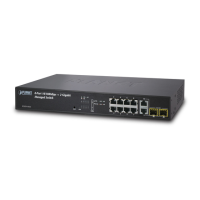
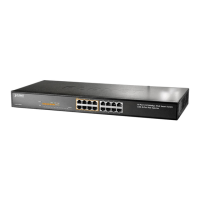
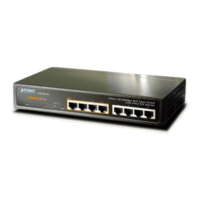
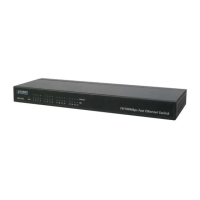
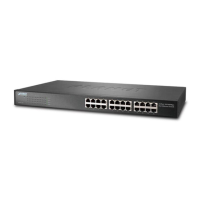
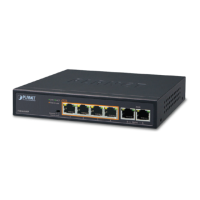
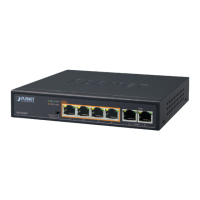
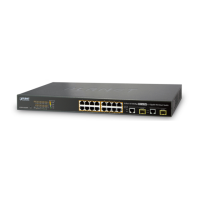
This document serves as a Quick Installation Guide for the PLANET 8-/16-/24-Port 10/100TX 802.3at PoE + 2-Port Gigabit TP/SFP Combo Managed Ethernet Switches, specifically covering models FGSD-1008HPS, FGSW-1816HPS, FGSW-2624HPS, and FGSW-2624HPS4. These devices are referred to collectively as "Managed PoE Switch" throughout the guide.
The Managed PoE Switches are designed to provide reliable and efficient network connectivity with Power over Ethernet (PoE) capabilities. They feature 8, 16, or 24 10/100TX ports that support the 802.3at PoE+ standard, allowing them to deliver both data and power to compatible devices such such as IP cameras, VoIP phones, and wireless access points over a single Ethernet cable. In addition to the PoE ports, these switches include 2 Gigabit TP/SFP combo ports, offering flexible uplink options for high-speed connections to other network segments or backbone infrastructure. The "combo" nature of these ports means they can operate as either traditional RJ45 Gigabit Ethernet ports or as SFP (Small Form-Factor Pluggable) slots for fiber optic connections, providing versatility for different cabling requirements and longer distances.
As "Managed" switches, these devices offer advanced network management features, enabling administrators to configure, monitor, and troubleshoot the network effectively. This includes capabilities for VLAN configuration, Quality of Service (QoS) settings, Access Control List (ACL) management, and various security features to enhance network performance and security. The management interface can be accessed via a web browser (Web Management) or through a command-line interface (CLI) via a serial console connection, providing flexibility for different administration preferences and scenarios.
The switches are designed for straightforward setup and operation. Upon unpacking, users will find the Managed PoE Switch unit, a Quick Installation Guide, an RS232 to RJ45 Console Cable for serial connection, four rubber feet for desktop placement, two rack-mounting brackets with screws for rack installation, a power cord, and two SFP dust-proof caps.
For initial setup and configuration, two primary methods are available: Web Management and Terminal Setup.
Web Management: To access the Web Management interface, a workstation running Windows 7/8/10/11, macOS 10.12 or later, or Linux Kernel 2.6.18 or later, with an Ethernet NIC and a compatible web browser (Google Chrome, Microsoft Edge, or Mozilla Firefox), is required. The workstation must be configured with an IP address within the same subnet as the switch. The default IP address of the Managed PoE Switch is 192.168.0.100, with a default subnet mask of 255.255.255.0. Therefore, the manager PC should be set to an IP address like 192.168.0.x (where x is any number between 1 and 254, excluding 100).
Users log in to the web interface by entering the switch's IP address in the browser. The default username is "admin". For switches with firmware versions before April 2024, the default password is "admin". For switches with firmware versions from April 2024 onwards, the default password is "sw" followed by the last six lowercase characters of the device's MAC ID, which can be found on the device label. Upon the first successful login, users are prompted to change the initial password to a permanent one for security reasons. The new password must be 8 to 31 characters long and include uppercase letters, lowercase letters, numerals, and other symbols (excluding spaces and specific characters like | \ ; ? " & < > ( )). After changing the password, the main web screen, featuring a comprehensive menu for accessing various configuration and monitoring options, becomes available.
Terminal Setup (Console Connection): For console-based management, a workstation with a COM Port (DB9) or a USB-to-RS232 converter, and a terminal emulator program (e.g., Hyper Terminal, PuTTY, Tera Term), is necessary. A serial cable (RS232 to RJ45) connects the workstation's serial port to the switch's console port. The terminal program settings must be configured as follows: Baud rate: 115200, Data bits: 8, Parity: None, Stop bits: 1, Flow control: None.
Once connected and powered on, the terminal displays "running testing procedures" followed by a login prompt. Similar to web management, the default username is "admin". The default password depends on the firmware version: "admin" for older versions and "sw" + last six lowercase MAC ID characters for newer versions. Users are also prompted to change the password upon first login via the console. The console interface allows for command-line configuration, including checking and modifying the switch's IP address and subnet mask using commands like "show ip" and "config ip address [IP address]" / "config ip submask [subnet mask]".
The Managed PoE Switches incorporate features to ensure operational stability and ease of maintenance.
Saving Configuration: After making any changes to the switch's configuration, it is crucial to save these changes to ensure they persist across system reboots. In the Web Management interface, this is done by clicking the "Save" icon on the top Switch Menu bar. When using the console interface, the command "save" is used to store the current configuration as the startup configuration. This ensures that the desired settings are automatically loaded whenever the switch powers on.
Recovering to Default Configuration: In scenarios where the IP address has been forgotten or the admin password is lost, the switches provide a hardware-based reset mechanism. By pressing and holding the physical "Reset" button on the front panel for approximately 5 seconds, the switch's IP address will revert to its default (192.168.0.100), and the login password will be reset to its default value (either "admin" or "sw" + last six lowercase MAC ID characters, depending on the firmware version). After the device reboots, administrators can then log in using the default credentials and reconfigure the switch as needed. This feature is invaluable for recovering access to the device without requiring advanced troubleshooting steps.
Customer Support: PLANET Technology provides comprehensive customer support resources. Users are encouraged to first consult the online FAQ resource and User's Manual available on the PLANET website to find solutions to common issues. For further assistance, a dedicated switch support team can be reached via email at support@planet.com.tw. The User's Manual for specific models (FGSD-1008HPS(V3), FGSW-1816HPS(V3), FGSW-2624HPS(V4), and FGSW-2624HPS4(V3)) can be downloaded from the PLANET website, where users can select their specific switch model from a drop-down menu. This structured support system ensures that users have access to the necessary information and assistance for maintaining their devices.
 General
| PoE Ports | 8 |
|---|---|
| PoE Standard | IEEE 802.3af/at |
| Switch Architecture | Store-and-forward |
| Switch Fabric | 16 Gbps |
| Throughput (packet forwarding rate) | 11.9 Mpps |
| MAC Address Table | 8K |
| Packet Buffer Memory | 1 MB |
| Ports | 8 x 10/100/1000 Mbps RJ45 |
| PoE Power Budget | 120W |
| Jumbo Frame | 9KB |
| Power Supply | Internal |
| Operating Temperature | 0 to 50 °C |
| Storage Temperature | -40°C to 70°C |
| Humidity | 10% to 90% non-condensing |

 To Next Page