23
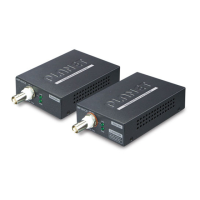
Type 2 LRP-101UH with 48~56V power adapter and LRP-104CET with PoE
power output
802.3af/802.3at PoE
PoE IP Camera
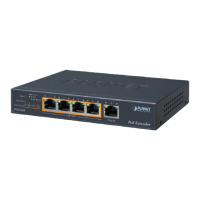
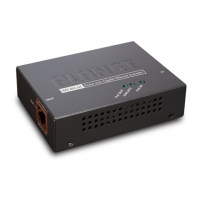
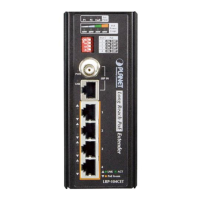
LRP-104CET
Long Reach PoE Extender
P1 P2 Fault
PWR
LNK
LRP IN
4
3
2
1
LRP-104CET
Ext.
PWR
10W 20W 30W 40W
PoE
Power
Usage
ACTLNK
PoE In-use
ON
ON
ON
ON
OFF
OFF
OFF
OFF
1
Port PoE
2
3
4
Long Reach PoE
Extender
1 2 3 4
OFF
PoE
PoE
PoE
PoE
Remote LRP Power over UTP
PoE Power Budget
60 watts~120 watts (max.)
Ethernet Switch
110-240V AC
AC-to-DC Adapter
60W~120W/48~56V DC IN
Cat5e/6
Power over UTP
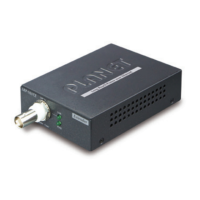
LRP-101UH
Long Reach PoE Injector
Long Reach Power over Ethernet
Functions
LRP Injector LRP Extender
LRP-101UH LRP-104CET
Power Input
Power adapter with 48~56V DC in
The LRP-101UH accepts up to 120W
external power input
UTP with DC power
over UTP input
Power Output UTP with DC power over UTP output
RJ45 with 802.3at/af
PoE output
Installation Instructions
Step 1. Remove the “Danger – No Ethernet” label stuck on the RJ45 LRP
ports of LRP-101UH.
Step 2. Connect the LRP Injector (LRP-101UH) and LRP Extender
(LRP-104CET) to ends of RJ45 terminated long UTP/twisted-pair
cable.
Warning
1. Please do not connect any Ethernet equipment to LRP
OUT Port of the LRP-101UH; otherwise, it will damage the
Ethernet equipment.
2. Please do not connect any Ethernet equipment to LRP IN Port
of the LRP-104CET; otherwise, it will damage the Ethernet
equipment.
Step 3. Connect Cat5/6 UTP cable to LRP-101UH and non-PoE switch or
workstation.
Step 4. Connect 48~56V DC power adapter to LRP-101UH power socket, and
then the PWR LED of LRP-101UH and LRP-104CET should be lit up
immediately.
Step 5. Connect Cat5/6 UTP cable to LRP-104CET and IEEE 802.3at/af
complied PoE IP camera or PoE Wireless AP.


 To Next Page