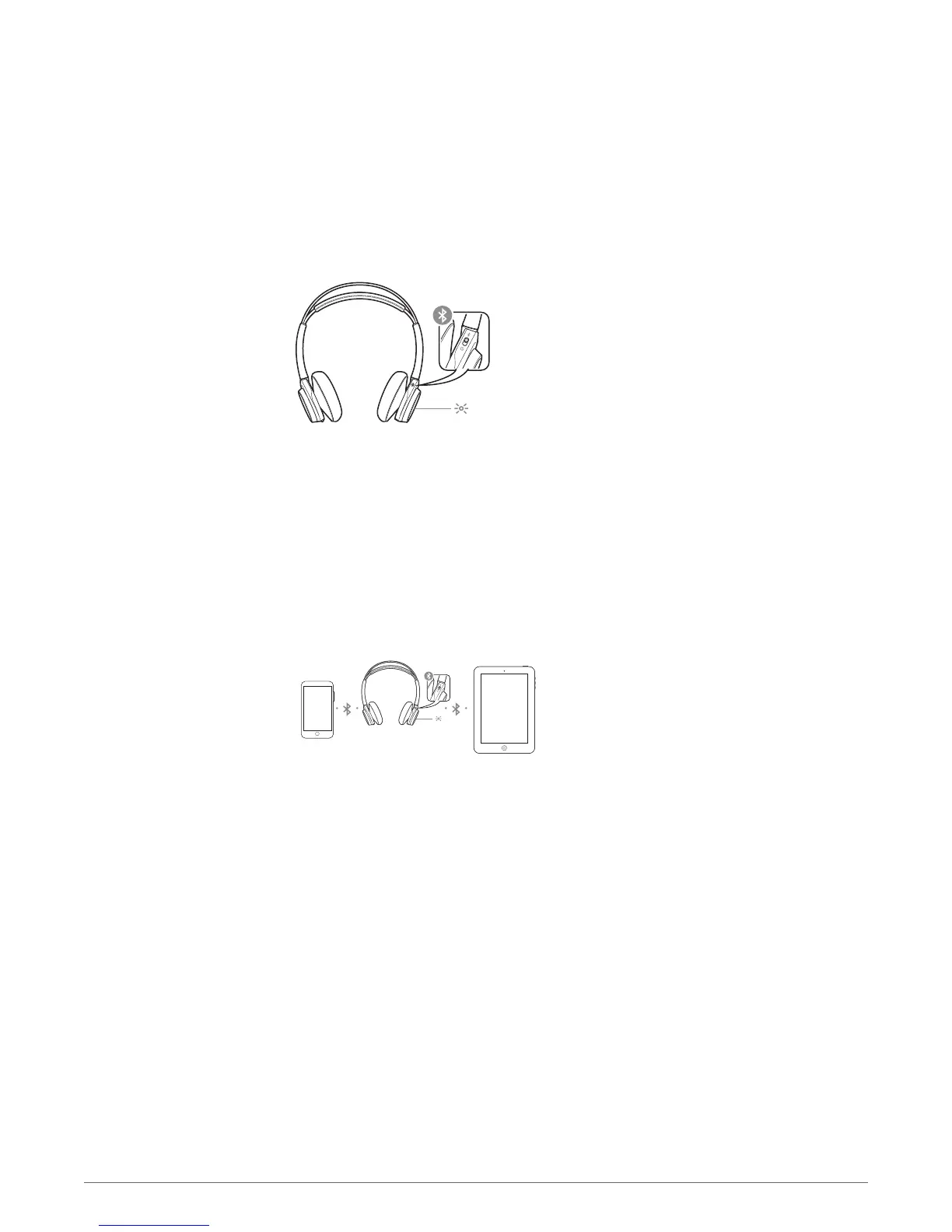
The first time you power on your headphones, the pairing process begins.
1 Slide the power switch on. You hear "pairing" and the LEDs flash red and blue.
2 Activate Bluetooth
®
on your phone and set it to search for new devices.
• iPhone Settings > Bluetooth > On*
• Android Settings > Bluetooth: On > Scan for devices*
NOTE *Menus may vary by device.
3 Select “PLT_BBTSENSE.”
If necessary, enter four zeros (0000) for the passcode or accept the connection.
Once successfully paired, you hear “pairing successful” and the LEDs stop flashing.
1 Slide and hold the power button towards the Bluetooth icon until the LEDs flash red and blue.
2 Activate Bluetooth on your second device and follow steps 2 and step 3 in "Get Paired."
If your Mac is Bluetooth enabled, you can pair your headset to it.
1 Place your headset in pair mode (slide and hold the power button towards the Bluetooth icon). You
will hear "pairing" and the LEDs will flash red and blue.
2 On your Mac, choose Apple menu > System Preferences > Bluetooth.
3 Click Set Up New Device or "+", select "PLT_BBTSENSE Stereo" and follow the onscreen
instructions.
Pair
Get Paired
Pair second device
Pair to Mac
5





 To Next Page