EN
5
USB Interface: The battery of the equipment is charged through the USB interface. When connected to USB
the camera will be automatically turned on.
Power Button
Power On camera: Press power button briey for 1 second to wake up device
Power Off camera: Press and hold power button for 3 seconds to Shut down camera. Camera will conrm
with a sound.
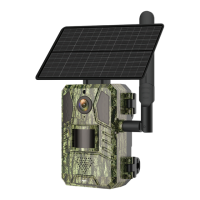
Battery Compartment: It ts a 4 pcs 18650 battery pack that once connected power the device.
MIC: Used to collect ambient sound and audio two-way communication
Speaker: Used to send a vocal message nearby camera and for audio two-way communication
IR LED: 4 IR Leds for night illumination
Lens: Lens of camera
Solar panel: Solar panel permanently charge the battery ( Sunny day)
PIR: PIR detection is used for much more accurate detection of warm objects, human, animans.
TF Card Slot: used to insert a Micro SD card ( transash) maximum 64 GB for video and image storage .
Indicator Lights:
Red light allways On - Network connection failed
Blue light allways On - Device is connected to network and working
Light Sensor: Helps for image brightness adjustments when night falls and in darkess areas;
Fixed Hole: Used to secure battery compartment
Stend Screw : Used for wall support
Switch camera to pairing mode
Press and hold reset button for 8 seconds to reset camera to default settings. Camera wil conrm enter
pairing mode with blue led blinking and a vocal message: “The camera is now ready to begin pairing”
Reset camera
Press and hold reset button for 5-8 seconds to reset camera to default settings.
4.2 QR code net-pairing (Recommended)
The product only support 2.4GHz Wi-Fi network. It does not support 5GHz Wi-Fi network. Before
conguring Wi-Fi, please check and conrm you have a 2.4 GHz network, and activate GPS Location on
your phone. The Wi-Fi password should not contain special characters of ~!@#$%^&*(). When conguring
Wi-Fi, make sure your router, mobile and device are as close as possible for a quick conguration of the
device.
Connect smartphone to this Wi-Fi 2.4 GHz router with internet access. Activate GPS location from phone.
If any of this condition are not met conguration will fail.
● App supports QR code net-pairing and Wi-Fi connection. You can choose to add device by other options.
● Power On the camera, and start “Pairing mode“ following described procedure
● With mobile phone connected to Wi-Fi, click “Add Device” or “+“ icon (gure 1) on the Home screen of the
App, select “Security & Sensor”(gure 2)→ “Smart Camera”, click “next step” (gure 3).



 To Next Page