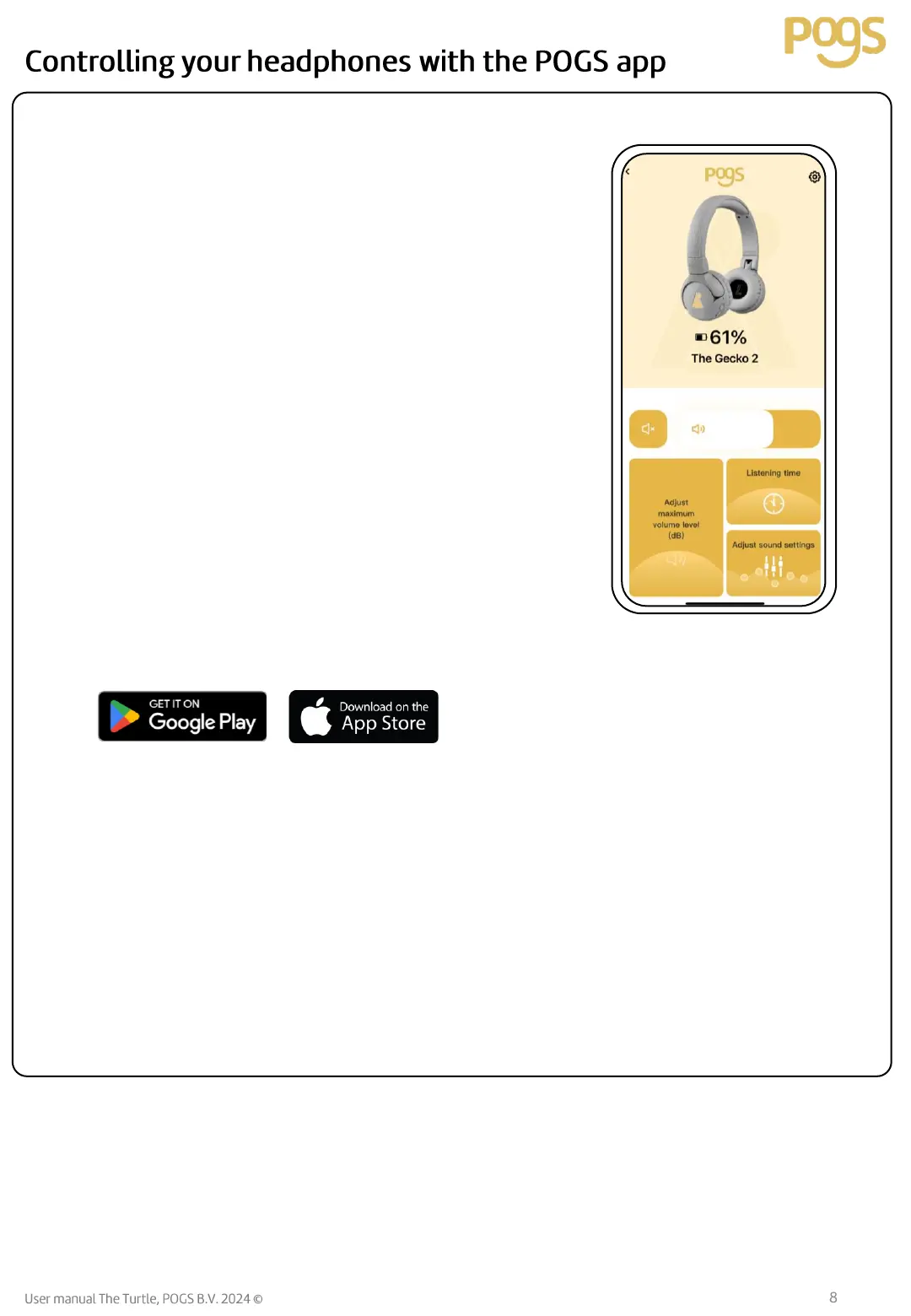
Your POGS The Gecko 2 headphones can be controlled with the POGS app.
Audio controls to ensure safe listening
• Check and change volume level
• Mute headphones
• Change maximum volume of headphones
(recommended to lower below 85 dB maximum)
Timer
• Monitor how long headphones have been used, and
reset timer for instance at the start of the week. Please
don’t exceed stated times for set maximum volume levels.
• Set timer for headphones to shut down with option to send
alarm before shut-down
• Change audio settings (equalizer)
Other settings
• Set color of your headphones
• Change name of your headphones (will show up when
connecting with Bluetooth®)
• Over the air – software updates
• Get support
• Review privacy policy
Download the Android app from the Google Play Store or the iOS app from Apple App store.
After installing on your device, please connect the headphones as usual via Bluetooth®. Once the
headphones are connected, open the POGS app, and choose to add headphones. Select the headphones
and you will get access to the controls.
You can also control your POGS from one device while streaming audio from another. Let’s use the
example of controlling your POGS with the POGS app on your phone, while your kid is streaming audio
from a tablet. First, connect your POGS to your phone via Bluetooth (see Quick Start Guide if needed).
Open the POGS app on your phone, and add your headphones by following the instructions. Once
connected, press and hold the pairing button on your POGS to make your POGS discoverable for the
tablet. Then connect your POGS to your tablet via Bluetooth, just like you did previously with your
phone. Now you can stream audio from your tablet to your POGS. Open the POGS app on your phone,
select your POGS if needed, and you can control your POGS with the app from your phone.


 To Next Page