EasyManua.ls Logo

Polaroid DRM-2001G - User Manual

Polaroid DRM-2001G
48 pages
Print Icon
To Next Page IconTo Next Page
Loading...
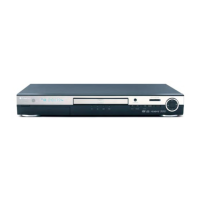
DVD Recorder with 80GB Hard Drive
DRM-2001G
20060425
Users Manual

Questions and Answers

  • A
    Austin TaylorAug 18, 2025
    What to do if my Polaroid DVD Recorder has no sound?
    • M
      martinlindaAug 18, 2025
      If you're experiencing no sound from your Polaroid DVD Recorder, first check the input connections to ensure they are properly connected. The disc might be deformed or dirty, so try cleaning it. Also, verify that the system is not in mute status by pressing the 'MUTE' button.
  • C
    Connie SolomonAug 20, 2025
    Why is there no picture on my Polaroid DRM-2001G?
    • R
      russellacevedoAug 21, 2025
      If your Polaroid DVD Recorder shows no picture, check that the signal connections are correctly connected. Also, verify and readjust the TV/AV status. If the TV system output mode is Progressive, but your TV system is in Interlace mode, press PS/IS to adjust the angle or mode.
  • E
    Elizabeth HowardAug 23, 2025
    How to fix Polaroid DRM-2001G when disc cannot be played?
    • J
      Julie VasquezAug 23, 2025
      If your Polaroid DVD Recorder won't play a disc, ensure that a disc is inserted into the drive. Make sure the disc is placed correctly on the disc tray with the label side up. If moisture has condensed in the unit, leave it on for about an hour (without a disc) before using it again. Press the 'PLAY' button to switch to playing status. Ensure that you are using a supported disc format. Clean the disc with a soft cloth from the center to the edge if it is dirty.
  • A
    Anthony HendersonAug 26, 2025
    How to fix a Polaroid DRM-2001G with no power?
    • T
      Theresa WilliamsAug 26, 2025
      If your Polaroid DVD Recorder has no power, it might be due to a disconnected power supply. Ensure the device is properly connected to the power supply. Another cause could be a bad connection between the power plug and the receptacle; try plugging it in again or replacing the receptacle. The receptacle power might be switched off, so ensure that the receptacle is switched on.
  • G
    Glenn MartinezAug 28, 2025
    Why is my Polaroid DVD Recorder remote control not working?
    • Q
      qbrownAug 28, 2025
      If the remote control for your Polaroid DVD Recorder isn't working, make sure it's pointed directly at the sensor. The distance might be too far; try reducing the distance to less than 8 meters. Also, check the batteries; low voltage can cause malfunctions, so replace them. Finally, ensure there are no obstacles between the remote and the unit.
  • P
    phillipbowmanAug 30, 2025
    Why Polaroid DRM-2001G external signals cannot be recorded?
    • M
      millersaraAug 31, 2025
      If your Polaroid DVD Recorder is unable to record external signals, ensure that the system is connected properly. Check that you have inserted a recordable disc. If the disc has been finished or there is no free disc space, change the disc.
  • J
    Jonathan PerezSep 2, 2025
    Why is my Polaroid DVD Recorder showing no color?
    • D
      Dr. Larry MooreSep 2, 2025
      If your Polaroid DVD Recorder is displaying no color, the TV system selection may be wrong. Set up the system by pressing the 'SYSTEM' button on the remote control. You may also need to readjust the color settings. Finally, check for correct video output settings.
  • J
    josephpachecoSep 4, 2025
    What causes sudden malfunction in Polaroid DRM-2001G DVD Recorder?
    • R
      Richard MonroeSep 4, 2025
      If your Polaroid DVD Recorder experiences a sudden malfunction, it might be due to bad disc quality; wait 5-10 seconds to see if playback is restored. It could also be due to a button being pressed mistakenly; try turning the unit off and restarting it. Outside static could also be the cause; shut off the unit for 1-2 minutes and then restart it.
  • B
    Brenda McconnellSep 7, 2025
    What to do if Polaroid DRM-2001G DVD Recorder has no monitor signal?
    • B
      Brandy ClarkSep 7, 2025
      If your Polaroid DVD Recorder has no monitor signal, prepare the input source. Switch the video output system. Ensure that the actual input source is consistent with the selected input.
  • J
    jessicanicholsonSep 9, 2025
    Why Polaroid DVD Recorder timer recording cannot be done?
    • A
      Amber McphersonSep 9, 2025
      If timer recording cannot be done on your Polaroid DVD Recorder, the disc might not meet the requirements; replace it with a new disc. The time setting may be wrong; set up the time again. Ensure the input source works correctly during the recording time. Set the system to standby if there is a system power failure.

Summary

Safety Instructions

Danger and Warning Symbols

Explains safety symbols for dangerous voltage and important instructions.

General Safety Warnings

Advises against exposure to rain/moisture and opening the cabinet due to high voltages.

Maintenance and Precautions

Covers placement, cleaning, and long-term storage advice for the unit.

Identification of Controls

Front Panel Controls

Details all buttons and inputs located on the front of the DVD recorder.

Rear Panel Connections

Lists all input and output ports on the back of the DVD recorder.

Remote Control Functions

Remote Control Overview

Provides a comprehensive list and description of all buttons on the remote control.

Remote Control Operation

Battery Installation and Handling

Instructions for installing batteries and notes on proper remote control care and usage.

System Connections

Connecting to a TV

Guide on how to connect the DVD recorder to a television using various video outputs.

System Connections

Connecting Audio Systems

Instructions for connecting to 5.1 channel amplifiers and digital decoders.

System Connections

Recording External Signals

Details on connecting external devices for recording via front and rear inputs.

System Setup

General Setup Operations

Explains how to navigate the system setup menu and general operation steps.

Automatic Chapter Marking

Guide on setting up automatic chapter markers at intervals during recording.

System Setup

Recording Quality Settings

How to select recording quality levels for different space and picture quality trade-offs.

Auto Program Scan (APS)

Steps to scan for available TV channels and store them in memory.

System Setup

Modifying TV Channels

How to edit channel numbers, names, frequencies, and skip channels.

TV System Type Selection

Setting the TV system to NTSC or PAL for correct video output.

System Setup

TV Display Aspect Ratio

Adjusting the screen aspect ratio (4:3, 16:9) for optimal TV viewing.

Video Output Settings

Configuring video output format, output type, and closed caption display.

System Setup

YesDVD Feature

Instructions for creating a YesDVD disc and its features.

Audio Output Settings

Configuring analog and digital audio outputs, LPCM, and dynamic range.

System Setup

Language Settings

How to set system, audio, subtitle, and menu languages for the unit.

System Setup

Date and Time Configuration

Setting the system clock automatically or manually for timed recordings.

System Setup

Preferences: Factory Reset and Screen Saver

Restoring default settings and enabling/disabling the screen saver function.

System Setup

Time Shift Configuration

Setting default source, buffer mode, space management, and disc erasing for time shifting.

TVGuardian Feature

TVGuardian Functionality

Explains how TVGuardian filters objectionable language using closed captions.

Activation and Modes

Details on activating the feature, available filtering modes, and word subset options.

Recording Mode

Recording Modes Overview

Details on input sources, recording quality levels, and timer recording function.

Manual and HDD;DVD Recording

Steps for manual recording, selecting sources, and recording to HDD or DVD.

Recording Mode

Recording Quality Options

Table detailing six recording quality levels and their respective times and video quality.

DV and OTR Recording

How to perform DV controlled recording and One Touch Recording (OTR).

Recording Mode

Copying HDD to Optical Disc

Instructions for selecting titles from HDD and copying them to a DVD.

Creating a YesDVD

YesDVD Feature Overview

Explains what YesDVD is and its automatic features like chapter creation and menus.

Step-by-Step YesDVD Creation

Detailed instructions on how to create a YesDVD disc and print a cover sheet.

Timer Recording

Timer Recording Setup

Guide to setting up recording schedules, input source, quality, mode, and date.

Timer Recording

Timer Recording Time and Title

How to set start/end times, record source, and title for timer recordings.

Play Mode

Play Mode Controls Overview

Explains the play mode interface and control bar menus for different disc types.

Play Mode Operations

Disc Playback Operations

Covers auto play, title/menu selection, and how to end playback.

Play Mode Control

Playback Modes (Normal, Repeat, Program)

Details on Normal Play, Repeat Play, and Program Play modes.

Play Mode Controls

Random Play and Playback Functions

Explains Random Play and common playback controls like FF, Rewind, Pause, and Volume.

Play Mode Selection

Title, Chapter, and Track Selection

How to select specific titles, chapters, or tracks for playback.

Time-Based Playback

Setting a specific time point to start playback for selected content.

Play Mode Audio Options

GOTO Function and Audio Settings

Using the GOTO button and selecting audio output languages or channels.

Play Mode Advanced Features

Subtitle, Angle, PBC, and Zoom

Options for subtitle selection, multi-angle viewing, PBC control, and picture zooming.

Hard Disc Drive Play Mode

HDD Playback Controls

Overview of remote control keys for HDD playback and zoom function details.

Hard Disc Drive Play Mode

Time Shifting Functionality

Explains how to use time shifting, record live TV, and watch recorded content.

Hard Disc Drive Play Mode

Time Shifting Controls and Saving

Details on navigating time shifting, controlling audio, and saving segments.

Hard Disc Drive Play Mode

Time Shifting Mode Operations

Lists other operations available in time shifting mode and important notes regarding HDD space.

Disc Operation

Disc Operation Modes

Entering disc operation mode and options for erasing, locking, and renaming discs.

Disc Operation

Disc Recording and Finalization

Procedures for recording new titles, overwriting discs, and finalizing discs for playback.

Hard Disc Drive Editing

HDD Editing Options Overview

Lists available editing operations and details on deleting and splitting titles.

Hard Disc Drive Editing

Segmenting and Index Picture

How to segment programs and change the index picture for titles.

Hard Disc Drive Editing

Rename, Lock, and Protect Titles

Instructions for renaming titles, locking programs with passwords, and protecting titles from editing.

Title Editing

Title Editing Operations

Overview of title editing functions, including playing, renaming, erasing, and appending titles.

Chapter Editing

Chapter Editing Mode

How to enter chapter editing mode and navigate its menu options.

Chapter Editing

Title Splitting and Chapter Markers

Detailed steps for splitting titles, setting chapter markers, hiding chapters, and indexing pictures.

Troubleshooting Guide

Common Problems and Solutions

Lists common issues with the unit and their corresponding remedies.

Technical Specifications

Device Specifications

Detailed technical specifications of the DVD recorder, including disc formats, inputs, outputs, and power.

Glossary of Terms

Definitions of Key Terms

Explains common terms used in the manual, such as Chapter, Compatibility, and recording qualities.

Glossary of Terms

Region Code and Title Definitions

Explains region codes for DVDs and defines terms like Title and Track.

Polaroid DRM-2001G Specifications

General IconGeneral
Progressive ScanYes
Remote ControlYes
Video InputsComposite, S-Video
Audio InputsStereo RCA
Video OutputsComposite, Component, S-Video
Media TypeDVD-R, DVD-RW
Recording ModesSP, LP, EP
TV TunerAnalog
Recording FormatDVD-Video
Audio OutputsStereo RCA, Digital Coaxial

Related product manuals