EasyManua.ls Logo

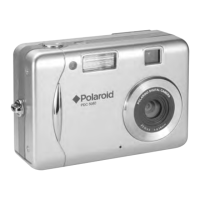
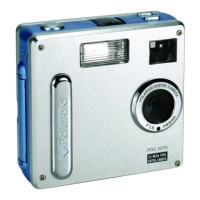
Polaroid PDC 5070 - User Manual

Polaroid PDC 5070
83 pages
Print Icon
To Next Page IconTo Next Page
Loading...
PDC 5070
Digital Camera
User Guide
www.polaroid-digital.com
PDC 5070
USB
F
3
.
0
/
8
.
0
f
=
8
.
5
4
m
m

Table of Contents

Questions and Answers

  • B
    Bobby SanchezAug 19, 2025
    What to do if Polaroid Digital Camera shutter button not working?
    • S
      Stanley TaylorAug 19, 2025
      If you press the shutter button and the camera doesn't respond, it could be that the camera is currently processing data; wait for it to complete. Alternatively, your internal memory or SD card might be full. Try deleting some images from either the internal memory or the SD card.
  • C
    cserranoAug 21, 2025
    What to do if Polaroid PDC 5070 buttons are not responding?
    • N
      Natasha NelsonAug 21, 2025
      If the camera isn't responding when you press any buttons, the LCD screen might be frozen, or the camera might be hung. Try removing and reinstalling the battery or batteries to reset the camera. Your stored data will not be lost.
  • D
    Dale AndrewsAug 23, 2025
    Why won't my Polaroid PDC 5070 turn on after inserting an SD card?
    • M
      Mary ScottAug 23, 2025
      If you cannot switch on your camera after inserting an SD card, make sure the SD card is fully inserted and that the card slot door is properly closed.
  • R
    Ryan TapiaAug 26, 2025
    Why is my Polaroid PDC 5070 Digital Camera not recognizing my memory card?
    • A
      angela83Aug 26, 2025
      Some memory cards might not meet international standards for physical dimensions, causing recognition issues. Try using another brand of memory card with your camera.
  • D
    David PriceAug 28, 2025
    Why does the battery indicator go blank on my Polaroid Digital Camera?
    • R
      Ricky NicholsonAug 28, 2025
      If the battery indicator icon on the LCD screen goes blank, it means the batteries have insufficient power. Replace them with new batteries.
  • R
    Robin WilliamsAug 30, 2025
    How to fix error when installing Polaroid PDC 5070 driver?
    • M
      Mrs. Alexandra Rodriguez DVMAug 30, 2025
      If you receive an error message when installing the camera driver, first shut down all other applications and try reinstalling the driver. You can also check the USB controller in your BIOS to ensure they are activated.
  • J
    Joshua DavidsonSep 1, 2025
    Why can't I upload images from my Polaroid Digital Camera's internal memory?
    • K
      Kari PooleSep 1, 2025
      If you cannot upload images from the internal memory, it may be because an SD card is inserted. The memory card takes priority over the internal memory for image storage, transfer, or deletion.
  • M
    martinezbrianSep 3, 2025
    Why are my Polaroid PDC 5070 images blurred after uploading?
    • R
      Regina TaylorSep 4, 2025
      If you're getting blurred images, there might be a slight delay between pressing the shutter button and the actual exposure. Hold your camera steadily until you hear a “beep,” which indicates the exposure is complete.
  • C
    Cynthia TaylorSep 6, 2025
    Why are my Polaroid Digital Camera images grainy?
    • V
      vangscottSep 6, 2025
      If your image quality is grainy, you may have selected the wrong camera frequency setting. Try using a different frequency setting: PAL for 50 Hz or NTSC for 60 Hz.
  • P
    Phyllis AllenSep 8, 2025
    What to do if Polaroid Digital Camera driver won't run?
    • J
      James FrostSep 9, 2025
      If you can't run the camera driver, it might conflict with another camera driver or capture device. If you have any other camera installed, remove that camera and its driver completely from your system.

Summary

Product Overview

Getting Started

Camera Package Contents

Lists all items included in the camera package, such as the camera, cables, and accessories.

Attaching the Hand Strap

Instructions on how to securely attach the hand strap to the camera for carrying and security.

Installing the Batteries

Step-by-step guide on how to properly insert AAA batteries into the camera's battery compartment.

Turning the Camera On and Off

Explains the procedure to power the camera on and off using the power button and observing the status LED.

Checking the Battery Level

Details how to check the current battery power status displayed on the camera's LCD screen.

How to Navigate Menus

Describes how to move through the camera's menu options using various buttons to adjust settings.

Camera Setting

Checking Camera Status

Details how to interpret icons and indicators on the LCD screen to understand active camera settings.

Video Mode Status

Illustrates the LCD display indicators specific to the Video Mode, including resolution and recording time.

Playback Mode Status

Shows the LCD display information for pictures and video clips in Playback mode, including file details and time.

Camera Modes

Describes the two main camera modes: Capture Mode for taking pictures/videos and Playback Mode for reviewing files.

Drive Mode

Explains how to switch between Still Image Mode and Video Mode for capturing different types of media.

Setup Menu Navigation

Guides users on how to access and navigate the camera's Setup Menu to change various settings.

Formatting Internal Memory

Provides steps to erase all data from the camera's internal memory, including important precautions.

Setting Date and Time

Details how to set the camera's current date, time, and preferred date format for accurate file stamping.

Auto Power Save Settings

Explains how to configure automatic power-off timers to conserve battery life when the camera is idle.

Setting Beep Sound

Guides users on how to enable or disable the audible beep sound when pressing camera buttons.

Setting Display Frequency

Explains how to set the camera's frequency to match local lighting conditions for better indoor picture quality.

Setting Display Language

Allows users to select their preferred language for the camera's LCD screen interface.

Setting Date Stamp

Instructions on how to enable or disable the date imprint feature on captured pictures and video clips.

Resetting to Default Settings

Details how to restore all camera settings to their original factory defaults.

Taking Pictures

Taking a Picture

Step-by-step instructions on how to compose and capture a photograph using the camera's shutter button.

Setting Flash Mode

Explains the different flash modes (off, auto, red-eye reduction, on) and their optimal usage scenarios.

Setting Self-timer

Guides users on how to use the 10-second self-timer function for group shots or delayed captures.

Zoom Functionality

Explains how to use the 4X digital zoom feature to enlarge and photograph specific parts of a scene.

Setting Image Size and Quality

Covers how to select image resolution and JPEG compression quality for optimal storage and print results.

Setting Exposure Compensation

Describes how to adjust exposure compensation (EV) to achieve better results in various lighting conditions.

Setting White Balance for Pictures

Explains how to select the appropriate white balance setting for natural color reproduction under different lighting.

Recording Video Clips

Recording Video Clips

Step-by-step guide to start and stop video recording, including notes on recording indicators.

Setting Video Resolution

Explains how to choose video clip resolution (e.g., 640x480) to balance quality and file size.

Setting White Balance for Video Clips

Guides on selecting white balance settings for video clips to ensure accurate color rendition in various lighting.

Reviewing and Managing Files

Reviewing Pictures on the LCD Screen

Instructions on how to browse and magnify individual pictures displayed on the camera's LCD screen.

Thumbnail File Review

Explains how to view multiple picture and video files simultaneously in a thumbnail format for easier selection.

Auto Play Function

Details how to activate the Auto Play feature to automatically display stored pictures and video clips in sequence.

Playing Video Clips

Instructions on how to select and play video clips stored on the camera using the shutter button.

Protecting Single Files

Guides on how to lock individual pictures or video clips to prevent accidental deletion.

Protecting All Files

Explains how to apply or remove protection to all stored pictures and video clips simultaneously.

Deleting Single Files

Provides steps to delete individual pictures or video clips from the camera's memory.

Deleting All Files

Guides on how to erase all pictures and video clips from the camera's memory at once.

Print Settings

About PictBridge

Introduces PictBridge, a standard for direct camera-to-printer image printing without a computer.

Selecting PictBridge Mode

Explains how to set the camera to PictBridge mode for direct printing operations.

Camera and Printer Connection

Details the process of physically connecting the camera to a printer using a USB cable.

Selecting Print Options

Describes the choices for printing: single image, all images, or index print.

Specifying Print Settings

Covers settings like the number of copies and print layout for the selected images.

Print File and Paper Settings

Details options for file name and date stamp inclusion, and paper size selection.

Selecting Print Effect and DPOF

Explains print effects like borderless/bordered and introduces DPOF for batch printing orders.

Using the SD Card

Using the SD card

Details the camera's ability to use SD cards for memory expansion and how it automatically saves files.

Inserting an SD Card

Provides detailed steps and important notes on correctly inserting an SD card into the camera's slot.

Removing the SD Card

Outlines the procedure for safely removing an SD card from the camera, including crucial warnings.

Formatting the SD Card

Guides users on how to format an SD card for use with the camera, emphasizing data loss warnings.

Copying Files to Memory Card

Explains how to transfer pictures and video clips from the camera's internal memory to an inserted SD card.

Software Installation

Installing the Software

Details the steps for installing camera drivers and bundled software on Windows operating systems.

Macintosh Software Installation

Offers instructions for installing the camera software on Macintosh computers.

Included Software Details

Describes the functions of the PDC 5070 Camera Driver, ArcSoft PhotoImpression, and Adobe Acrobat Reader.

Computer System Requirements

Lists the minimum hardware and software specifications required for PC and Macintosh computers.

Transferring Files to Computer

Before You Transfer Files

Emphasizes the importance of installing the necessary software before connecting the camera to a computer.

Connecting Camera to Computer

Details the process of connecting the camera to a computer via USB cable for file transfer.

Transferring Files

Provides step-by-step instructions for transferring files from the camera to Windows or Macintosh computers.

PhotoImpression 5.0 Hot Plug

Explains the automatic detection and file copying function of PhotoImpression 5.0 when the camera is connected.

Troubleshooting Problems

Common Troubleshooting Issues

Addresses problems like error messages during driver installation and file upload failures.

Camera and Media Troubleshooting

Provides solutions for issues such as camera not switching on, shutter button unresponsiveness, and image quality.

Playback and Printing Troubleshooting

Offers solutions for problems related to AVI file playback, camera detection, and printing errors.

Getting Help and Support

Appendix

Technical Specifications

Lists detailed technical specifications of the camera, including sensor, lens, LCD, and flash capabilities.

Camera Specifications Details

Further details on shutter speed, storage, file formats, power supply, dimensions, and operating systems.

Storage Capacities

Presents charts showing approximate numbers of pictures and video clip lengths based on memory capacity and resolution.

Recordable Video Length

Provides a table indicating the recordable video clip length in minutes for various resolutions and memory card sizes.

Uninstalling Camera Driver

Step-by-step guide for removing the camera driver software from a PC.

Camera Default Settings

Lists the default settings for various camera modes like Still Image, Video, and Setup.

Using Your Batteries

Offers recommendations for battery usage, performance optimization, and important safety warnings.

Safety and Maintenance Tips

Covers safe operating conditions, cleaning instructions, and general maintenance advice for the camera.

Regulatory Information

Presents FCC compliance notices and warnings related to radio frequency interference.

Polaroid PDC 5070 Specifications

General IconGeneral
Camera typeCompact
Max resolution2560 x 1920
Effective pixels5 megapixels
Optical zoom3x
Digital zoom4x
ISOAuto, 100, 200, 400
Storage typesSD/MMC
Battery Type2x AA batteries
Focal length (equiv.)38 - 114 mm
Aperturef/2.8 - f/4.8

Related product manuals