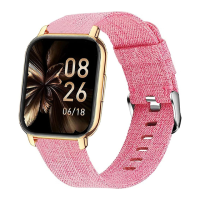
The Popglory P22 Smart Watch is a versatile wearable device designed to help users monitor their health, track fitness activities, and receive notifications, all while offering convenient control over various phone functions. This user manual provides a comprehensive guide to its appearance, charging, functions, app installation, connection, and troubleshooting.
Appearance and Basic Operation
The P22 Smart Watch features a full touch screen, allowing users to interact with the displayed information through touch gestures. On the side, there's a button that, when pressed and held for three seconds, powers the device on or off. The back of the watch includes charging contacts and a green light sensor, which is typically used for health monitoring features like heart rate and blood oxygen measurement.
Charging the Device
To charge the P22 Smart Watch, users should place the magnetic charging cable (included) and a USB adapter on a flat surface in a well-ventilated area. The magnetic charging cable should then be placed on the back of the P22 Watch, ensuring the charging contacts correctly attach by magnetic force. Once attached, the cable is connected to a power adapter, which is then plugged into a power outlet. This magnetic connection ensures easy and secure charging.
Functions Introduction
The P22 Smart Watch offers a wide array of functions accessible through its touch screen:
- Home Screen: The default display shows essential information such as the date, time, steps taken, and calories burned.
- Exercise Data: By tapping the "EXERCISE" icon, users can choose from various physical training modes. During an exercise session, the watch displays exercise time, heart rate, and calories burned. Users can end or pause the current exercise mode by tapping the two icons in the upper right corner of the screen.
- Heart Rate Monitoring: Tapping the "HR" icon initiates a measurement of the current heart rate. More detailed heart rate data and trends can be viewed within the companion app, HeroBandⅢ.
- Blood Oxygen Monitoring: The "SpO2" icon allows users to measure their current blood oxygen level. Similar to heart rate, more extensive blood oxygen data is available in the HeroBandⅢ app.
- Steps Tracking: This function records the current steps taken, calories burned, exercise time, and distance covered throughout the day.
- Sleep Data Tracking: When worn during sleep, the P22 Watch tracks sleep patterns. Upon waking, users can tap the "Sleep" icon to see how long they slept and review their sleep trends for the past 7 days within the HeroBandⅢ app.
- Blood Pressure Monitoring: Tapping the "BP" icon starts a measurement of current blood pressure. More detailed blood pressure data can be accessed in the HeroBandⅢ app.
- Multiple Sport Modes: The "EXERCISE" icon provides access to 7 supported sport modes, including walking, running, cycling, skipping, badminton, basketball, and football. In each mode, the watch records exercise time, heart rate, and calories.
- Weather Conditions: This feature displays the current temperature and weather conditions, along with tomorrow's forecast. To use this function, the watch must be connected to the app, and the phone's GPS must be enabled, granting the app permission to obtain the phone's location.
- Remote Camera Control: After connecting the watch to the phone via the HeroBandⅢ app, users can tap "SHUTTER" in the app. Then, they can take a photo by clicking the "camera" icon on the watch screen or by shaking the watch.
- Settings: Tapping "Settings" on the screen allows users to adjust screen brightness, set silent mode, customize the watch face, reset the device, or power it off.
- Message Notifications: The watch can display notifications for text messages, calls, and various apps like Facebook, WhatsApp, and Twitter. This function requires the watch to be connected to the app, and the "NOTIFICATIONS" push function must be enabled in the HeroBandⅢ app.
- Music Control: When paired with a phone, the watch can play or pause music. Users must open the phone's music player before using this feature.
- Timer/Stopwatch: Tapping "Timer" on the screen activates the stopwatch function. Swiping left exits this function.
App Installation and Connection
The P22 Smart Watch uses the HeroBandⅢ app. Users can download the app by scanning the provided QR code with their phone. iPhone users can also find HeroBandⅢ in the App Store.
To connect the watch:
- Open the HeroBandⅢ app and set up personal information.
- Navigate to the "[device]" page within the app and click "[bind device]".
- Select "[P22]" from the list of scanned devices.
- Once selected, the binding process will be completed.
It is crucial to note that the phone's Bluetooth must remain on during connection, and no other devices should be directly paired with the phone's Bluetooth. The watch should be bound through the app, not directly via the phone's Bluetooth settings.
App Instructions
- Data Synchronization: After entering the app, users can pull down on the main page to update and synchronize the latest data from the watch.
- Viewing Historical Data: Clicking on functional modules like steps, sleep, exercise, heart rate, and blood pressure allows users to view current or recent data.
- In-App Measurements: Users can also initiate heart rate and blood pressure measurements directly within the app. All test data is automatically saved.
Maintenance and Troubleshooting (FAQS)
- Charging: Always use the matching charging cable provided.
- Medical Disclaimer: This product is an electronic monitoring device and should not be used for medical treatment. The data provided is for reference only.
- Water Resistance: Do not wear the device when bathing or swimming.
Common Questions and Solutions:
-
Connecting to Mobile Phone:
- Download HeroBandⅢ (scan the QR code in the manual).
- Turn on your phone's Bluetooth.
- Do not connect the device directly via Bluetooth. Instead, keep Bluetooth on and bind the watch within the HeroBandⅢ app. Direct connection in the Bluetooth list is not supported.
- Allow all notifications when prompted by the app. The app will automatically search for the device when opened for the first time. Keep the fitness tracker close to your phone. Select your device in the app and confirm.
- Pull down the homepage in the app to synchronize data.
-
Inaccurate Measurement Results:
- Correct Wearing: Ensure the watch fits snugly against the wrist skin, and keep the arm still during measurement.
- Pre-Measurement Wait Time: For accurate blood pressure readings, it is recommended to wear the watch for 3-5 minutes before measuring.
- Personal Information: Fill in personal physical information correctly in the app, as this improves the accuracy of the step counting function.
-
Changing the Time: The watch's time automatically synchronizes with the phone's time.
- Set the time on your phone.
- Connect the watch with the app.
- Go to the "Homepage" in the app and pull down to sync the data. The watch will then display the correct time.
-
Not Receiving Message Notifications:
- Connect the watch with the app and navigate to "Watch" → "Notification".
- Select the specific programs from which you want to receive messages (e.g., turn on "Facebook" and allow notifications). Then, go to the "Homepage" and pull down the screen to sync the data.
- Confirm that messages from the desired apps are displayed normally in your phone's notification bar. The watch reads messages from the phone's notification bar; if no notification appears on the phone, the watch will not receive it.
-
Music Control, Weather, and Camera Issues:
- Ensure the watch is correctly connected to the phone.
- Allow the app to start automatically and run in the background. If the phone automatically clears background programs, these functions may become unavailable, and notifications may not be received.
For further assistance, users can contact Popglory via e-mail at info@Popglory.top or visit their official website at www.Popglory.top. The device is Made in China and complies with FC, CE, and RoHS standards.

 Need help?
 General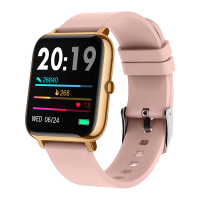

 To Next Page