Farther.Faster.Clearer
Photos and video saving feature
!
Attention: Please make sure that your mobile device supports 5G WIFI before linking
“Potensic-M2” to your device.
1. If the camera is without TF card, videos and photos will be saved at the APP.
2. If the camera is with TF card, videos and photos will be saved at the TF card.
3. Videos and photos in the TF card can be downloaded to the APP.
Real-time image quality and FPV distance depend on your
smart phone and flight environment. To obtain the best live
view, please choose a wide open area to fly in. As tested, the
drone could transmit 2K videos up to 800 meters (0.6 mile) in
an environment with no interference.
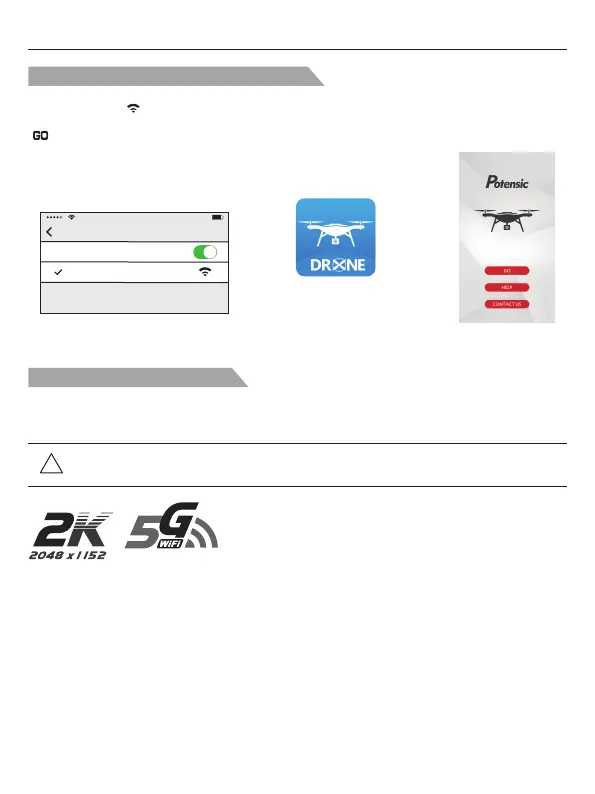
How to link the "Potensic-M2" to the camera
Power on the aircraft, then enter phone setting option. Turn on WiFi, find “drone *** ”on the list and
connect it. When “ ” legend is shown, it means WiFi connection is successful. Exit settings and tap
“Potensic-M2” APP at your mobile device, then select your aircraft model on the home page; click
“ ” to enter into the real-time image transmission interface.
Potenstic D88 User Manual
Setting
Wi-Fi
drone****
Potensic-M2
Tap “Potensic-M2” App
GO
Click “ ”
Connect WIFI
-22-


 To Next Page