4
EN
BOX CONTENTS
• Controller
• 10 ft. / 3 m USB-C
®
to USB-A Cable
• 2.4 GHz USB Wireless Adapter
• User Manual
• USB Charging Dock
CHARGING CONTROLLER VIA USB
For best results, fully charge controller prior to rst use.
1. Connect the included USB-C cable to the USB-C port at the top
of the controller, and connect the other end to any powered USB
source.
2. When charging, the Battery Status LED will ash AMBER.
3. When fully charged the LED will be solid GREEN.
4. LED will ash RED when battery is low.
CHARGING CONTROLLER VIA CHARGING BASE
1. Connect the included USB-C cable to the USB-C port at the back
of the charging dock, and connect the other end to any powered
USB source.
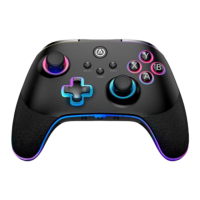
2. Place the PowerA OPS v3 Pro Wireless Controller for PC & Cloud
Gaming on the charging dock.
3. The LED lights on the front of the charging base will illuminate if
placed correctly.
4. Flashing AMBER LEDs mean the controller is charging.
5. Solid GREEN LEDs mean the controller is fully charged.
WIRELESS MODE: 2.4 GHZ
1. Insert wireless adapter into open PC USB port.
2. Select “RF” on the mode switch on bottom of
controller.
3. If controller is o, press the Home button (icon) to turn on (LED will
illuminate WHITE).
4. Press and hold the SYNC button on top of the controller for 3
seconds to enter pairing mode (LED will ash WHITE rapidly).
5. Enter the Settings menu on your device and choose the PC Wire-
less controller. The LED will turn solid WHITE when connected.
NOTE: You can also insert the Wireless Adapter into the USB port of
the
Charging Base when the Charging Base is connected to PC via
USB-C cable.
WIRELESS MODE: BLUETOOTH
1. Select “BT” on the mode switch on bottom
of controller.
2. If controller is o, press the Home button to turn on
(LED will illuminate BLUE).
3. Press and hold the SYNC button on top of the controller for
3 seconds to enter pairing mode (LED will ash BLUE rapidly).
4. Enter the Bluetooth settings on your device.
5. Select “PowerA OPS v3 Pro Wireless Controller for PC & Cloud
Gaming”. LED will turn solid BLUE when connected.
NOTE: A previously paired device will automatically pair to the
controller when powered on.
WIRED MODE USB
1. Select “USB” on the mode switch on bottom
of controller.
2. Using the included USB-C Cable, connect to the USB-C port at
the top of the controller and connect the other end to an available
USB port on the PC.
3. If controller is o, press the Home button to turn on (LED will
illuminate GREEN).
SWITCHING MODES - XINPUT AND DIRECT INPUT
(2.4 RF / USB WIRED MODE ONLY)
1. Press and hold the SELECT and START buttons simultaneously
for 3 seconds.
2. LED indicator will ash 3 times to indicate MODE has been
changed.
3. To change modes again, press and hold SELECT and START
buttons again for 3 seconds until LED ashes 3 times.
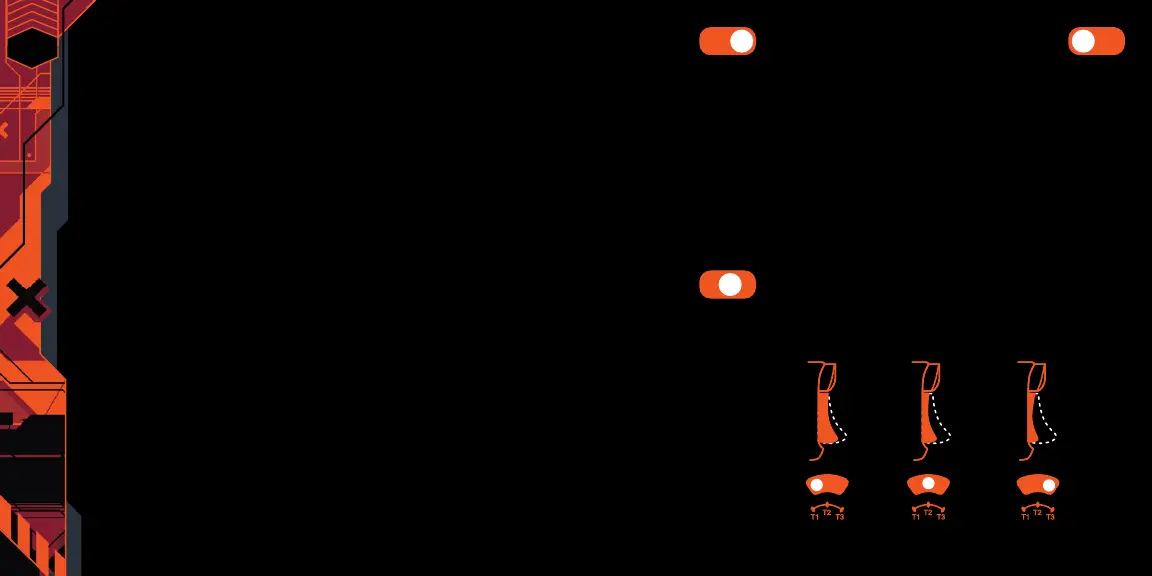
TRIGGER LOCK ADJUSTMENT
USB BT RF
USB BT RF
USB BT RF





 To Next Page