EasyManua.ls Logo

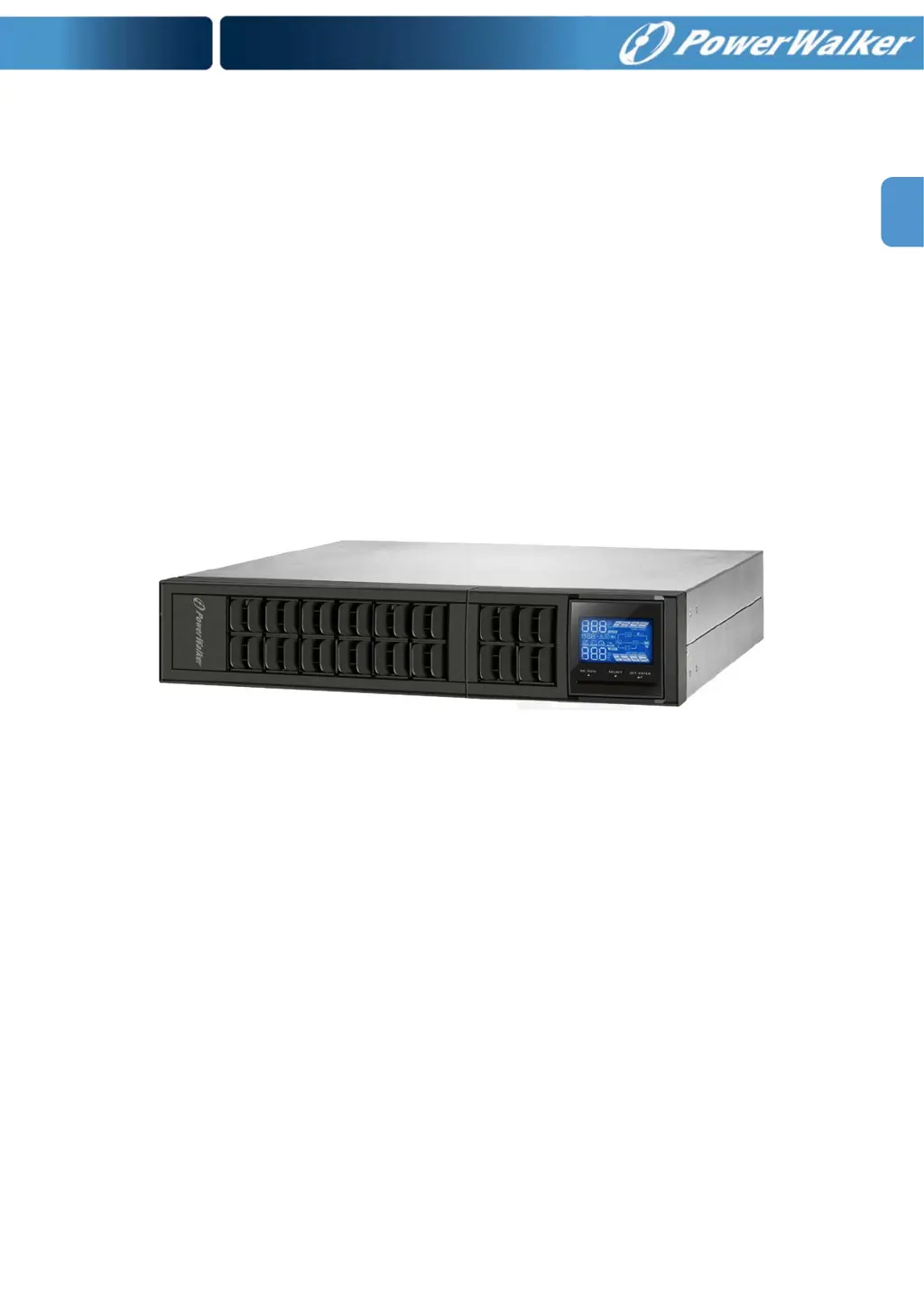
PowerWalker VFI 2000 CRM LCD - User Manual

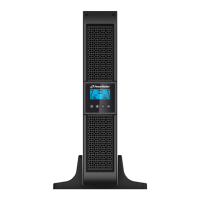
PowerWalker VFI 2000 CRM LCD
70 pages
Print Icon
To Next Page IconTo Next Page
Loading...
EN
Online UPS
PowerWalker VFI 1000CRM LCD
PowerWalker VFI 2000CRM LCD
PowerWalker VFI 3000CRM LCD
Manual
Uninterruptible Power Supply System
EN, DE, PL, RU

Questions and Answers

  • T
    theresa59Aug 6, 2025
    What to do if the icon is flashing and alarm sounds twice per second on my PowerWalker UPS?
    • J
      Janice BrownAug 6, 2025
      If the icon is flashing on the LCD display and the alarm is sounding twice every second on your PowerWalker UPS, it indicates an overload. Remove some of the connected devices from the UPS output to reduce the load. If the UPS is locked in Bypass mode after repetitive overloads, remove excess loads, then shut down the UPS and restart it.
  • M
    Michelle HallAug 11, 2025
    What to do if fault code 43 appears on my PowerWalker UPS?
    • A
      Andrew LeeAug 12, 2025
      If fault code 43 is displayed, the icon is lit, and the alarm is continuously sounding on your PowerWalker UPS, it means the UPS shut down automatically due to an overload at the output. To resolve this, remove some of the connected devices from the UPS output to reduce the load and then restart the UPS.
  • G
    gregory19Aug 18, 2025
    What does fault code 14 mean on my PowerWalker UPS?
    • M
      Michael FowlerAug 18, 2025
      If fault code 14 is displayed, the icon is lit, and the alarm is continuously sounding on your PowerWalker UPS, it indicates that the UPS shut down automatically because a short circuit occurred at the UPS output. Check the output wiring and the connected devices to see if any are causing a short circuit.
  • B
    Benjamin HillAug 25, 2025
    Why is the icon flashing and the alarm sounding every second on my PowerWalker VFI 2000 CRM LCD UPS?
    • L
      Lisa WilliamsAug 25, 2025
      If the icon is flashing on the LCD display and the alarm is sounding every second on your PowerWalker UPS, it indicates that the external or internal battery is incorrectly connected. Check to ensure that all batteries are properly connected.
  • A
    Austin MitchellAug 30, 2025
    Why does my PowerWalker VFI 2000 CRM LCD have no indication or alarm when the power is on?
    • R
      Rita CunninghamAug 30, 2025
      If your PowerWalker UPS has no indication and alarm even when the mains is normal, it could be due to a couple of reasons: either the AC input power is not connected well, so check if the input power cord is firmly connected to the mains; or the AC input is connected to the UPS output, in which case you should plug the AC input power cord to the AC input correctly.

Summary

Important Safety Warnings

Transportation Safety

Transport the UPS system in original package to protect against shock and impact.

Preparation and Environment

Allow UPS to acclimate, avoid moist areas, direct sunlight, and block ventilation.

Installation Precautions

Connect to earthed outlet, use VDE/CE-marked cables, do not overload outputs.

Safe Operation Guidelines

Avoid disconnecting mains during operation; UPS output may be live; disconnect properly.

Maintenance and Service Safety

Handle hazardous voltages with care, disconnect batteries before service, use insulated tools.

Installation and Setup Guide

Rear Panel Overview

Diagrams illustrating rear panel connections for various PowerWalker VFI models.

UPS Setup Procedure

Detailed steps for connecting external batteries, power input/output, and communication ports.

Power On and Software Installation

Instructions for turning on the UPS and installing the monitoring software.

Operations and Controls

Button Functions

Details the functions of the ON/Mute, OFF/Enter, and Select buttons for UPS control.

LCD Panel Display

Explains the various displays, icons, and indicators on the UPS LCD panel.

Audible Alarms

Details the buzzer sounds and their meanings for different UPS states and alerts.

LCD Display Index

Index of abbreviations and their corresponding meanings displayed on the UPS LCD screen.

UPS Parameter Settings

Instructions for configuring output voltage, frequency, ECO mode, bypass, and autonomy settings.

Operating Mode Descriptions

Explanation of Online, ECO, Frequency Converter, Battery, Bypass, and Standby modes and their LCD displays.

Faults and Troubleshooting

Fault Reference Codes

Table listing fault codes, icons, and corresponding fault events for troubleshooting.

Warning Indicators Guide

Guide to warning icons, their flashing patterns, and associated alarms for status monitoring.

Symptom-Cause-Remedy Table

Table to diagnose and solve UPS operational problems based on symptoms and causes.

Storage and Maintenance

Operation and Battery Replacement

Note on user-serviceable parts and battery replacement procedure with dealer contact.

Storage Guidelines

Recommendations for storing the UPS, including charging and temperature conditions.

Technical Specifications

Input and Output Parameters

Details input voltage ranges, output voltage, AC voltage regulation, and frequency.

Performance and Efficiency

Specifications on overload handling, transfer time, waveform, and efficiency ratings.

Physical and Environmental Details

Information on UPS dimensions, weight, operating humidity, and noise level.

Management Features

Details on communication ports (RS-232/USB) and optional SNMP management.

PowerWalker VFI 2000 CRM LCD Specifications

General IconGeneral
Capacity1600 W
Input Frequency50 / 60 Hz
Output Voltage Tolerance± 5%
Output Frequency50 / 60 Hz
WaveformSine wave
Waveform TypePure Sine Wave
Transfer Time0 ms
Battery Capacity9 Ah
Number of Batteries2
Battery Voltage12 V
DisplayLCD
Form FactorTower
Power Rating2000 VA
Input Voltage230 V
Battery TypeSealed Lead-Acid (SLA)
CommunicationUSB, RS-232

Related product manuals