EasyManua.ls Logo

PowerWalker VFI 1000RT - User Manual

PowerWalker VFI 1000RT
44 pages
Print Icon
To Next Page IconTo Next Page
Loading...
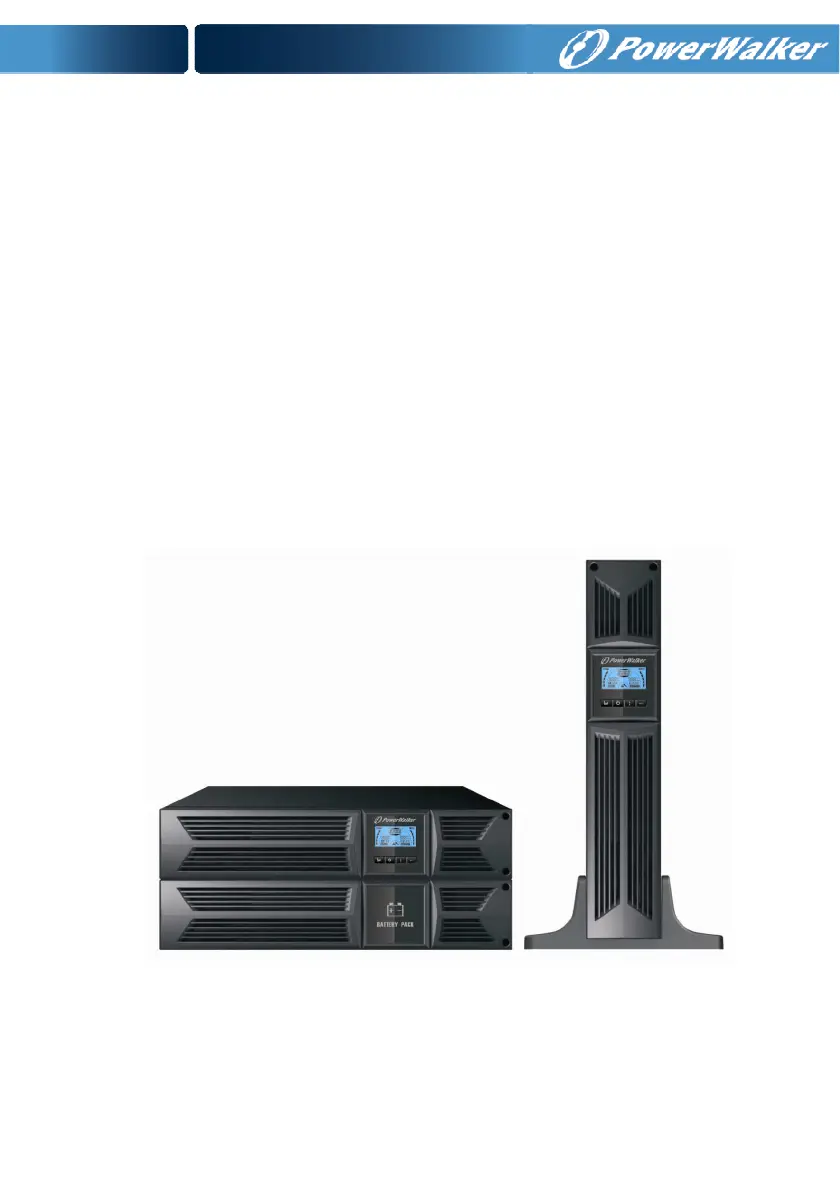
USER MANUAL
On-Line UPS
1000VA/1500VA/2000VA/3000VA
Uninterruptible Power Supply System

Questions and Answers

  • J
    Jamie KingAug 16, 2025
    What does Battery over voltage mean on PowerWalker UPS?
    • K
      Kenneth ElliottAug 16, 2025
      If your PowerWalker UPS indicates battery over voltage, it means the battery is overcharged. The charging will stop automatically, and after the battery voltage returns to normal and the mains power is stable, charging will resume automatically.
  • A
    amber44Aug 19, 2025
    What to do if PowerWalker UPS shows Battery open?
    • M
      Marissa JonesAug 19, 2025
      If the PowerWalker UPS indicates a battery open issue, check that the battery bank is properly connected to the UPS and that the battery breaker is turned on.
  • R
    Ronald SmithAug 22, 2025
    What does Battery low mean on PowerWalker UPS?
    • A
      Anthony Anthony Jr.Aug 22, 2025
      If the PowerWalker UPS indicates 'Battery low' and an audible alarm sounds every second, it means the battery is almost empty.
  • A
    Andrew MccormickAug 25, 2025
    What to do if PowerWalker UPS shows 'bATT' and beeps?
    • S
      Shawn WilliamsAug 25, 2025
      If the PowerWalker UPS displays 'bATT' on the LCD and beeps every 4 seconds, it means the mains power has failed or the input power/frequency is out of the acceptable range. The system has automatically switched to battery mode. Check the input power source. If the issue persists, contact your dealer.
  • T
    Thomas ShawAug 27, 2025
    How to fix Overload on PowerWalker UPS?
    • M
      Micheal RichardAug 27, 2025
      If your PowerWalker UPS indicates an overload, examine the connected devices and disconnect any non-essential ones. Also, verify if any of the connected devices have malfunctioned.
  • P
    pamelahowellAug 30, 2025
    How to fix high Inverter temperature on PowerWalker UPS?
    • F
      fleeAug 30, 2025
      If your PowerWalker UPS is experiencing high inverter temperature, ensure proper ventilation around the UPS and check the ambient temperature of the room.
  • D
    Donald ChandlerSep 1, 2025
    Why is the PowerWalker UPS emergency supply period shorter than expected?
    • X
      xturnerSep 2, 2025
      If the emergency supply period of your PowerWalker UPS is shorter than expected, the batteries may not be fully charged or may be defective. Charge the batteries for at least 5-8 hours and then check their capacity. If the issue continues, consult your dealer.
  • C
    Christy MartinezSep 4, 2025
    How to turn on PowerWalker UPS when it shows STbY?
    • S
      Shannon RoseSep 4, 2025
      If your PowerWalker UPS displays 'STbY' on the LCD, even when power is available, it means the inverter is not switched on. Press the On-Switch labeled 'I'.
  • C
    Catherine TurnerSep 7, 2025
    How to fix Site fail on PowerWalker UPS?
    • S
      Sheri GrantSep 7, 2025
      If your PowerWalker UPS indicates a site failure, it means the phase and neutral conductors at the input of the UPS system are reversed. Rotate the mains power socket by 180° or correctly connect the UPS system.
  • S
    Sara DuncanSep 10, 2025
    How to disable EPO active on PowerWalker UPS?
    • T
      Travis ConnerSep 12, 2025
      If the PowerWalker UPS indicates EPO is active, turn off the EPO switch.

Summary

Safety and EMC Instructions

Installation

Covers installation procedures, precautions, and setup for the UPS unit.

Operation

Details the operational aspects and precautions for using the UPS system.

Maintenance, Servicing, and Faults

Outlines maintenance, servicing procedures, and troubleshooting common faults.

Transport

Provides guidance on safely transporting the UPS unit.

Storage

Specifies recommended storage conditions and procedures for the UPS.

Standards

Lists the safety and EMC standards the UPS complies with.

Description of Commonly Used Symbols

Introduction

Panel Description

The Display Panel and Buttons

Describes the UPS front panel buttons and their functions.

The LCD Display

Explains the indicators and information shown on the UPS LCD screen.

Connection and Operation

Inspection

Guides on inspecting the UPS packaging and contents for damage.

Connection

Details UPS input and output connections, including wiring and EPO.

Battery Charge

Explains how to fully charge the UPS batteries.

Turn on the UPS

Provides instructions for powering on the UPS system.

Test Function

Describes how to perform battery tests on the UPS.

Turn off the UPS

Details the procedure for safely turning off the UPS.

Audible Alarm Mute Function

Explains how to mute audible alarms on the UPS.

External Battery Operation

Guides on connecting external battery packs for extended backup.

Operating Mode for All Models

Line Mode

Describes the UPS operation when connected to utility power.

Battery Mode

Explains UPS behavior when running on battery power.

Bypass Mode

Details the UPS operation in bypass mode.

NO Output Mode

Explains the UPS state when no output power is supplied.

EPO (Emergency Power Off)

Covers the Emergency Power Off function.

ECO Mode (Economy Mode)

Describes the energy-saving ECO mode of operation.

Converter Mode

Explains the UPS operation in converter mode.

Abnormal Mode

Describes abnormal operating conditions and fault indications.

Setting by LCD Module

Output Voltage and Frequency Settings

How to set output voltage and frequency via the LCD module.

Bypass and Operating Mode Settings

How to configure bypass status and operating modes.

EBM and Load Segment Settings

How to configure external battery modules and load segments.

Trouble Shooting

UPS Warnings and Faults

Lists common warning and fault codes displayed by the UPS.

Problem Resolution Guide

Step-by-step guide to solving common UPS operational issues.

Maintenance

Operation

General operational notes regarding UPS maintenance.

Storage

Guidelines for storing the UPS and its batteries.

Battery Replace

Instructions for replacing the UPS batteries.

Technical Data

Electrical Specifications

Details electrical input, output, and battery specifications.

Environmental Specifications

Outlines operating and storage environmental conditions.

Communication Port

RS-232 and USB Communication Ports

Describes how to connect the UPS to a computer using communication ports.

USB Port

Details the USB port functionality for UPS communication.

Installing a Serial Network Management Card

Instructions for installing an optional network management card.

Dry Contact Port

Explains the functionality of the dry contact ports for alarm and control.

Software Installation

Appendix: Rear Panel

Rear Panel Description (UPS Models)

Details the rear panel layout for various UPS models.

EBM Rear Panel Description

Describes the rear panel of the External Battery Module (EBM).

PowerWalker VFI 1000RT Specifications

General IconGeneral
BrandPowerWalker
ModelVFI 1000RT
CategoryUPS
LanguageEnglish

Related product manuals