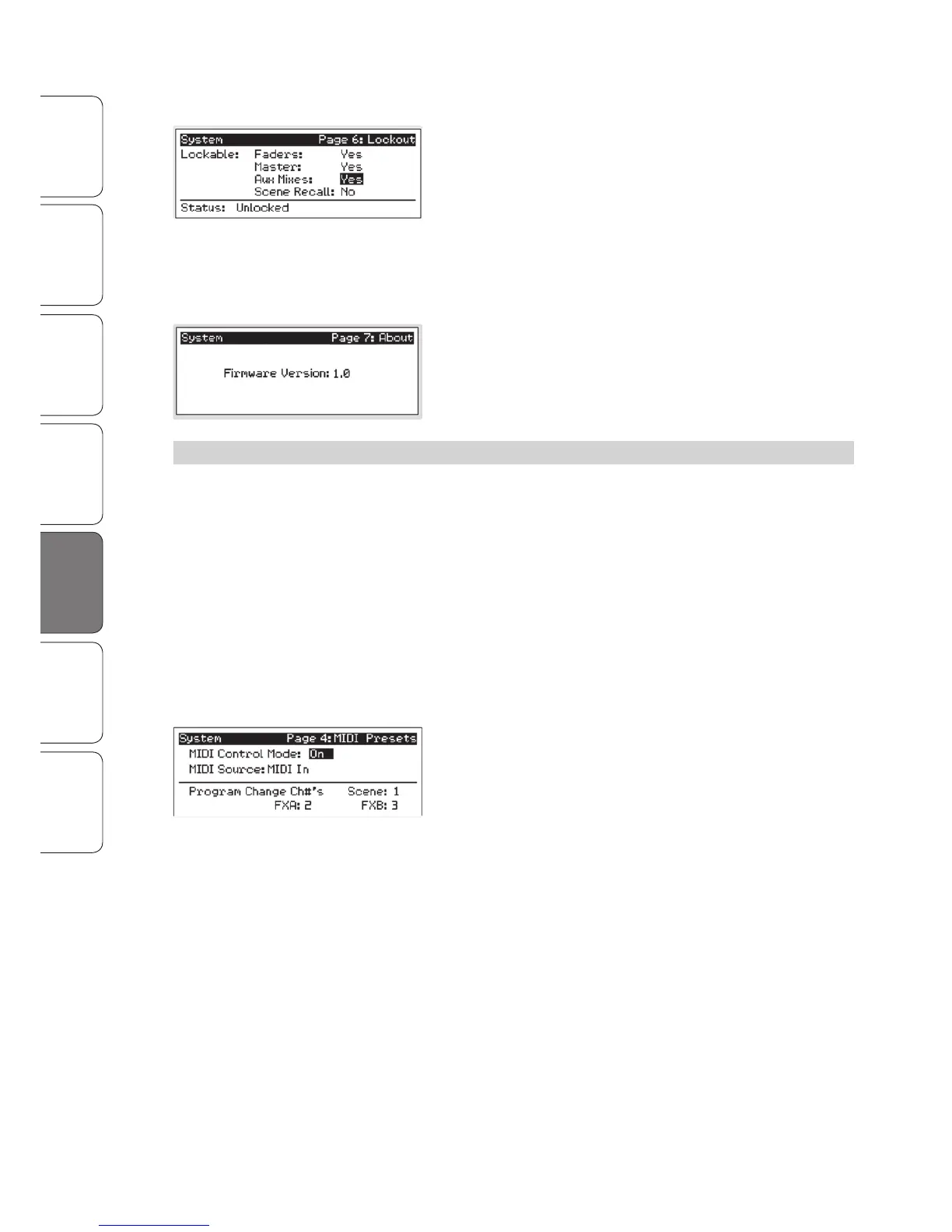
Lockout Mode
Your StudioLive features a Lockout mode that allows you to create a
password and lock the controls. This is especially useful in situations
where several people will be running sound but only one or two are
knowledgeable enough to set up dynamics processing and the like.
Right out of the box, the StudioLive cannot be locked, so
don’t worry about hitting the wrong button. To enable
the Lockout feature, you must first connect and sync your StudioLive to
a computer. Please review Section 3.7.10 in the StudioLive Software
Library Reference Manual for more information on this feature.
Firmware Version
The last page of the System menu displays the firmware version
currently loaded on your StudioLive. You normally will only view this
screen when performing a system update, in order to confirm that the
new firmware was successfully loaded.
5.5 Using MIDI Control Mode to Remote-Control StudioLive
The StudioLive 16.0.2 features a distinctive MIDI Control Mode,
which, once enabled, allows you to remote-control the following
StudioLive parameters from a MIDI device or DAW:
• Scene Recall
• FXA Preset Recall
• FXB Preset Recall
• FXA Assign to Mains
• FXB Assign to Mains
• FXA Output
• FXB Output
• Main Output Level
To enable MIDI Control Mode, navigate to page 4 of the System menu
and set MIDI Control Mode to “On” by turning the value encoder. This
will enable your StudioLive 16.0.2’s MIDI features so that the mixer can
be controlled by any standard MIDI controller.
Your StudioLive can be controlled with an MIDI controller connected to the
MIDI In jack on the back of your StudioLive or with a MIDI stream transmitted
over FireWire from a computer. In this section, we will discuss using a hardware
MIDI controller to change the controllable parameters on your StudioLive.
Once you have enabled MIDI Control Mode, set the MIDI Source to
“MIDI In” and connect your MIDI controller’s MIDI Out jack to the MIDI
In jack on your StudioLive 16.0.2. For information on using Studio One
Artist or another DAW to control your StudioLive, please review Section
7.5.1 in the StudioLive Software Library Reference Manual.











 To Next Page