5
3 Controls
3.1 Control Screen
StudioLive™ Series III
Studio One HUI DAW Addendum
3 Controls
While DAW Mode is active, your channel faders as well as the channel mute,
solo, and select buttons will control your DAW and not your mixer.
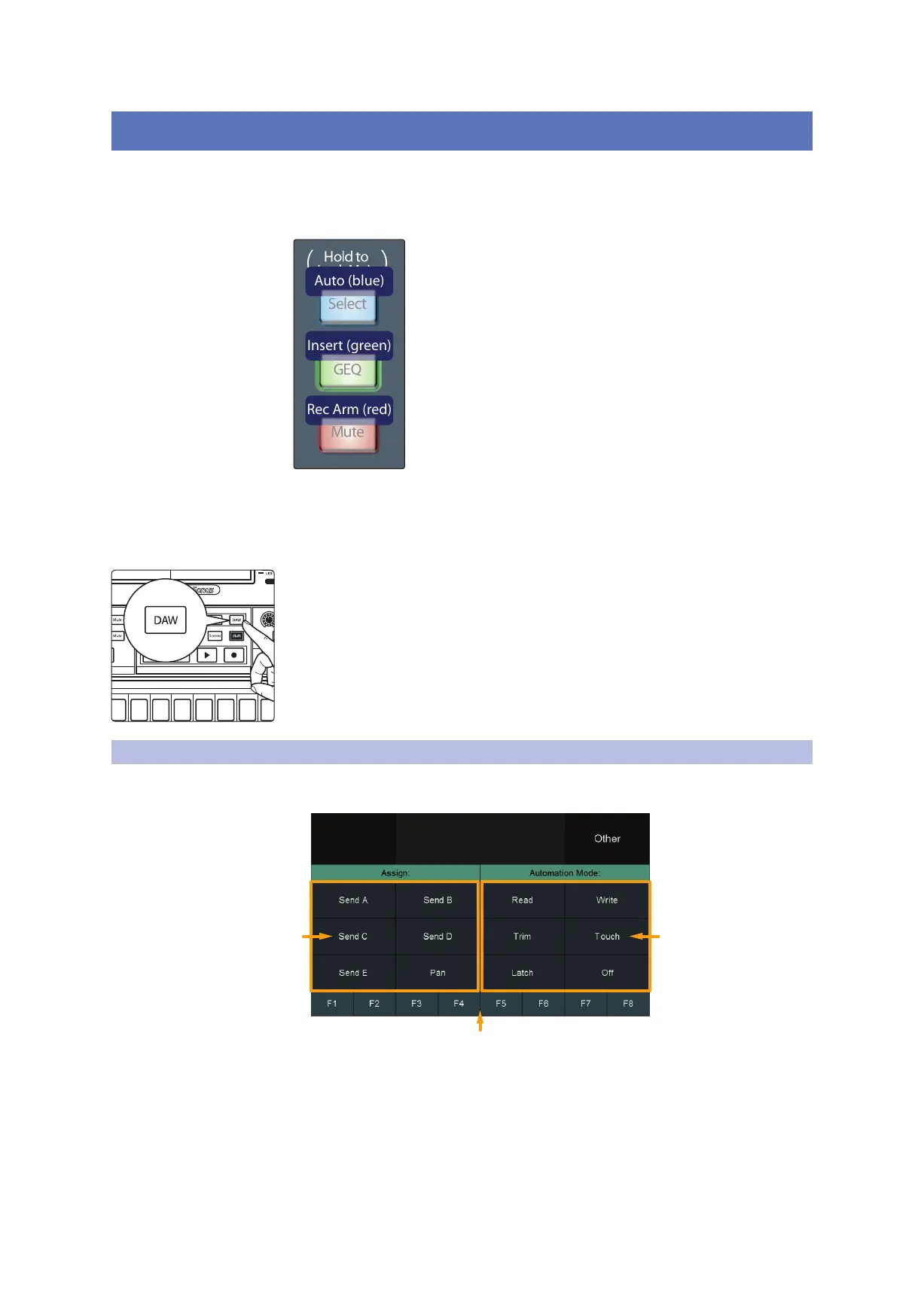
The channel Select buttons can be used for Auto, Insert,
and Record Arm using the following modifiers:
Auto (blue)
Insert (green)
Rec Arm (red)
Your channel Select buttons will change color depending on which mode is enabled.
In addition to channel functions, many other HUI Control functions
are available from the control surface of your StudioLive mixer.
The rest of this section will detail the control mappings.
DAW Mode was designed to be toggled on and off while your Pro Tools session is
active. If, at any time, you want to return your mixer control surface to normal mixing
functions, simply disengage the DAW button. While DAW mode is disabled and your
mixer is networked to your DAW, the Transport will continue to control your DAW if
you enabled Software Control in Section 2.1.2.
3.1 Control Screen
While DAW is active, the following screen will be displayed on your StudioLive
mixer’s touchscreen, giving you quick access to the following controls:
1
1. Assign Modes. Touch each button to change the
function of the Fat Channel encoders.
2. Function Select. Enables the F1-F8 functions.
3. Automation Modes. Enables the corresponding
Automation mode on the currently selected track.
MonitorFX D
FX B
EFFECTS MASTER MASTER CONTROL
Renew Lease
Permissions
Recording Device:
SD Card
Studio One 3.9.9.9.45025 OSX x64
10.0.0.3
PreSonus 225










 To Next Page