6. Playback
Play video on DVR
1. In playback mode, press [ ] and [ ]/[ ] to select your desired video.
2. Press [ ] to open the file, and press it again to start playing.
3. Press [ ]/[ ] to slow down or speed up playing.
4. Press [M] again to exit playback mode.
Trim a video
1. During playing, press [ ] to start or stop video trimming.
2. Press [ ] to confirm and save the trimmed video.
Playback on your TV/Monitor
1. Connect the car DVR to a TV/Monitor with a HDMI cable (not included).
2. Turn on the car DVR. Follow the instructions on the TV screen or refer to your TV user manual.
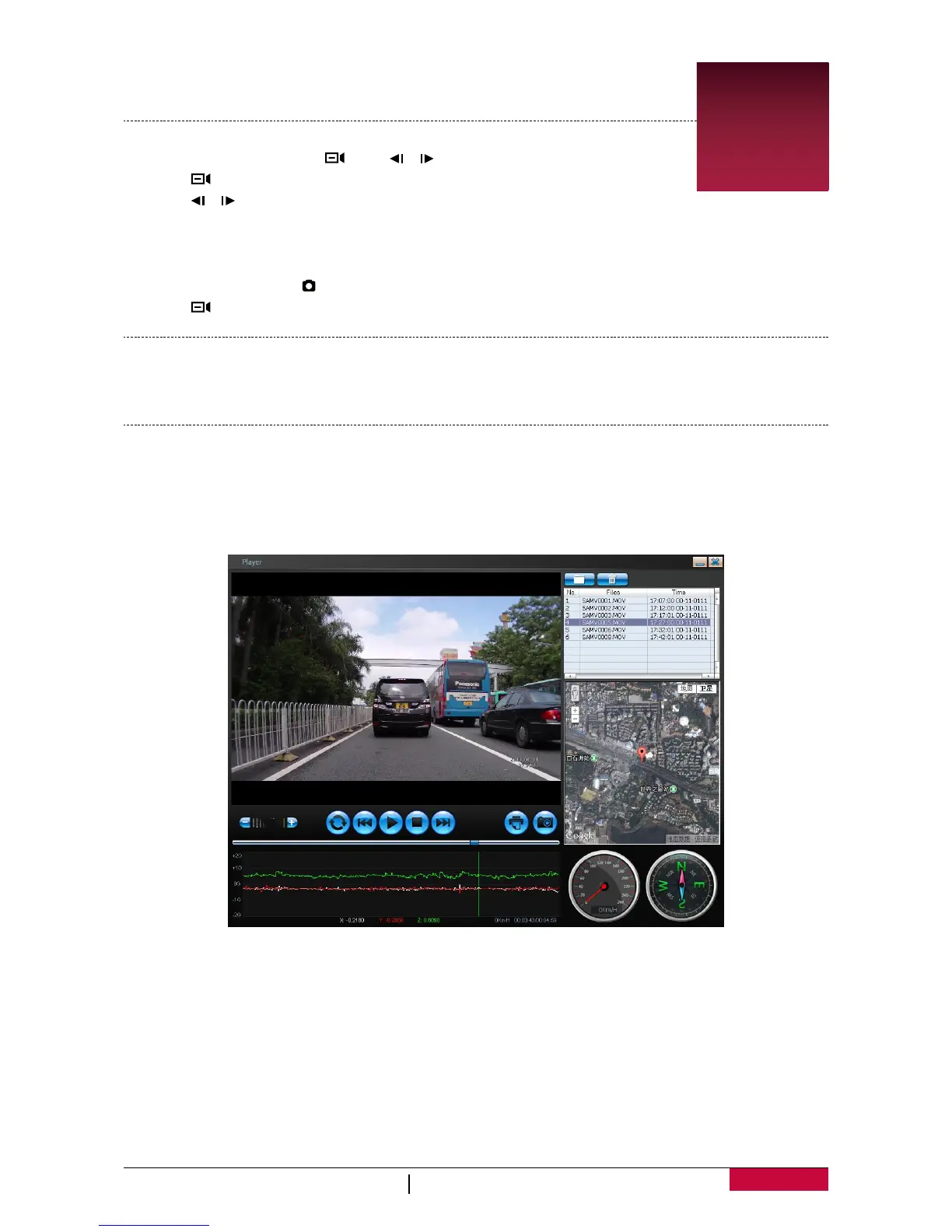
Playback on GPS video player
1. Install the “Player.exe” stored on the CD-ROM included to your PC.
2. Connect the car DVR to the PC by the included mini USB cable.
3. Open the player, select the file and start playback.
4. It will show your video and tracks.
6


 To Next Page