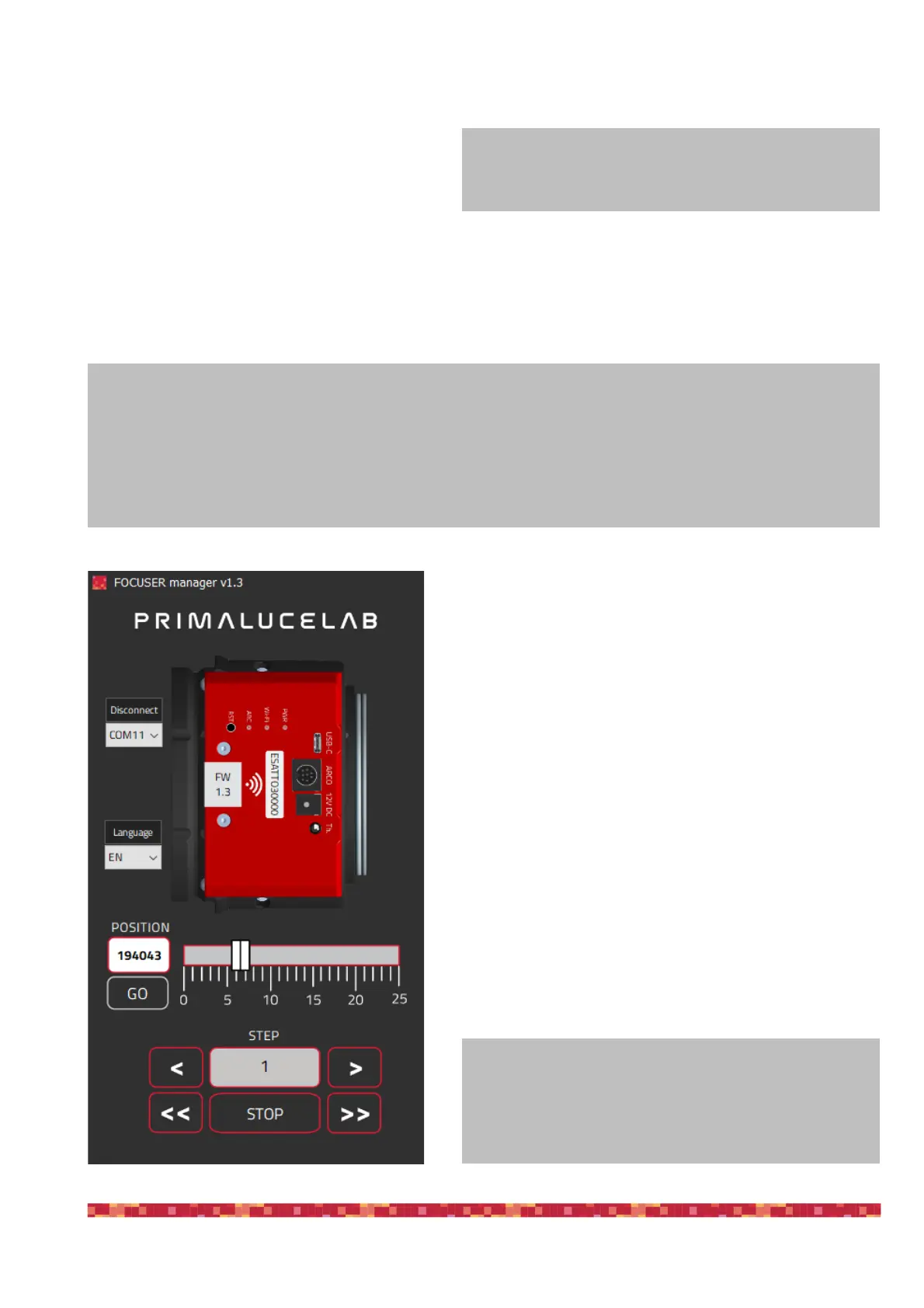
On the left, select the proper COM port number assigned to the ESATTO by the computer and click on the “Con-
nect” button. You will see the lights on the right side
of the window become green:
1) if you connect ESATTO to your computer only
with the USB cable, you will see a green light
illuminated in the to the “Internal temperature”
row
2) If you have connected an optional temperature
sensor, you will also get the green light in to the “External temperature” row
3) if you power the ESATTO also with an external power source (a 12V battery by using the supplied cigarette
plug cable, a 12V AC adapter with at least 1A and Ø5.5/2.5mm connector or the EAGLE power cable to power
it through the EAGLE) you will get the green light corresponding to the “Power supply from 12V DC” row.
Moving the ESATTO focuser is very easy. You can do this in
different ways:
1.Move the slider until you reach the desired position and press
the GO button
2.Double-click on the POSITION area, enter the number you
prefer and then press the GO button
3.Double-click on the number below the STEP label, insert the
number you wish and press the < or > buttons to move the fo-
cuser by the number you entered. Press the << or >> buttons
to move the focuser by 10 times the number you entered.
You will see the focuser moving and you will also see the focu-
ser draw tube moving in the software display, this is designed
to let you easily understand that the focuser is actually moving -
Useful in remote operations where you can’t look directly at the
focuser. At any moment you need to stop the movement of the
focuser, press the STOP button in the lower part of the window.
What happens if I can’t connect by pressing the “Connect” button?
At this stage, if you can’t connect to ESATTO by pressing the “Connect” button, please check the COM port num-
ber that your EAGLE or personal computer assigned to the ESATTO. To do this, go to Control Panel -> Device
Manager > Ports (COM and LPT) and search for the ESATTO COM port number. This is the number you have to
select in the ESATTO Manager software, before attempting a connection.


 To Next Page