Controlling ESATTO with Virtual HandPad
ESATTO can be controlled without the need of an EAGLE or computer, by connecting from any smartphone or ta-
blet (also a computer) with WiFi and using the included ESATTO Virtual HandPad. In order to set the WiFi control,
please follow this guide (that has been created on a smartphone with iOS operative system but it’s similar for An-
droid devices)
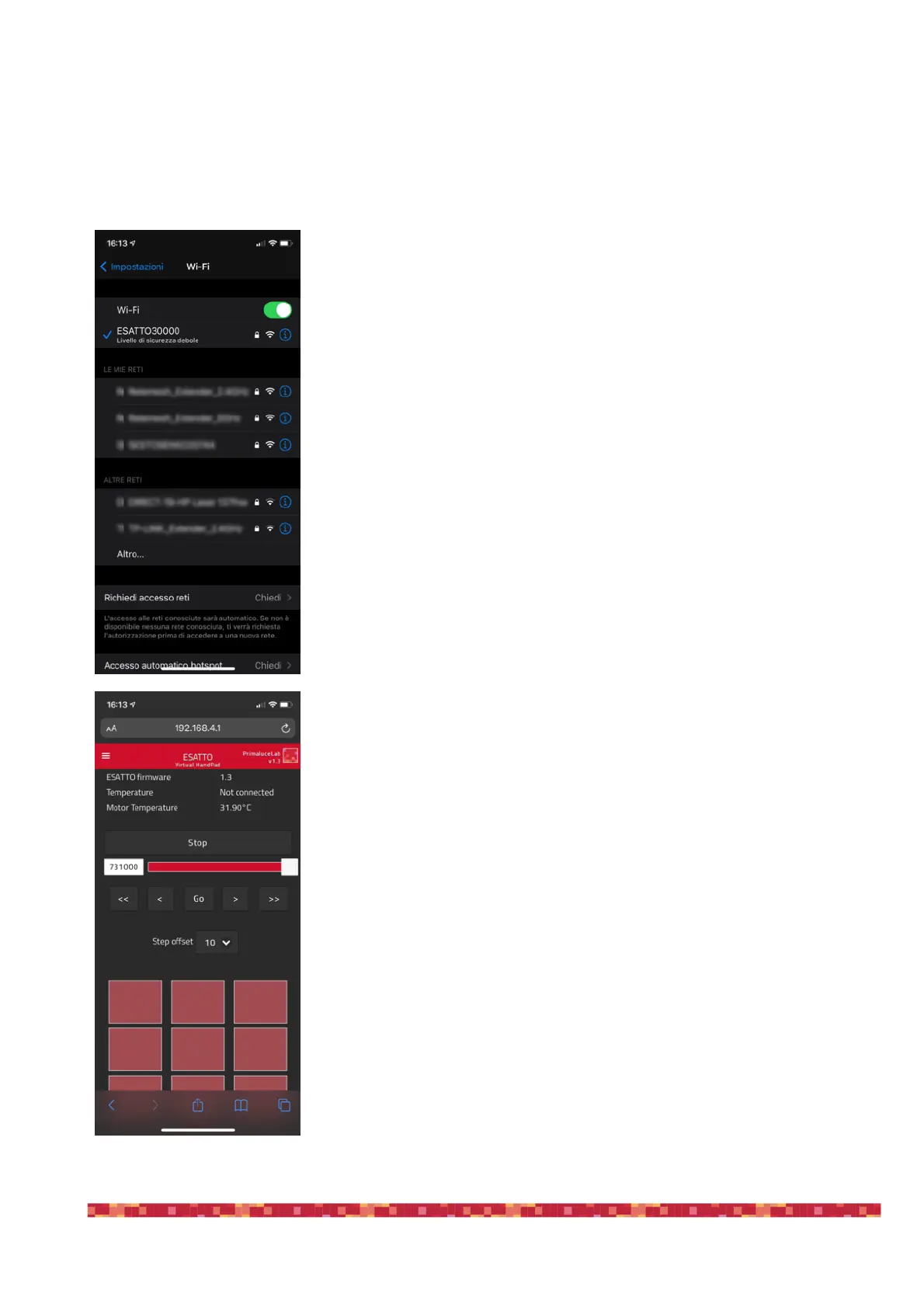
After you power up the ESATTO (you can do this both by connecting to a
USB port of the EAGLE or of a computer or by connecting to the ESATTO
a 12V power supply with at least 1A capacity), turn on the WiFi of your de-
vice (that can be a smartphone or a tablet).
You will see the ESATTOxxxxx network created by your ESATTO, the net-
work name corresponds to your ESATTO serial number. Select the ESAT-
TOxxxxx network. Using the keyboard (virtual or physical) of your device
insert "primalucelab" as the default password (or the password you chose
iwith the ESATTO Manager software if you did so as described in the pre-
vious paragraph) and then press the "Login" button. The next time you
want to access your ESATTO, you will no longer have to enter the pas-
sword: your device will automatically connect when you select the network
created by ESATTO unless you change the login password. Wait for a few
seconds until you get confirmation that your device is connected to the
ESATTOxxxxx network.
Now you can open the browser of the device (for example Chrome or Sa-
fari), in the url area (in the field where you usually write the url like www.-
primalucelab.com), type the address 192.168.4.1 and press the button
RETURN: you will see the ESATTO Virtual HandPad on your screen.


 To Next Page