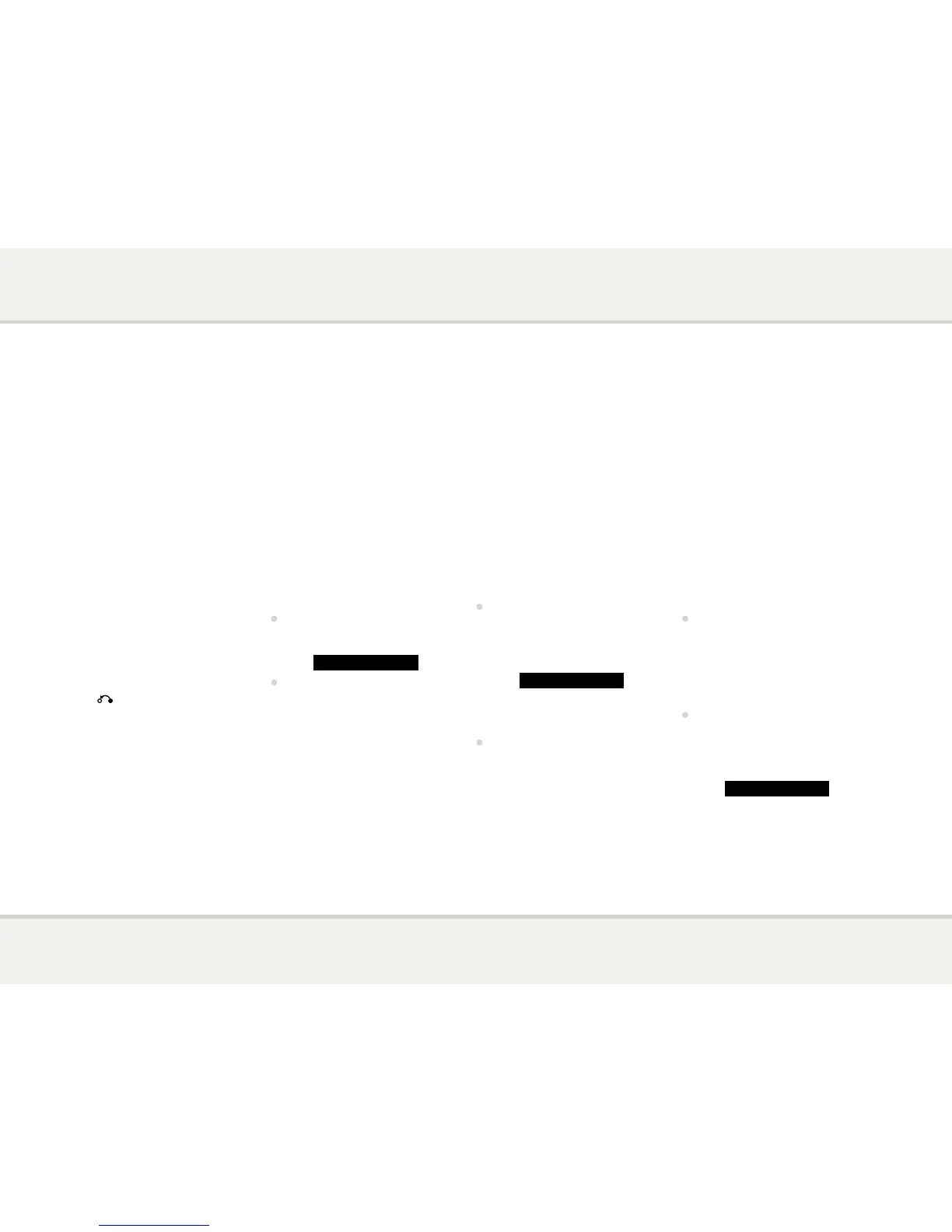
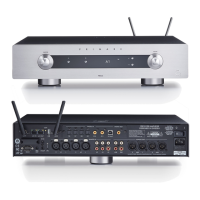
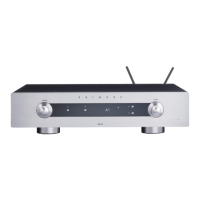
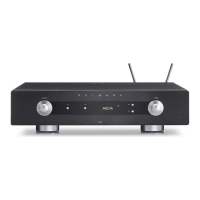
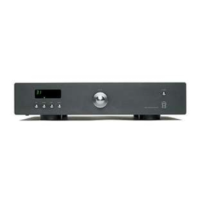
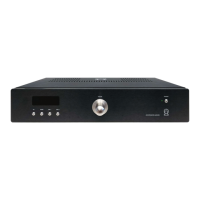
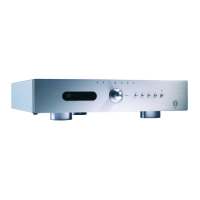
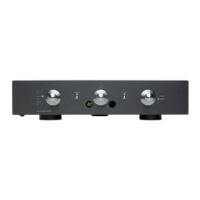
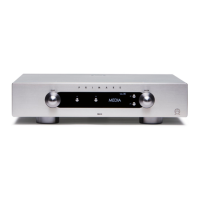
This page explains how to operate your PRE32, using the functions available from
the front panel or C23 remote control.
Volume
Changes the volume.
Standby O
Switches the PRE32 to standby, or switches it on
from standby.
Menu @
Press and hold to display the settings menu.
Select R
In the settings menu: Edits a setting.
Cancel
In the settings menu: Cancels editing a setting,
or saves an alias.
Selector
Selects an input.
In general settings: Selects a setting.
The PRE32 provides a choice of six inputs. Initially
these are labelled IN1 to IN6, but you can give
them your own aliases to suit the sources in your
system; see
To give an alias to a source
, page 6.
To select a source
•
Turn the SELECTOR until the source is
indicated on the front panel display; for
example:
IN2
•
Alternatively, press the A or V buttons on
the remote control to step between sources,
or press one of the buttons 1 to 6 on the
remote control to select the corresponding
source directly.
The PRE32 allows you to vary the volume from 0
(silence) to 99 (maximum).
To change the volume
•
Rotate the VOLUME control on the front
panel, or press the + or – buttons (or the <
or > buttons) on the remote control.
The current volume setting is shown on the front
panel; for example:
VOL28
To change the front panel display brightness
•
Press the DIM button on the remote control
to step through the three levels of illumination
and blank.
The display auto-dims after a few seconds and
returns to the selected brightness when you
operate any control.
You can change the balance of the sound between
the left and right channels to shift the position of
the stereo image.
To change the balance
•
Press the BAL/ST button on the remote
control.
The front panel display shows the current
balance setting, where 00LR-9 corresponds to
the leftmost position, 00LR00 corresponds to
centre, and -9LR00 corresponds to the rightmost
position.
•
Rotate the VOLUME control on the front
panel, or press the < or > buttons on the
remote control.
The current balance setting is shown on the front
panel; for example:
-7LR00


 To Next Page