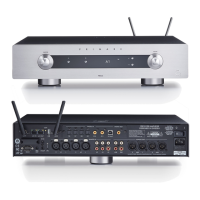
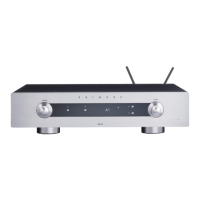
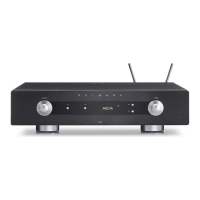
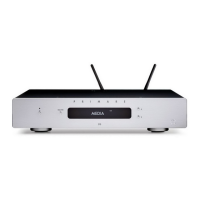
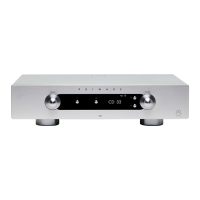
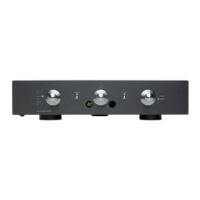
The PRE32 includes a General settings menu that allows you to customise the
inputs to suit the sources in your system. It also allows you to configure general
aspects of the PRE32’s operation.
To display the settings menu
•
Hold down the @ button on the front panel,
or press and hold the MENU button on the
remote control.
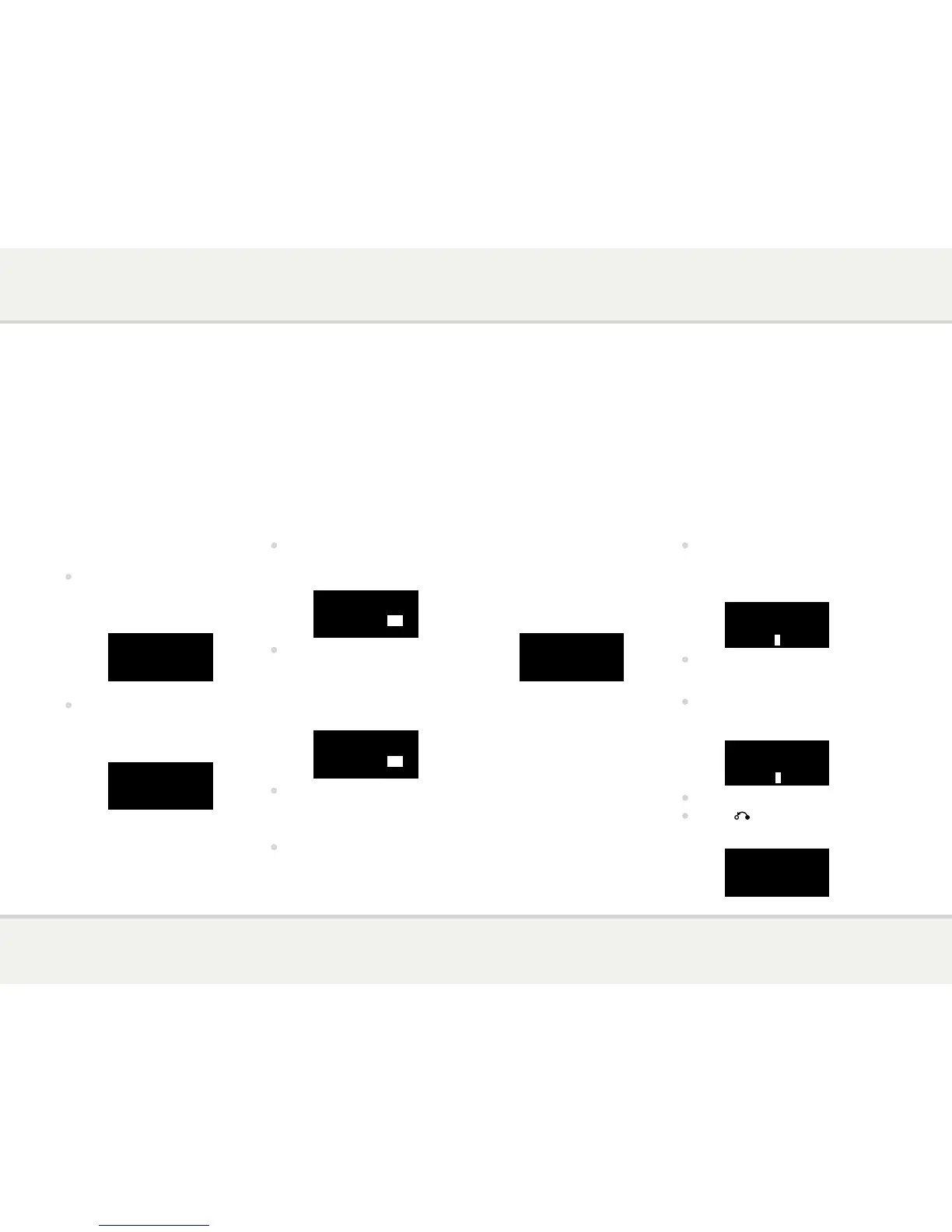
The settings menu is displayed:
General settings VOL 10
Input 1
Status Enabled
To step between settings
•
Turn the SELECTOR control on the front
panel, or press the A or V buttons on the
remote control.
The current setting is shown highlighted:
General settings VOL 10
Master bal 00 LR 00
Volume default 10
Volume max 79
To change a setting
•
Press the R button on the front panel, or the
SELECT button on the remote control.
The current value is shown highlighted:
General settings VOL 10
Master bal 00 LR 00
Volume default
10
Volume max 79
•
Turn the SELECTOR control on the front
panel, or press the A or V buttons on the
remote control, to change the value of the
setting.
As you change it the new value is shown in the
menu:
General settings VOL 10
Master bal 00 LR 00
Volume default
12
Volume max 79
•
Press the R button on the front panel, or
the SELECT button on the remote control
to save the value you have set.
To exit from the settings menu
•
Hold down the @ button on the front panel,
or press the MENU button on the remote
control.
The first four items on the settings menu allow
you to customise the five inputs to suit the
sources in your system.
To select a source
Set the Input setting to the number of the input
you want to customise:
General settings VOL 10
Input 2
Status Enabled
The following items then allow you to customise
the settings for that source:
Status can be changed to Disabled to remove
the source from the sources you can select.
Alias allows you to give a name of up to six
letters or digits to each source; see next section.
Source bal allows you to customise the balance
for the source, from 0 to -9 in either direction.
Source offset allows you the adjust the relative
volume of the source, between +10 and -10.
To give an alias to a source
•
Highlight the Alias item, then press the
R button on the front panel, or press the
SELECT button on the remote control.
The alias editor is displayed:
General settings VOL 10
5 6 7 8 9 A B C D E F
•
Turn the SELECTOR control on the front
panel, or the < or > buttons on the remote
control, to select the first letter.
•
Press the R button on the front panel, or the
SELECT button on the remote control, to
select it:
General settings VOL 10
7 8 9 A B C D E F G H
C
•
Repeat for the remaining letters.
•
Press the button on the front panel.
The source will be displayed with your alias:
General settings VOL 10
Status Enabled
Alias
CD
Source bal 00 LR 00


 To Next Page