11
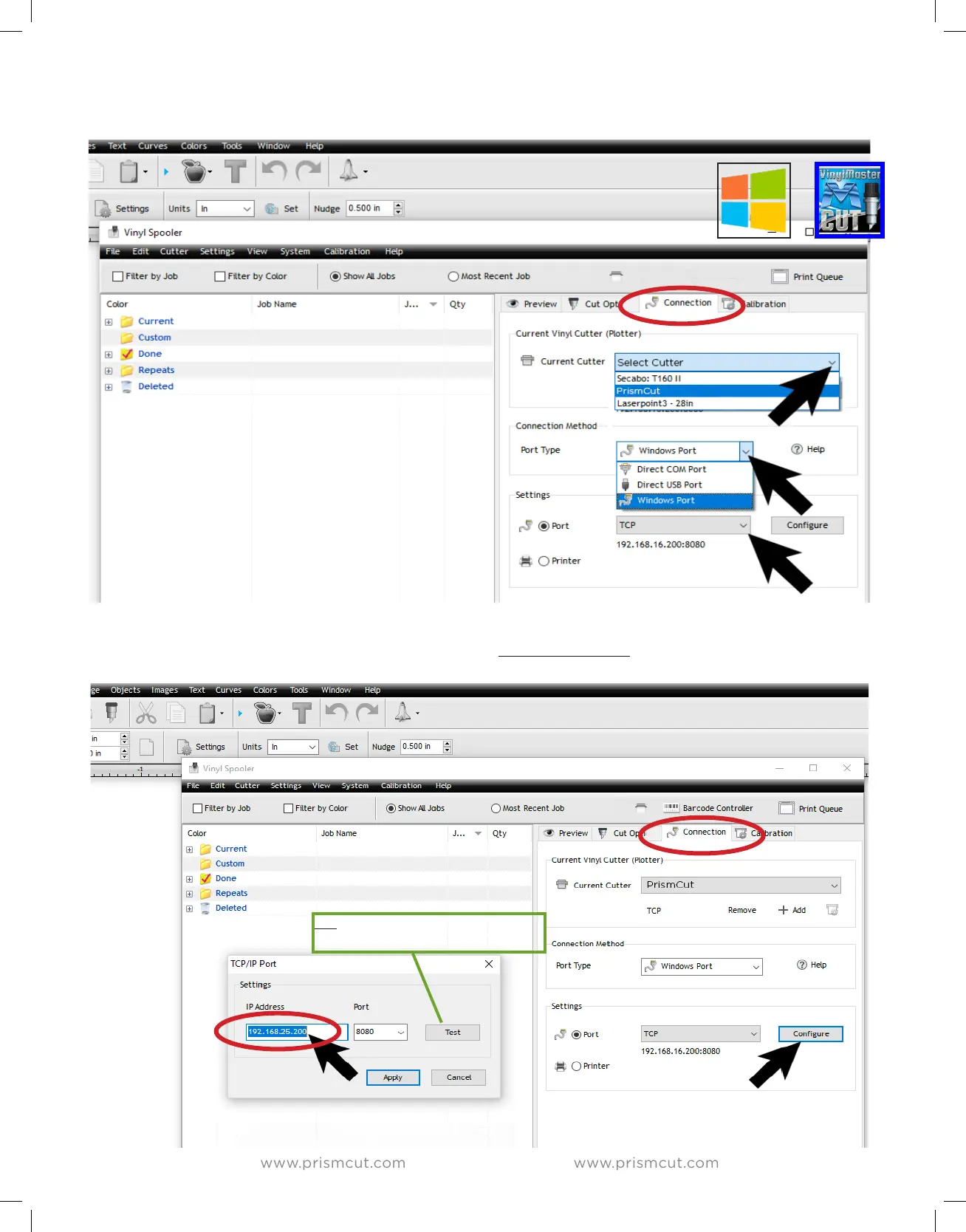
On your Windows PC within VinylMaster software, click on shuttle icon and select Vinyl Spooler
Click on the Connection tab within the Vinyl Spooler menu to display cutter Connection Settings.
In Current Vinyl Cutter section click on the pull down menu for Current Cutter and select PrismCut.
In Connection Method section click on the pull down menu for Port Type and select Windows Port.
(if you do not see PrismCut as a pull down menu option for Current Cutter, see Troubleshooting on page 30)
In Connection tab Settings section click on the Configure button to open the TCP/IP Port Settings menu
In TCP/IP Settings menu enter the IP address that appears at the top of your PrismCut cutter’s home screen
The IP address (starts with 192.168.....or 172.... or 10......) must be the same on both cutter and PC to work.
Ignore the port number (leave at 8080) since this is not part of the IP address.
Tip: Press TEST button to verify
your IP communications work


 To Next Page