25
3.8 Using the (optional) laser tool
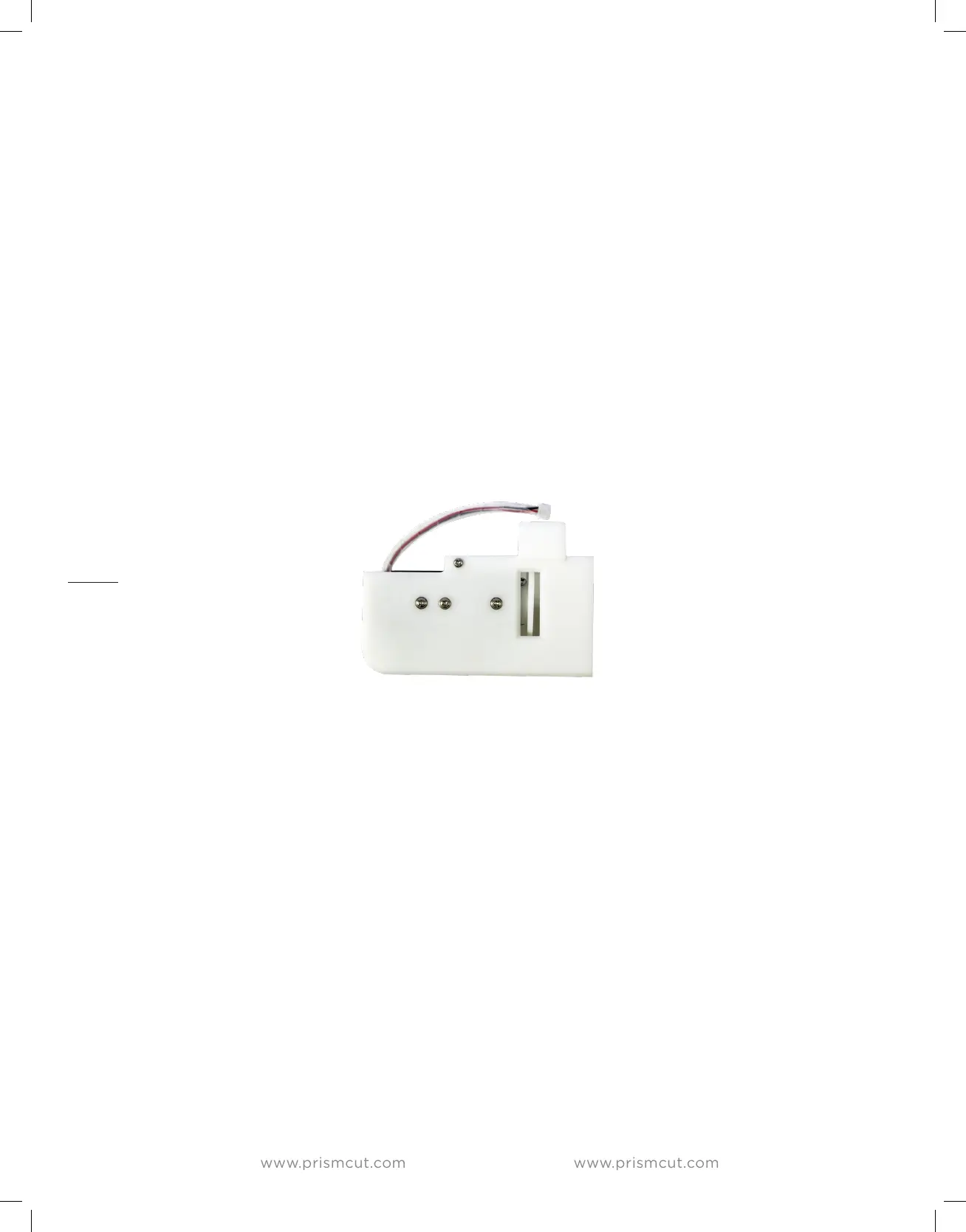
If you choose to purchase the optional laser tool, you can use it to laser etch
leather, wood and other materials. It is critically important to full understand all
safety related precautions that you need to know before considering using the
laser attachment. Always wear protective lenses - even when aligning the laser
before starting to cut, to be sure a reflection does not cause a stray beam to
reach your eyes. The laser attachment fits on top of the carriage head and it is
designed for use only in a well ventilated area.
Typical artwork uses diagonal lines when the design is being laser etched, but
other patterns can be used as well - whatever looks best to you. The item to be
laser etched should be securely fastened to the cutting mat with tape so that is
does not move. Make sure that the atwork does not allow the laser to ever shine
on the cutting mat. In your software, blade oset and overcut values should be
set to zero
Using the laser tool requires passing a training course to receive the password to
access the feature.
Note: Laser tool is not
available in all regions
3.9 Connecting via Point-to-Point WiFi
In situations where there is no WiFi service available, as may be the case where
you want to use your cutter at a street fair or in a remote location, it is possible
to connect to your cutter in a Point-to-Point configuration. Note that this will
mean that your host computer is not able to connect wirelessly to the internet
at the same time when using a Point-to-Point connection to the cutter.
In the cutter’s WiFi menu, delete (reset) any current WiFi settings and the cutter
will display a value of HI-LINK_XXXX where the value of XXXX will be dierent
for each cutter. The cutter now acts the same as your home router, but does not
have an internet connection.
On your computer scan for available networks to find HI_LINK_XXXX and then
connect to HI_LINK the same way that you would connect to your home router.
The password for Point-to-Point is 12345678
The IP address for Point-to-Point is 192.168.16.254


 To Next Page