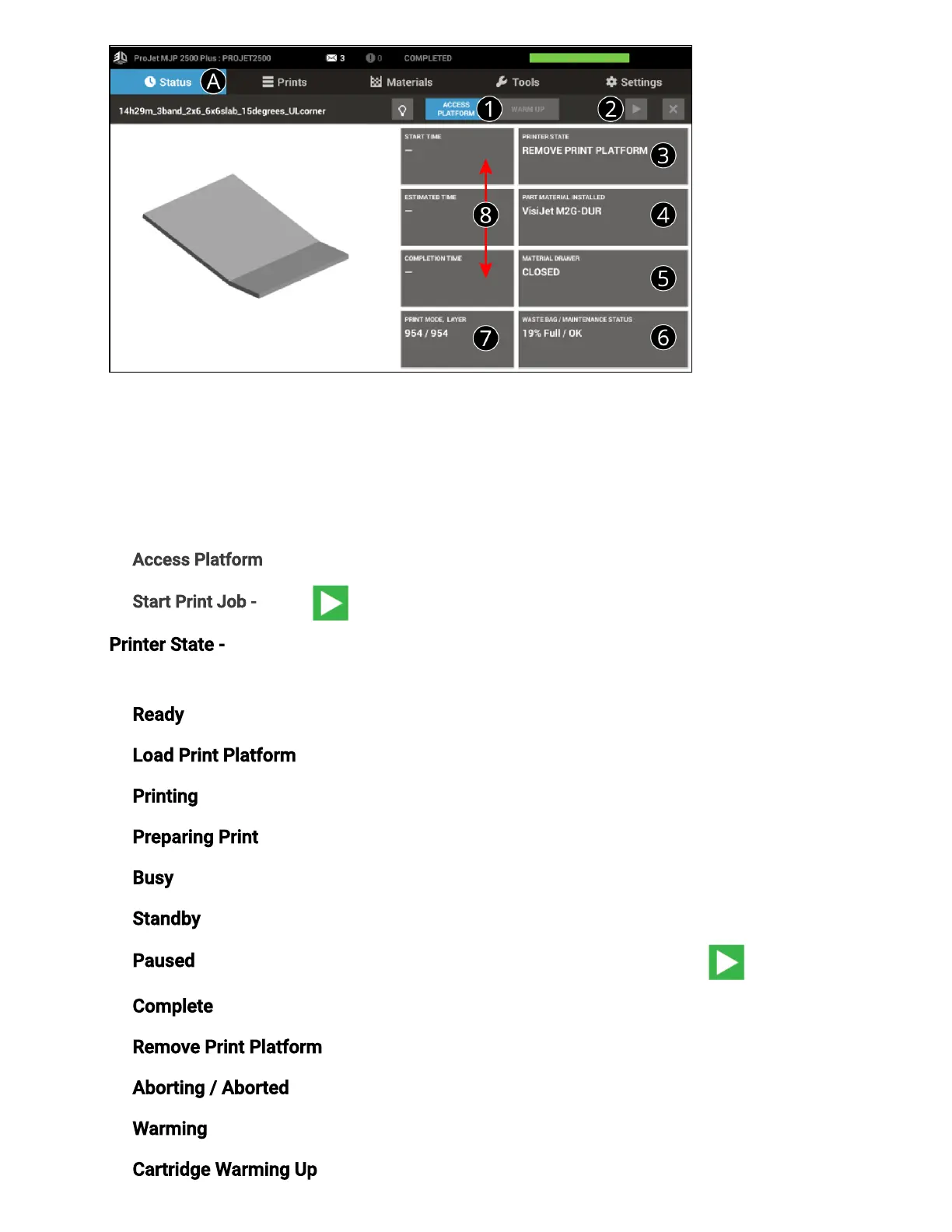
Status Tab (A)
The rst tab on the UI. The following features are accessed under the Status Tab (A). Refer
to 1-7 for information that appears on this screen.The left side tiles describe job status,
the right side tiles describe printer status.
1. Access Platform - Pressing this button provides access to the print platform.
2. Start Print Job - Select to start the next print job in the print queue.
Printer State - This area identies what state the printer is in at any given time. See below
for the various Printer States.
Ready - Printer ready toaccept print jobs.
Load Print Platform - Printer is ready for a clean print platform to be installed
Printing - Printer is printing a job
Preparing Print- Printer is setting up to begin printing
Busy - Printer is performing maintenance
Standby - Printer is in a low power state
Paused - Current print is paused and can be resumed by selecting the button
Complete - Current print is completed and the part can be removed from the printer
Remove Print Platform - Job is complete; access the print platform to remove the part
Aborting / Aborted- Current print is aborting / aborted
Warming- Printeris warming up to a Ready state
Cartridge Warming Up - Printer cartridge(s) warming to a Ready state


 To Next Page