Printer Startup and Demo Build
The purpose of this section is to execute the following:
Power the printer on.
Installing new material cartridge.
Removing material cartridges.
Procedure to empty waste bag.
Procedure for installing and removing print platform.
Perform a successful Demo build.
Completion of this process will familiarize you with all of the “basic” printer operations
needed to build parts on the ProJet® MJP 2500 and provides a functional “run through” for
a new installation. It is strongly recommended that you complete Section 5 before moving
on to larger more sophisticated builds.
POWER THE PRINTER
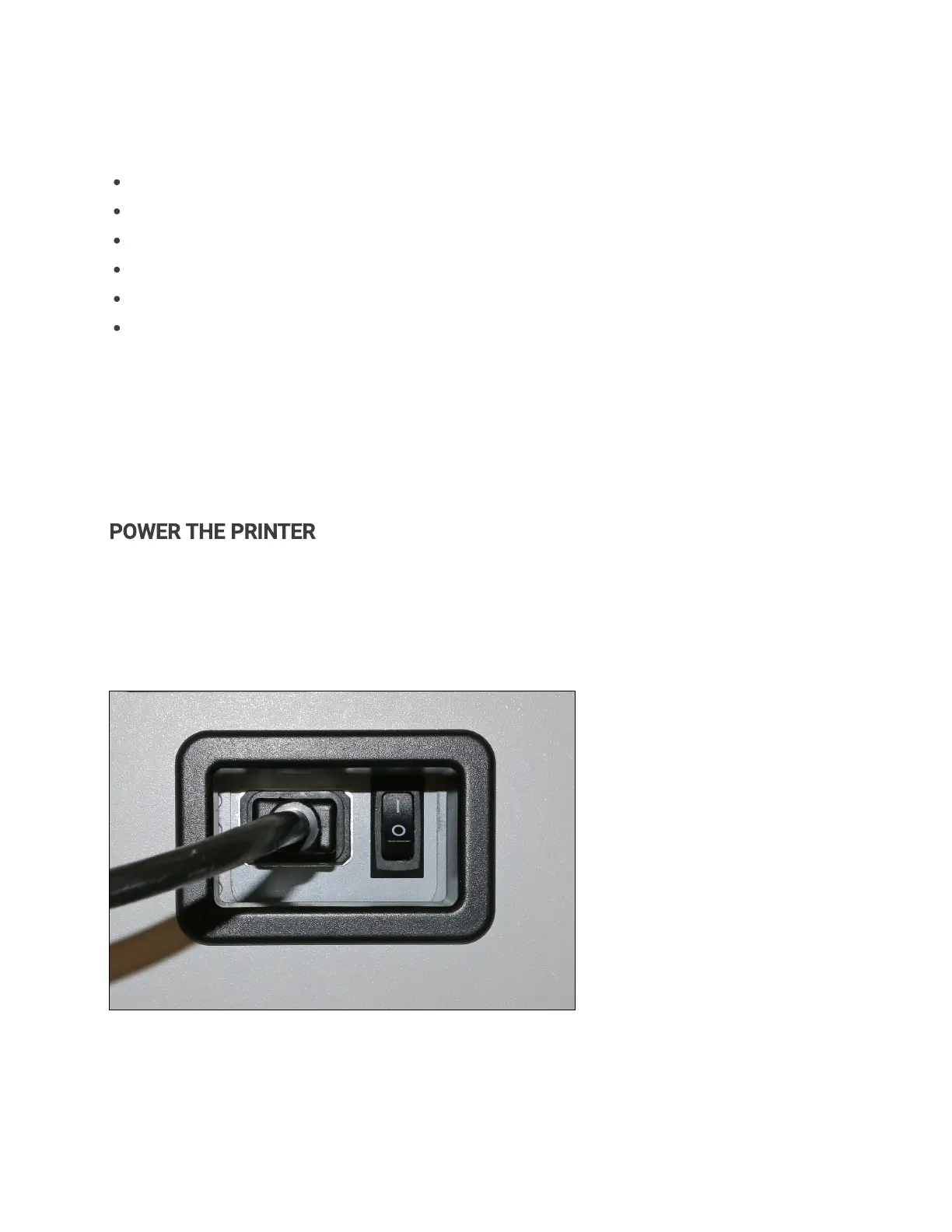
1. If the printer is not already on, turn printer on by ipping the power switch on the back of the
printer. UI may take up to a minute or so to come on. After about a minute the 3D Systems logo
should appear and then the Status Screen will appear.
2. If printer has been shut down and is starting from a cold state,wait 2 hours for printer to warm
up before startinga build job. UI display will show the current Printer Stateon the Status
screen. The below screen shot shows the printer in a READY TO PRINTstate (1).


 To Next Page