EN 27
8. Restore Factory Defaults
You may restore the Server’s default parameters by one of the following methods.
8.1. Using the Server’s Web Pages
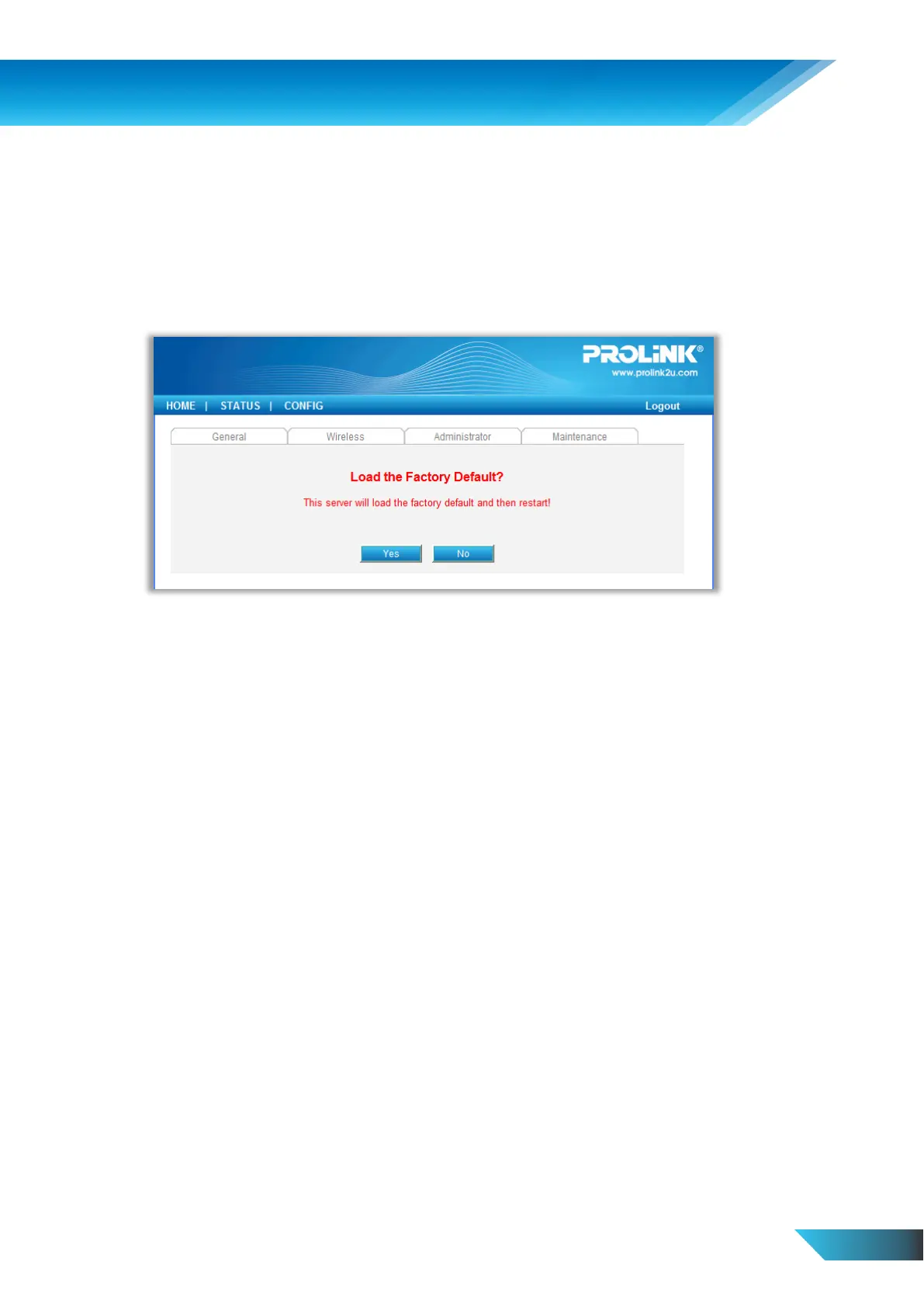
a) Go to the Server’s web page and click CONFIG
b) Enter administrator (default: admin) and password (default: admin).
c) Click Maintenance.
d) Click Factory Default.
e) Click Yes to confirm
8.2. Using Init Button
Plug in the power adaptor while pressing the Init button until LED indicators of USB1 and USB2 blink. (For
PPS2101/PPS2101N, only USB LED will blink.) After that, plug off the power adaptor and then plug in the
power adapter again to restart the Server. Finally, the Server will operate using the Factory Default values.
8.3. Default Parameters List
9.3.1. General Information
Server Name: PPS2101 (for PROLiNK® PPS2101) or PPS2101N (for PROLiNK® PPS2101N) or
PPS2104N (for PROLiNK® PPS2104N)
9.3.2. TCP/IP
Automatically get IP by DHCP: Enabled
Static IP: Disabled
o IP Address: 192.168.1.100
o Subnet Mask: 255.255.255.0
9.3.3. User Accounts
Administrator : admin
Password :


 To Next Page