EN 16
g) Even you already properly setup an auto-connected printer, the ShareHub Device Servers Control Center
must be running (in the background) while a print job is issued. This means you’d better run the ShareHub
Device Servers Control Center every time after you login Windows. In order to skip this manual operation,
you can make the ShareHub Device Servers Control Center be run automatically after you login Windows.
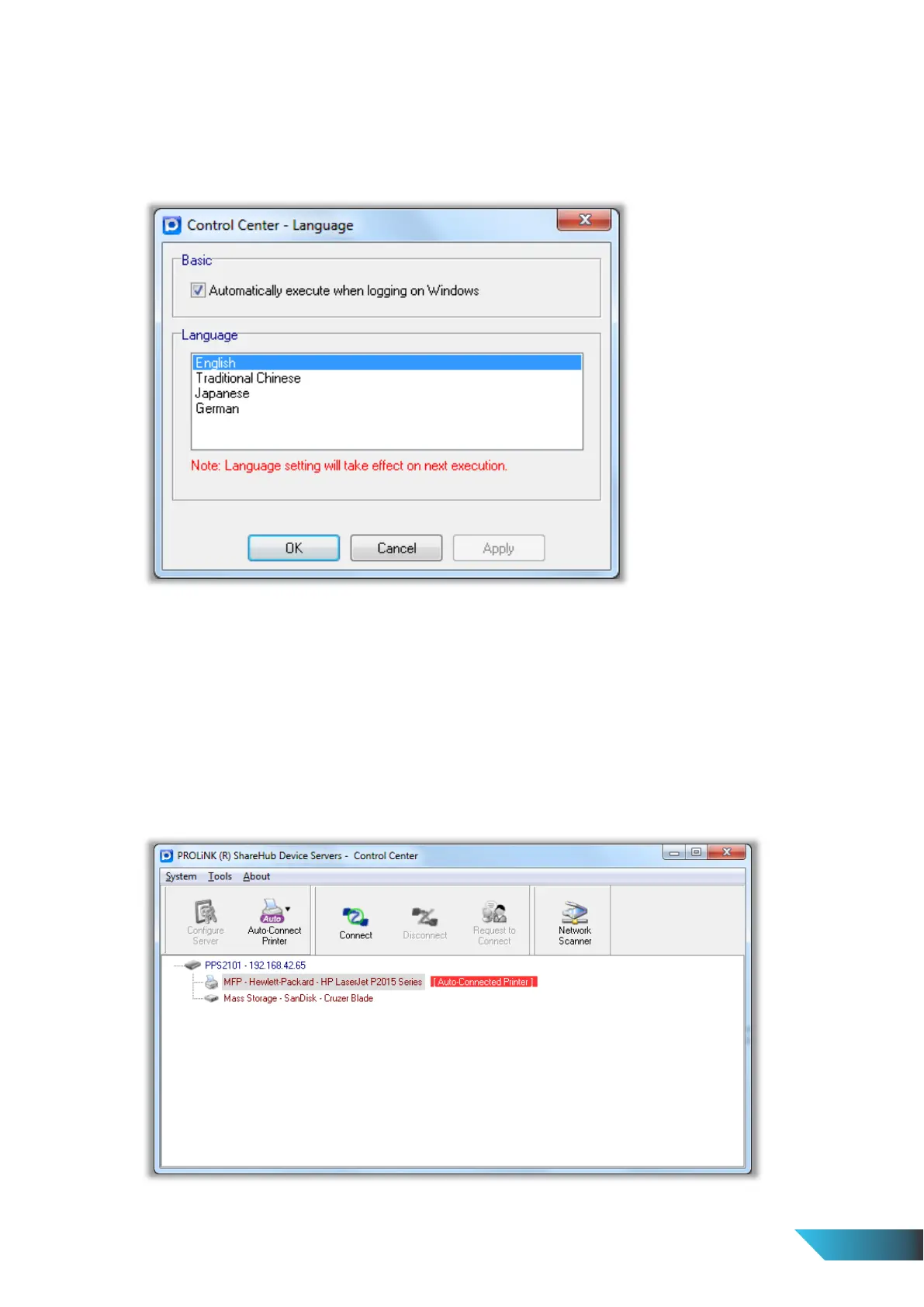
To do this, choose the “Language” item in the “Tools” menu. The following window will appear. Click on
the check box and then on the “OK” button. This feature is enabled by default.
If you would like to break the association between the Windows printer and the physical printer, just click on
the association and click the “Delete” button in the “Auto-Connected Printer List”.
4.7. Network Scanner
For NetUSB scanning, we recommend you use Network Scanner as the following steps.
a) In the ShareHub Device Servers Control Center, click the ShareHub Device Servers that has the desired
MFP (or scanner) attached.
b) Click the desired MFP (or scanner).


 To Next Page