(5)
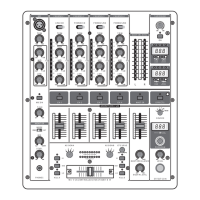
(18) The MASTER fader allows you to adjust the output volume at the MASTER output (see (44)).
(19) The MASTER BALANCE control for the MASTER output is for setting the stereo image.
(20) The BOOTH LEVEL control adjusts the output level of the BOOTH output (see (45)).
1.5 CROSSFADER section
(21) ASSIGN A and ASS/GN B selectors let you determine which input signals are routed to
CROSSFADER sides A and B You can also alternate between these two signals by using the
CROSSFADER (see below).
(22) The VCA CONTROLLED CROSSFADER is used to fade between the channels you have selec-
ted (see (21). Like the channel faders, the crossfader section is equipped with a professional 45-
mm fader.
(23) The TIME OFFSET LED indicates the synchronisation of tracks (see chapter 2.7)
(24) The TEMPO DIFFERENCE LED displays tempo differences between the tracks (see chapter
2.7).
(25) A 3-band kill switch is available for use with both the left and the right side of the crossfader
(KILL A and KILL B respectively). Kill switches are used to lower three separate frequency
ranges (LOW, MID and HIGH) up to -32 dB. When using the kill switch, the equalizer of ordi-
nary DJ mixers usually loses its functionality. Not the case with the 5 channel mixer: the EQS
can be used to achieve an even more pronounced lowering of a particular frequency range.
(26) The CF CURVE control lets you alter the control characteristic of the crossfader between
linear and logarithmic in an infite number of steps. When set to linear, the crossfader enga-
ges directly proportionally to the fader s incremental movement. When set to logarithmic, the
fader s movement yields higher volume increases as the fader moves farther along its range
of motion.
1.6 3D surround effect
The 3D surround function is a built-in effect that puts the finishing touch to your music and
turns every gig into a real experience. The widening of the stereo base makes for a livelier,
more transparent sound. You can determine the intensity of the effect by using the SURROUND
control (27), while the ON switch (28) turns the effect on (the respective LED is lit).
1.7 Auto BPM counter
The integrated auto BPM counter is an extremely useful feature. It ensures smooth transition
from one track to the next, taking a lot of the guesswork out. It can calculate the various temp-
os of tracks in BPM(beats per minute). Both BPM counter sections are identical and both show
the BPM value of the two signals routed to the crossfader. The LEDs located above the DISPL-
AYs 1-4 (29) indicate which of the four input channels are routed to the respective BPM counter.
The tempo of the track assigned by using the ASSIGN A or ASSIGN B keys is shown in the
respective DISPLAY (30) Several tempo changes in one track would produce a constant displ-
ay of various BPM values and thus lead to unnecessary confusion. That s why the beat count-
er sections each have a SYNC LOCK button (31) that can be used during the song to limit the
range of possible tempo values. This makes sense if the counter has already calculated a rea-
listic value. You can do the same thing manually with the BEAT ASS/ST button (32). Pushing
this button at least three times in sync with the song s tempo results in the calculated tempo
appearing in the DISPLAY. The BEAT ASSIST and SYNC LOCK buttons are each equipped
with a LED.
When you have limited the tempo of the tracks on both channels with the SYNC LOCK or
(4)
(3) The TRIM control in the CHANNEL section is used to adjust the level of the input signal. The
level meter (5) reads the input level.
(4) Each of the input channels features a 3-band equalizer (HI, MID and LOW) with kill characte-
ristic. Thus, the signal can be attenuated to a much greater extent (-32 dB) than it can be rai-
sed (+12 dB). This function can be very useful when, for example, fading a frequency range
out of a music track.
The overall level also depends on the EQ setting. Thus, you should adjust the equalizer
before setting the input gain with the TRIM control.
(5) The 10-digit LED chains display the signal level of the input signals.
(6) Adjust the channel volume using the CHANNEL fader.
1.2 Microphone channel
(7) The MIC IN connector is the balanced XLR input for your dynamic microphone.
(8) Set the volume of the microphone signal with the TRIM control in the MIC section.
(9) There is a 3-band equalizer (HI, MID and LOW, no kill characteristic) in the microphone
section. This allows you to fine-tune your voice to adapt perfectly to your sound.
(10) Activate the microphone channel using the MIC ON switch. The channel is active when the
corresponding LED is lit.
(11) The PRO MIXER is equipped with a talkover function, which works very simply: if you speak
into the microphone while a track is running, the volume of the music is automatically reduced,
so that your voice is always in front . The TALK control allows you to determine how much
the music volume is lowered (max. -24 dB). This function can come in handy when your own
voice needs to be prominently heard, as in when making an announcement etc.
1.3 MONITOR section
The MONITOR signal is your headphones signal, allowing you to listen to music without
affecting the MASTER output signal.
(12) When the MODE switch is in the Split position, channel PFL is located on the left side of
the stereo image, while the Master signal is on the right. In this case, the MIX control (see
below) serves no function. While in Stereo mode, you can use the MIX control to alternate
between MASTER signal and PFL.
(13) When in Stereo mode, the MIX control lets you determine which signal can be heard via the
headphones. When the control is turned to its left-most position (CUE), you hear the headp-
hone signal only; when the control is turned to its right-most position, you hear the MASTER
signal only. Alternating the MIX control between the two end positions lets you dermine the
relative ratio between the two signals in your headphones.
(14) The LEVEL control determines the volume of the headphones signal.
(15) Connect you headphones using the unbalanced PHONES OUT connector. Your headphones
should have a minimum impedance of 32 Ohms.
(16) To select the PFL signal for the headphones, use the MONITOR CUE keys (CH-1 to CH-4,
MASTER, EFFECTS). You can also select multiple signal sources and listen to them simulta-
neously. LEDs on corresponding keys are lit when a channel is routed to the headphones.
1.4 MASTER section
(17) The LEVEL METER displays the level of the MASTER signal.


 To Previous Page
 Loading...