5 6
E
NOW YOU ARE READY TO FLY!
If you have successfully synced your SNAP 2.0™ to your controller as explained on page 4 you are now ready
to fly. Before beginning to fly your drone you should familiarize yourself with how to start and stop the
rotors, how to use your auto land feature and how the controls work so please carefully read and familiarize
yourself with various control features explained in the next few pages. Once again as a beginner pilot you
should learn how to control your drone in a large open field or park on a day with zero or very light wind. Do
not try to fly your SNAP 2.0™ too high until you become a more experience pilot.
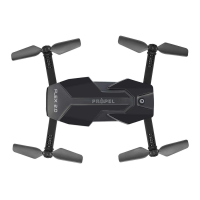
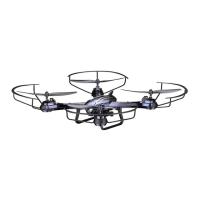
Even though the SNAP 2.0™ has four rotors there is still a front or
"forward" facing direction and "rear" or backwards facing direction. The
front and forward facing direction of the SNAP 2.0™ is the side with two
WHITEREDLIGHT
(see diagram E ). The rear and backward facing direction of
the Quadrocopter is the side with onwe red (see diagram E).
FRONT
REAR
RECOGNIZING THE FRONT & REAR OF THE SNAP 2.0™
SPEED SELECT BUTTON
The SNAP 2.0™ has 3 speed settings; 1 (SLOW), 2 (MEDIUM) and 3 (HIGH). The Default setting when you
first turn on your SNAP 2.0™ is the 1 (SLOW) speed mode. To increase the speed simply trigger the speed
setting button (see remote diagram on pg 3) you will hear beeping sounds of the controller will show you
what speed setting you are on. Speed settings can be set before flight or during the flight.
Fixed-Point Landing
Square Pattern Maneuver
Cross Pattern Maneuver
FLIGHT PRACTICE
To master flying your aircraft try practicing the excersizes shown below. Start with simple vertical takeoffs,
LANDINGSANDLEFTRIGHTTURNINGANDROTATING/NCETHOSEAREMASTEREDMOVEONTOSQUAREANDCROSS
maneuvers. Good luck and have fun!
STARTING/STOPPING THE ROTORS
AUTO START/LAND
The 3.!0»HASANAUTOSTARTLANDFEATUREWHICHALLOWSYOUTOSTARTLAND
automatically. Simply press the AUTO START / LAND button on the top of the
controller and your 3.!0»WILLBEGINTAKINGOFFLANDINGSEEDIAGRAMBELOW
NOTE: 9OUCANSTILLCONTROLTHEDIRECTIONWHILEAUTOSTARTINGLANDINGto avoid
obstacles.
Note: You can start/stop your SNAP 2.0™ manually or automatically.
Please follow one of the steps below to operate accordingly. Make
sure you have properly synced the SNAP 2.0™ and the power stays on.
MANUAL START/STOP
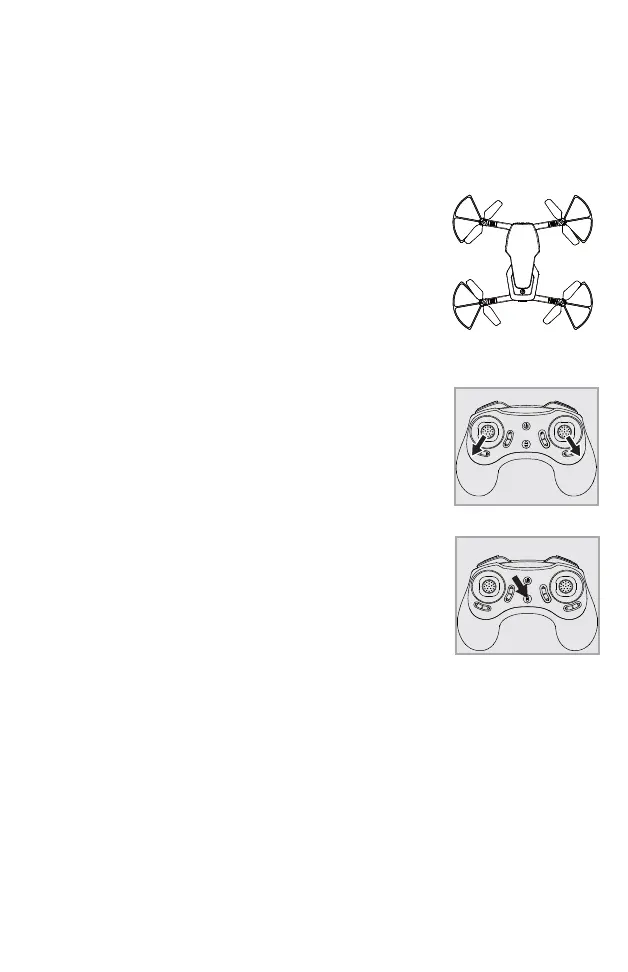
sTo start the rotors simply move the two control sticks both down and out
(see diagram), hold until the rotors start spinning. Now release both
sticks to the neutral position and push the throttle up to take off.
s4OSTOPTHEROTORSAFTERSTARTINGthe rotor you can simply wait about 10
seconds, and it will stop automatically. Or move both sticks down and
out again to stop immediately. After take off, you can simply pull the
throttle all the way down and land.
I
J
K
L
FLIGHT CONTROL
Below is a list of basic flight functions for your long-range remote to control the SNAP 2.0™. While
learning to fly your SNAP 2.0™ it is best to start in a large space with the drone facing away from you until
you get used to the basic controls. As you master flying your SNAP 2.0™ you can move to more advanced
maneuvering techniques. Practice makes perfect!
Move the left Throttle stick up to increase the
propeller speed and the SNAP 2.0™ will accelerate
and ascend.
Move the left Throttle stick down to decrease the
propeller speed and the SNAP 2.0™ will
decelerate and descend (see diagram I).
While in the air, move the left Throttle stick left
and the SNAP 2.0™ will rotate left.
Move the left Throttle stick right and the
SNAP 2.0™ will rotate right (see diagram J).
While in the air, move the right Direction Stick up
and the SNAP 2.0™ will move forward.
Move the right Direction Control down and the
SNAP 2.0™ will move backward (see diagram K).
While in the air, move the right Direction Control left
and the SNAP 2.0™ will bank to the left.
Move the right Direction Control right and the
SNAP 2.0™ will bank to the right (see diagram L).


 To Next Page
 Loading...