7 8
R
CALIBRATING THE SNAP 2.0™
NOTE: Your SNAP 2.0™ comes pre-calibrated out of the box so you are ready to fly.
After several crashes and shocks to your gyro sensors, you may notice that your drone is drifting and can
not hold its center position as well as it used to.
This most likely means that you need to recalibrate your SNAP 2.0™. Please follow the simple instructions
below.
1. Place the SNAP 2.0™ on a flat level surface
2. Make sure the SNAP 2.0™ is on and that the controller is synced (refer to syncing pg 4). Do not start the
blades. Instead move both the throttles and control stick down and to the right corner and hold them
there for 5 seconds(see diagram R). You will see the lights on the drone rapidly flash and stop. Once the
lights stop flashing you have completed your calibration and are ready to fly!
TROUBLE SHOOTING: If you do not see the lights flash, first remove the battery from the drone then turn off
your controller and start again. Always make sure to put your battery in first, then turn on your controller.
Push the left throttle stick up all the way and then pull back down again. When you hear the beep the
SNAP
2.0™ is synced to the controller and you are ready to calibrate.
360˚Stunt Roll Button
S
T
NOTE: To exit the stunt roll mode without flip, you can press the button again. The beeping sound
will stop.
HOW TO PERFORM 360º STUNT ROLLS
Performing 360º stunt rolls with the SNAP 2.0™ is as easy as 1-2-3:
1. Hover the SNAP 2.0™ in still position making sure that you have at least 5 feet of clearance above and
below the quadrocopter. Set the speed settings to mode 2 or 3.
2. Press the 360 stunt button down and you will enter the stunt roll mode which is indicated by rapid
beeping (see diagram S) sounds.
3. Determine which direction you want it to flip and quickly push the right control stick in the direction you
want to flip your SNAP 2.0™ (see diagram T).
You have 2 choices a) Right side roll, b) Left side roll.
ADJUSTING THE TRIM
NOTE: The SNAP 2.0™ is already properly trimmed and calibrated right out of the box and should not
require any trim adjustments before flying. Some more experienced pilots may want to adjust trim
settings for their style of flying. After several crashes you may need to adjust trim settings for the SNAP
2.0™ to be more balanced.
NOTE: The use of the Trim buttons utilizes sounds. A single long Beep indicates the product is
center trimmed. When there’s no sound when press the trim means the product is trimmed to the
maximum on a particular side.
EMERGENCY STOP: press the “speed setting button” and “stunt button” simultaneously to stop the
drone blade from spinning. Use it when you lose control of your drone.
M
N
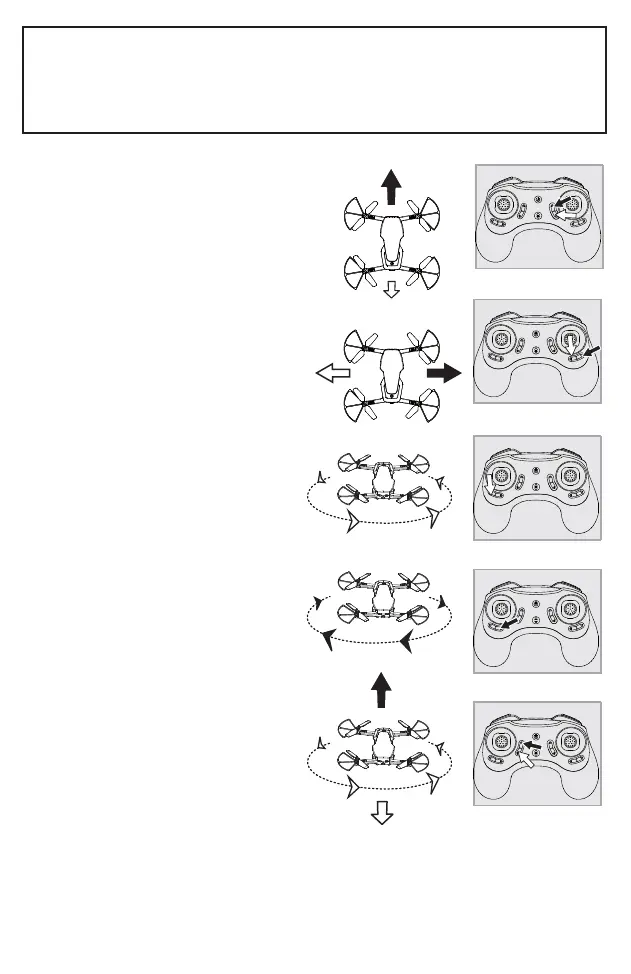
Forward/Backward Trim
s)FYOUR3.!0»DRIFTSFORWARDWHILEINTHEAIR
PUSHANDRELEASETHE&/27!2$"!#+7!2$42)-
button downward repeatedly until the motion stops
and proper flight is maintained (see diagram M).
s)FYOUR3.!0»DRIFTSBACKWARDSPUSHAND
RELEASETHE&/27!2$"!#+7!2$42)-BUTTON
upward in the same manner until the problem is
resolved.
Bank Right/Left Trim
s)FYOUR3.!0»DRIFTSBANKSLEFTWHILEINTHEAIR
push and release the BANKS TRIM button to the
right side repeatedly until the motion stops and
proper flight is maintained (see diagram N).
s)FYOUR3.!0»DRIFTSRIGHTPUSHANDRELEASETHE
BANKS TRIM button to left side in the same manner
until the problem is resolved.
Spin Left Trim
s)FYOUR3.!0»SPINSLEFTWHILEINTHEAIRPUSH
ANDRELEASETHE,%&42)'(4452.42)-BUTTONTO
the right side repeatedly until the motion stops and
proper flight is maintained (see diagram O).
Spin Right Trim
s)FYOUR3.!0»SPINSRIGHTWHILEINTHEAIRPUSH
ANDRELEASETHE,%&42)'(4452.42)-BUTTONTO
the left side until the problem is resolved
(see diagramP).
Throttle Trim
s2ELEASETHE4HROTTLETOHOVERINGYOUR3.!0»IN
the air, If your SNAP 2.0™ keep ascend, push and
release the Throttle TRIM button downward
repeatedly until the motion stops and proper flight
is maintained (see diagram q).
s)FYOUR3.!0»DESCENDPUSHANDRELEASETHE
Throttle TRIM button upward in the same manner
until the problem is resolved.
O
P
q


 To Next Page
 Loading...