9 10
PROPEL SNAP 2.0™ WiFi APP INSTALLATION
1. Make sure you are using a compatible Android™ or Apple® iOS device.
2. Make sure your device has access to the Internet.
3. For Apple® iOS devices, within the App Store, search and select “ Propel 1890 ”. Hit the Install button and
the “Propel 1890 ” App should download and install automatically.
4. For Android™ OS devices, visit the Google Play store and search for “Propel 1890 ”. Selecting
the “Propel 1890 ” App will download the App and automatically install it on your device.
5. After the “Propel 1890” App is installed, it should create an icon on your screen. Click the “Propel 1890” icon
to run the App to make sure that it has installed correctly on your device. If not, please delete and repeat
the process again.
PAIRING SNAP 2.0™ TO YOUR COMPATIBLE DEVICE
1. Af
ter completely charging your SNAP 2.0™ battery, install the battery to your SNAP 2.0™
(refer to the user manual).
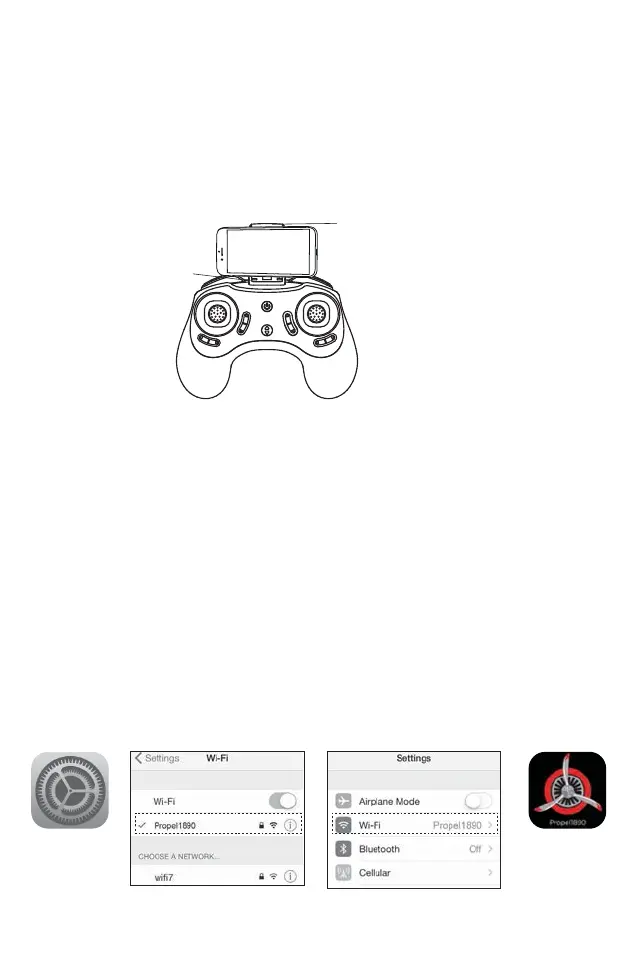
2. In the Settings menu of your device, locate the Wi-Fi option.
3. Turn ON the Wi-Fi option.
4.
Select “
Propel 1890
” from the Wi-Fi list. Wait for your SNAP 2.0™ to be connected. Return to the Main Menu.
Settings
Propel1890
Note: Apple® devices require the use of iOS 7.0 or higher.
ANDROID
™
devices require the use of OS 4.2.2 or higher.
HOME PAGE
HELP PAGE 1 HELP PAGE 2
CONTROL STICKS
QUICK START
1. After you install the App correctly and have paired to the drone successfully, you can open the “Propel
1890” App icon. Tap “START” on the bottom right hand side of the screen. You should see the
real-time video streaming from your SNAP 2.0™ ‘s camera.
2. This App also allows you to control your SNAP 2.0™ by your mobile device. To activate the control sticks,
tap the “ON” button at the top right hand side of the screen. This will switch the control from your
traditional controller to your compatible device. Now click“ ” to start the motors. The control sticks
will show up in the screen for your fly control and you can now use your device as a traditional controller.
Or you can click “ ” to auto launch your SNAP 2.0™ in the air and then use your device as a traditional
controller. Click this button again, your SNAP 2.0™ will automatically land on the floor.
3. You can click “ " to take still pictures. Pictures will be storaged into your mobile device. To record
videos, you can click “ ”. There will be a timer start running on the screen, indicating the recording is
on. The video footage will also be storaged into your mobile device. Click “ ” you can see 2 folders,
pictures and videos, you can find the pictures and videos you took with your SNAP 2.0™ .
DETAILED APP OVERVIEW
3. Please see images below for a detailed App overview. This overview is also available under the “HELP” icon
in the home screen of the App.
LAUNCH
A
LAND
LIVE VIDEO STREAMING SETUP
Your SNAP 2.0™ comes equipped with an onboard digital camera that takes both video and still photographs to
your mobile devices.
WHAT YOU WILL NEED TO GET STARTED USING YOUR CAMERA
1. One Apple or Andriod phone* (not included)
2. Propel 1890 APP installed (app store or Andriod market available)
PHONE HOLDER AND PHONE INSTALLATION
Insert the included phone holder hook (a) to the slots on the top of the controller properly, see the
illustration below, When you install the phone holder correctly you can use it to hold your phone
(see diagram U)
U
a
b


 To Next Page
 Loading...