SETTING UP
28
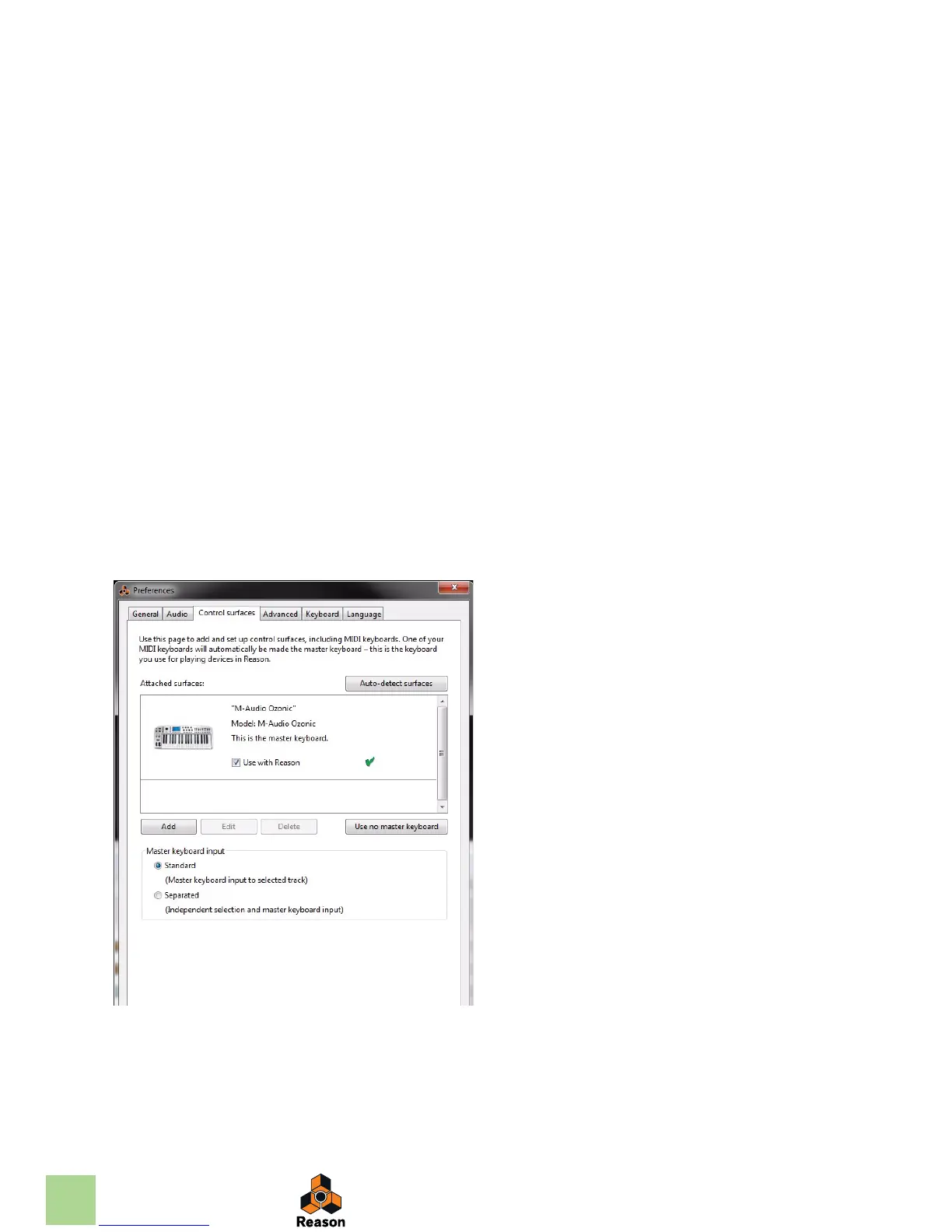
Adding a Control surface
1. Open the Preferences dialog and click the Control surfaces tab.
2. If your control surface is connected via USB (or if you have made a two-way MIDI connec-
tion), try clicking the Auto-detect Surfaces button.
Reason scans all MIDI ports and tries to identify the connected control surfaces. Note that not all con-
trol surfaces support auto-detection.
All found surfaces are listed in the Attached Surfaces list.
3. To add a control surface manually, click the Add button.
This brings up a new dialog.
4. Select the manufacturer of your control surface from the Manufacturer pop-up menu.
If you can't find it on the menu, see below.
5. Select the model of your control surface from the Model pop-up menu.
If you can't find it on the menu, see below.



 To Next Page