9
Before you enjoy the BD-Live function, Please set up your Blu-ray as below step: Pressing
the setup button to go into the system setup menu, then selecting BUDA and enter to BUDA
setup to select the USB or Card when playing BD-Live disc.
Play Music
Controlling music playback
Use the remote control to control the playback for audio file.
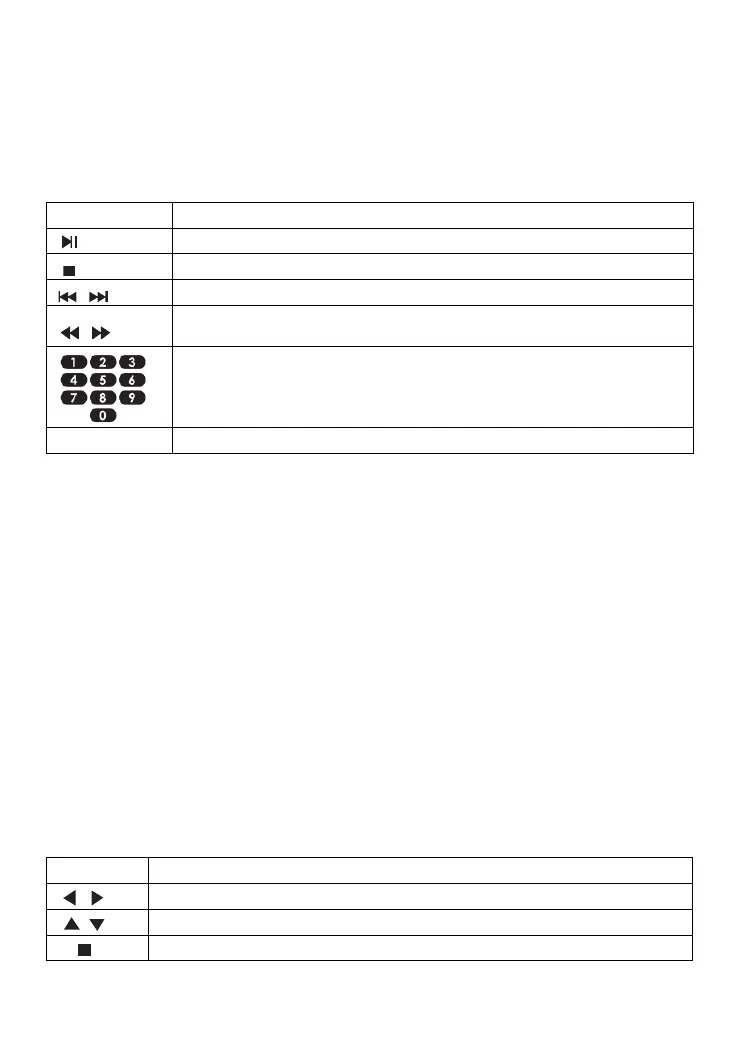
Buttons Action
Start or Resume play / Pause Play
Stop Play
Skip to a previous or next title or chapter
Search fast-backward or fast-forward. Press repeatedly to change the
search speed.
Select an item to play
REPEAT Select or turn off repeat mode
Play a Photo Slideshow
You can play JPEG on the player as a slideshow.
1. Insert a disc or USB device that contains JPEG files
2. Select a Photo folder, then press OK to play.
-To select a Photo, use the Navigation buttons.
-To enlarge the selected Photo and start slideshow, press OK.
Note:
-It may require more time to display the disc content on your TV if there is a large number
of songs/ photos compiled onto one disc.
-This product can only display digital camera Pictures in the JPEG-EXIF format, typically
used by almost all digital cameras. It cannot display Motion JPEG, or Pictures in formats
other than JPEG, or sound clips associated with Pictures.
-Folders/files that exceed the supported limit of this product cannot be displayed or played.
Controlling Photo slideshow
1. Begin a Photo slideshow.
2. Use the remote control to control the play as follows:
BUTTONS ACTION
Rotate a photo
Flip a photo
Stop play


 To Next Page