English - 4 -
OSD menu system
Scart socket for external devices (such as DVD
Players, PVR, video games, etc.)
Stereo sound system
Teletext
Headphone connection
Automatic programming system
Manual tuning
Automatic power down after up to eight hours
Sleep timer
Child lock
Automatic sound mute when no transmission
NTSC playback
AVL (Automatic Volume Limiting)
PLL (Frequency Search)
PC input
Game Mode (Optional)
Programme recording
Programme timeshifting
Accessories Included
Remote Control
Batteries: 2 x AAA
Instruction Book
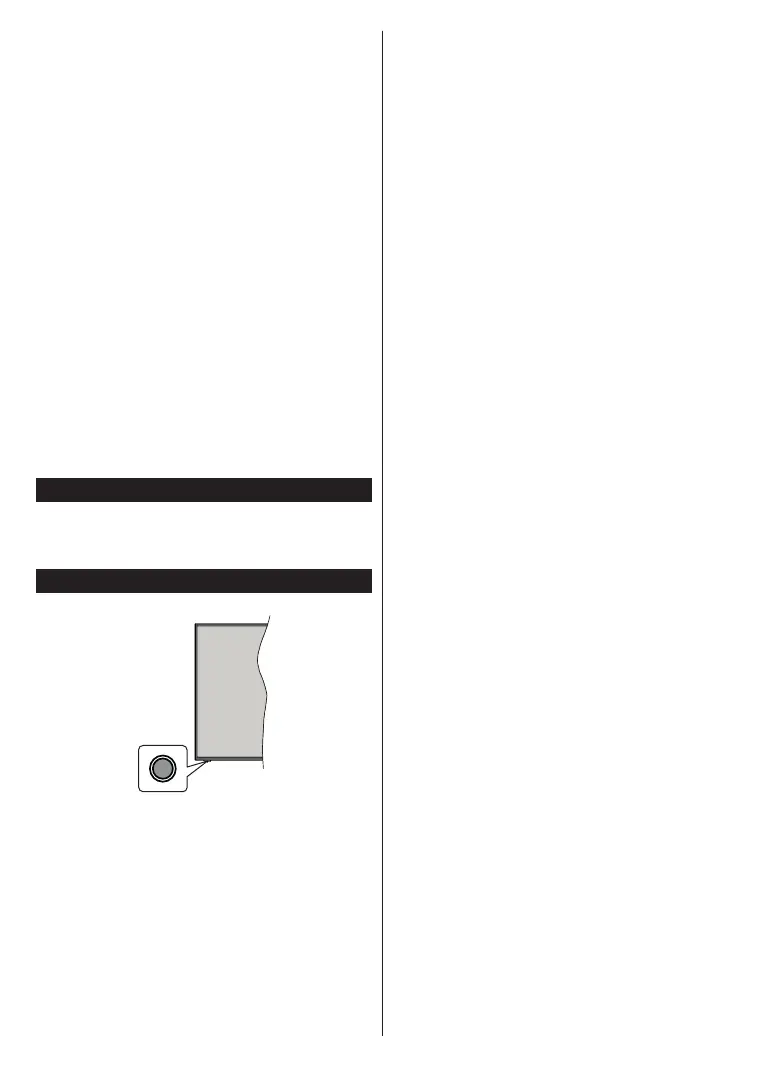
TV Control Button & Operation
Note: The position of the control button may dier depending
on the model.
Your TV has a single control button. This button allows
you to control the Standby-On / Source / Programme
and Volume functions of the TV.
Operating with the Control Button
Press the control button to display the function
options menu.
Then press the button consecutively to move the
focus to the desired option if needed.
Press and hold the button for about 2 seconds to
activate the selected option. The icon colour of the
option changes when activated.
Press the button once again to use the function or
enter the sub menu.
To select another function option, you will need to
hold the button to deactivate it. The icon colour of
the option changes when deactivated.
To close the function options menu do not press the
button for a period of about 5 seconds. The function
options menu will disappear.
Press the control button to display
the function options menu, the focus will be on the
Standby option. Press and hold the button for about
2 seconds to activate this option. The icon colour of
the option changes when activated. Then press the
To turn on the TV: Press the control button, the TV
will turn on.
To change volume: Press the control button to display
the function options menu and then press the button
consecutively to move the focus to Volume + or
Volume - option. Press and hold the button for about
2 seconds to activate the selected option. The icon
colour of the option changes when activated. Then
press the button to increase or decrease the volume.
To change channel: Press the control button to
display the function options menu and then press the
button consecutively to move the focus to Programme
+ or Programme - option. Press and hold the button
for about 2 seconds to activate the selected option.
The icon colour of the option changes when activated.
Then press the button to switch to the next or previous
channel in the channel list.
To change source: Press the control button to display
the function options menu and then press the button
consecutively to move the focus to Source option.
Press and hold the button for about 2 seconds to
activate this option. The icon colour of the option
changes when activated. Then press the button once
again to display the sources list. Scroll through the
available sources by pressing the button. TV will
automatically switch to the highlighted source.
Note: Main menu OSD cannot be displayed via the control
button.
Operation with the Remote Control
Press the Menu button on your remote control to
display main menu. Use the directional buttons and
OK button to navigate and set. Press Return/Back
or Menu button to quit a menu screen.
Input Selection
Once you have connected external systems to your
the



 To Next Page