ENGLISH 11
TIP: Your Cricut Create machine needs 6" (15 cm) of clear space in the front and back
for paper movement in and out of the Cricut Create machine.
Choosing Your Characters
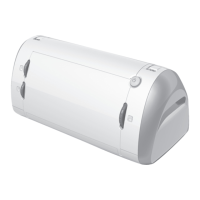
Select the character(s) you want to cut from the keypad overlay. Your selection will be
displayed in the display screen.
TIP: Letters will be cut as single characters.
Basic Keys and Buttons You Should Know
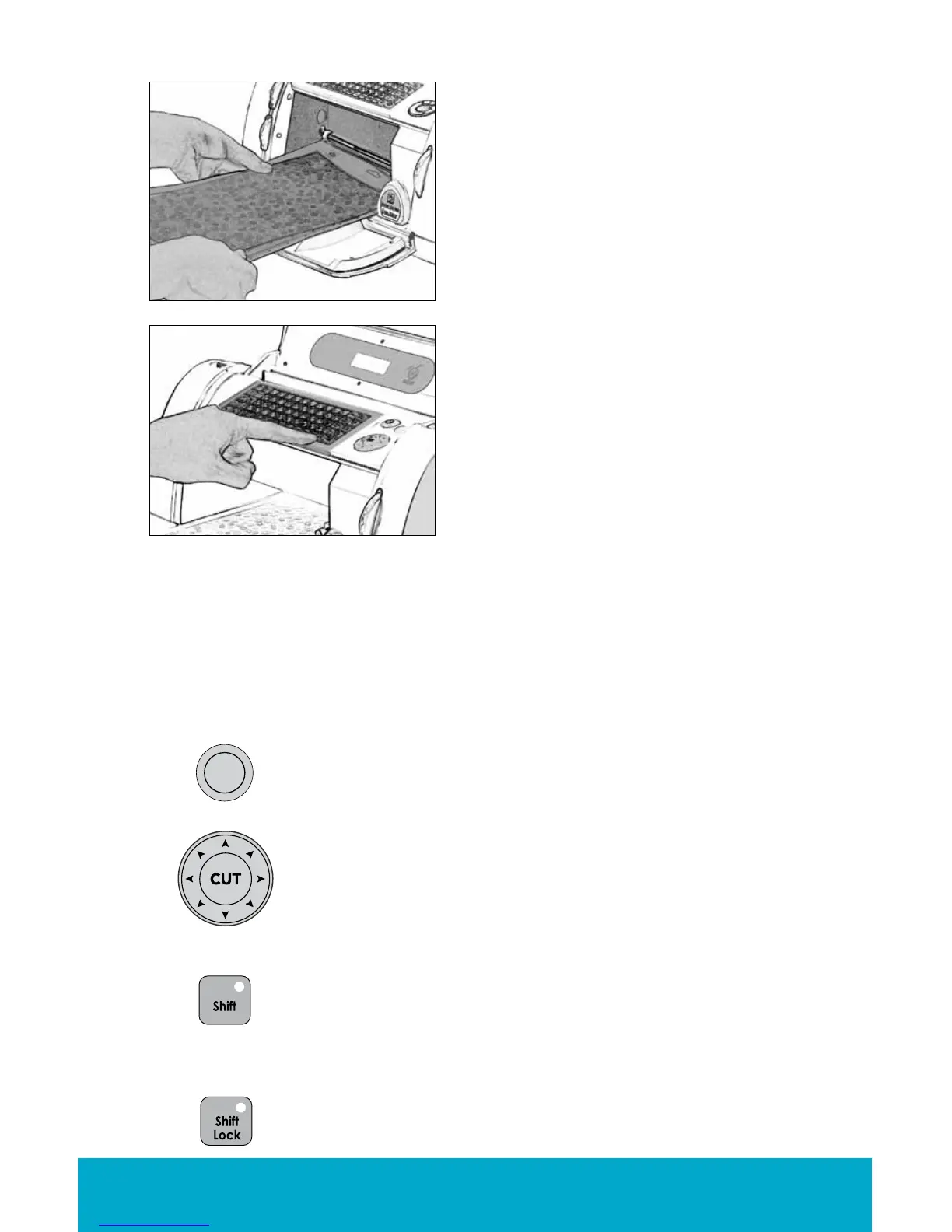
1. Once the paper has been placed on the mat,
insert the mat into the machine with the arrow
pointing toward the machine.
2. Hold the cutting mat rmly between the roller
bar and the deck and gently push the leading
edge of the mat into the rollers. Then press the
Load Paper key on the keypad overlay. The
Cricut Create machine will then load the mat
and paper. If the mat does not load, press the
Unload Paper key and try again.
Load Cutting Mat into Machine
If you want to stop the Cricut Create machine from cutting before it
is nished, simply press the STOP button located adjacent to the CUT
button. This will suspend any operation in progress.
The Blade Navigation Buttons (discussed in detail on page 14) offer
eight-way directional blade movement, moving the cutting blade
to any location on the paper.
The Shift key allows you to select the character in the upper right
corner of a key. The Shift key will be backlit in green when active.
TIP: To select a character from the upper right corner of a key, press
the Shift key once (you do not need to hold it down) and make
your selection.
The Shift Lock key allows repeated selections of characters in the
upper right corners of keys. The Shift Lock key will be backlit in
green when active.
STOP


 To Next Page