4826 Sterling Drive, Boulder, CO 80301
PH: 720.406.8946 service@psaudio.com www.psaudio.com
Getting Started
Getting Started xv
©2016 PS Audio Inc. All rights reserved.
®
Owner’s Reference DirectStream Junior
Select the input you wish to change. Once selected, hold the selector button
down for 3 seconds to enter the display mode. The rst screen is balance. Press
the selector button once again, while in the setup mode, to toggle to the input
naming screen. The input already selected will appear, along with data and bit rate
information. Depress and hold the selector button until the Name Edit Screen is
displayed.
The cursor sits under the letter you can select. Rotate the volume knob to choose
which letter you desire. Press the selector button and that letter will appear as
part of the name. Repeat the process until you spell the input name. Press and
hold the selector button to leave the naming edit screen.
DirectStream Junior has two output levels, High and Low. In the standard output
mode, DirectStream Junior will provide adequate output level to directly feed a
power amplier without use of a preamplier. If the power amplier, or preamplier,
is overly sensitive or you need to reduce the output level of DirectStream Junior
for any reason, you can activate the output attenuator to reach a lower level.
There should be no sonic penalty for doing so.
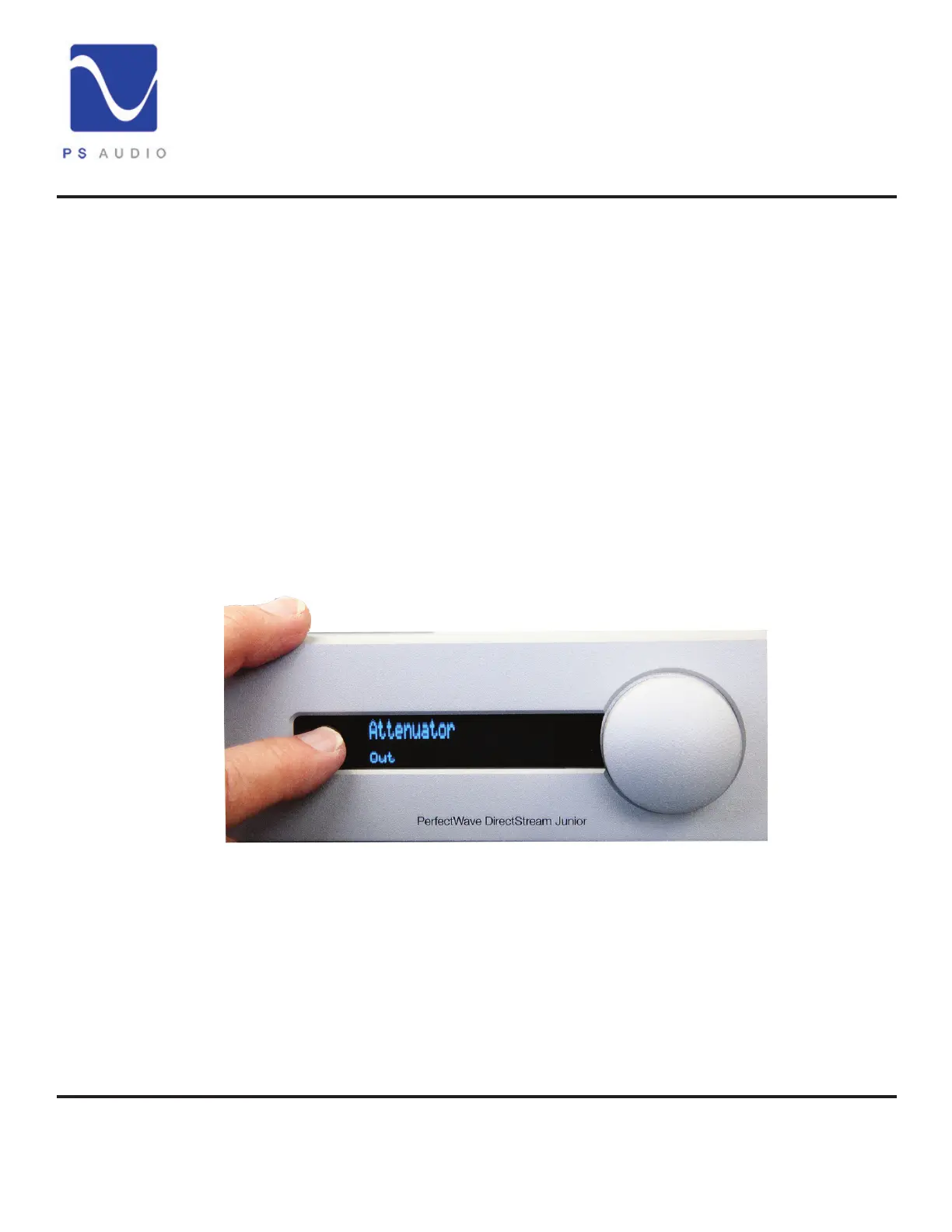
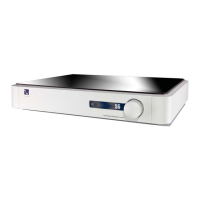
To turn on/o the output attenuator, press the DAC Level button on the remote.
Or, go to the setup screen which is accessed by depressing the selector button,
located to the left side of the display, for 3 seconds to enter the setup mode. Toggle
through the setup screens with a button push. Once you get to the Attenuator
screen, use the volume control knob to select In (lowest gain) or OUT (normal
gain).
Set the output
level


 To Next Page