4826 Sterling Drive, Boulder, CO 80301
PH: 720.406.8946 service@psaudio.com www.psaudio.com
Troubleshooting xxiii
Troubleshooting
©2016 PS Audio International Inc. All rights reserved.
®
Owner’s Reference DirectStream Junior
If no sound comes out of the system with DirectStream Junior connected, there are
several areas to check. Either you are not getting an audio signal into the preamplier,
or you don’t have a good digital source feeding DirectStream Junior.
First, check to make sure your preamp, integrated, receiver or Amplier is switched
to the same input DirectStream Junior is connected to. Test the connection and
the cables to make sure. Keeping the input selected and using the same cable,
connect this input to a known good source like a tuner or the direct analog output
of a CD player. If that works, then it is most likely not a connection problem between
DirectStream Junior and the preamp, integrated, or amplier.
Next step is to check and see if the digital input is properly connected. Look on the
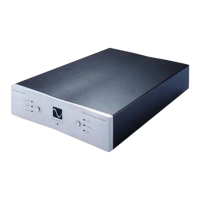
front panel of DirectStream Junior to see if the locked light is illuminated. If it is not,
this is most likely the problem. You can troubleshoot this by making sure DirectStream
Junior is on the proper input and that you have connected the input correctly. If this
fails, try replacing the digital interconnect or try using another type. For instance, if
you are using a coax connection, try using the CD player’s optical output instead or
try replacing the cable.
USB – DirectStream Junior not recognized, or no sound via USB
To play music from your computer into the DirectStream Junior via USB you
must have a driver installed that communicates with DirectStream. On a Mac
computer with OS X Yosemite the drivers are already available and the unit
should be automatically recognized. You can then go and choose the PS Audio
USB driver to play to by going to System Preferences->Sound and select the PS
Audio PerfectWave DSD. You can also go to Applications->Utilities->Audio Midi
and select the driver as well as set the sample rate.
Currently Windows operating systems do not come with appropriate USB
audio driver software installed. You will need to download the PS Audio USB
driver from the PS Audio website. You can also contact our support sta via
email (support@psaudio.com) or phone, (+17204068946) or simply go to www.
psaudio.com and click on the Downloads page. You must then unzip the driver
and install it on your Windows machine. Once installed, Windows will recognize
DirectStream and allow you to select it for playback from any program on your
No sound
USB Problems


 To Next Page