4826 Sterling Drive, Boulder, CO 80301
PH: 720.406.8946 service@psaudio.com www.psaudio.com
Getting Started
Getting Started xiv
©2016 PS Audio Inc. All rights reserved.
®
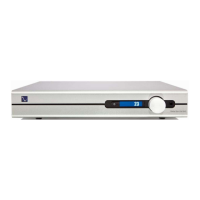
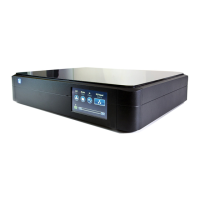
Owner’s Reference DirectStream Junior
SELECT THE INPUT
The rst step is to select the input you wish to play. This can be accomplished
with the remote control or through the front panel selector and display.
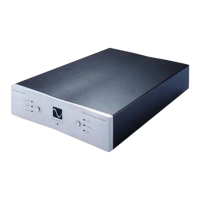
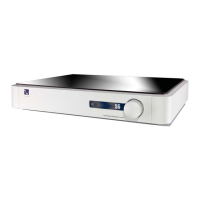
Touch selector button to the left of the screen. The rst press will show the active
display. Touch again and you toggle to the next input.
Each input has a lock light associated with it. The lock light has two states:
connected (displays an asterisks in the upper right corner of the display) and not
connected (Nothing displayed). It is also possible to select AUTO. AUTO input
senses when a digital input is actively playing music and switches to the live input.
This is the recommended input setting.
INPUT NAMING
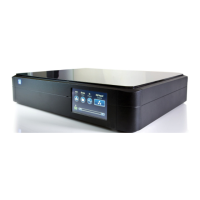
For greater convenience it is possible to assign a custom name to each input such
as PWT, XLR, etc. To name each input, you must rst enter the setup display.
Select the input
Name the input
Lock light


 To Next Page