4826 Sterling Drive, Boulder, CO 80301
PH: 720.406.8946 service@psaudio.com www.psaudio.com
Getting Started
Getting Started xviii
©2016 PS Audio Inc. All rights reserved.
®
Owner’s Reference DirectStream Junior
have set for the Bridge, to connect the UPnP server. Once connected, change
DirectStream Junior’s input to Input 7, labeled the same as the Bridge Friendly
name. You should now be able to stream music to the Bridge.
If you are using JRiver Media Center, it will be necessary to turn JRiver’s DLNA/
UPnP server on to recognize the Bridge. Make sure the computer running JRiver
Media Center is connected to the same router/home network as the PS Audio
Network Bridge. In JRiver go to Tools->Options->Media Network and check mark
the box that reads: Use media network to share this library and enable DLNA.
Follow instructions and once setup,
the Bridge should appear in the JRiver
Media Center far left window under
Playing Now. Select the Bridge and you
should be connected.
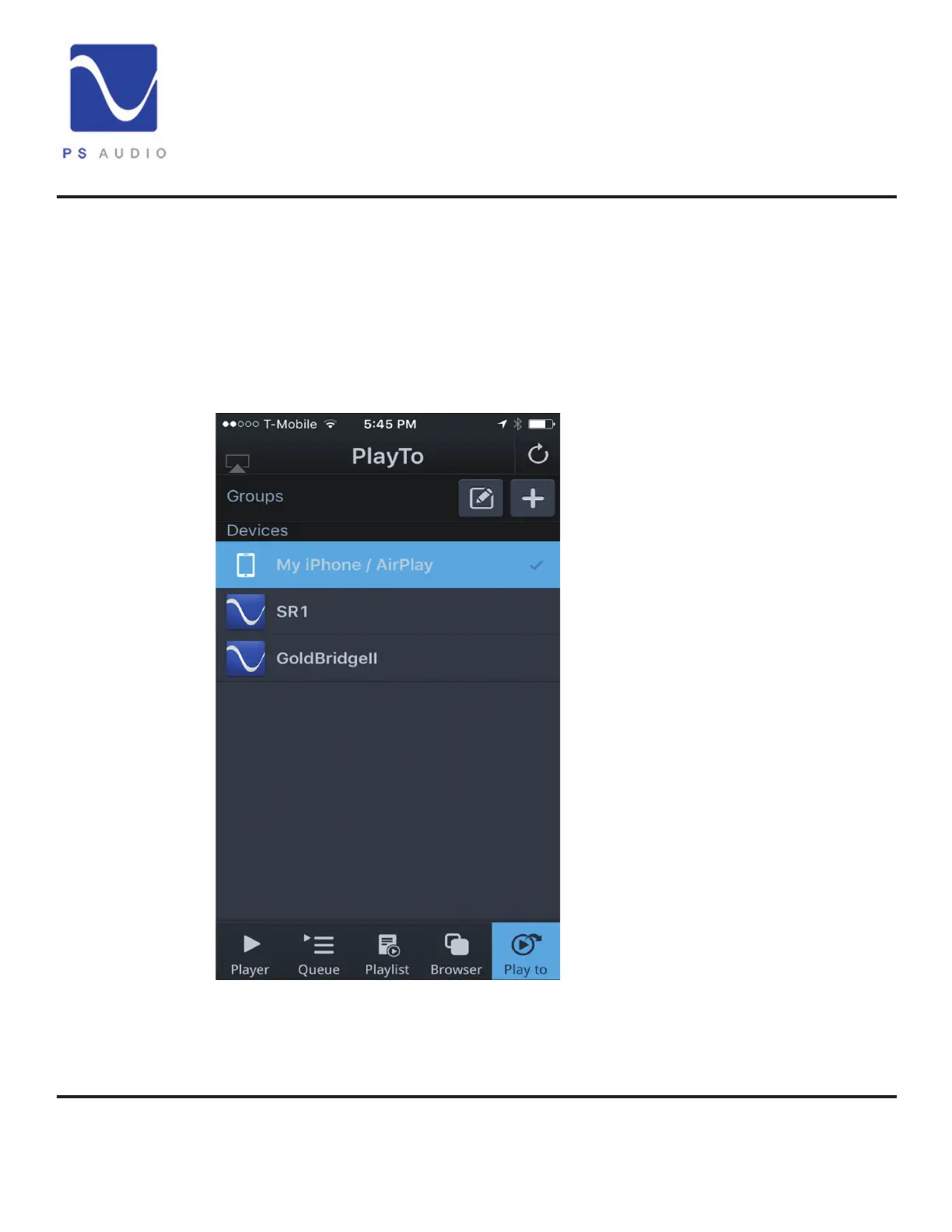
If you are using a NAS and mobile
controller, the Bridge should be visible
on the controller app’s connect screen.
The image shows MController (from
MConnect) and the screen you go to for
connection to the Bridge. In this case,
the Bridge friendly name has been
set, as GoldBridgeII. There is another,
second Bridge in this image, labeled
SR1.
To select the NAS or UPnP server of
any type, in MController, touch the
lower icon that says Browser. Choose
the server you wish to connect to, or
VTuner, for internet radio access.
MConnect’s MController app is our
recommended mobile platform UPnP
controller and is available for both
Android and Apple tablets and phones.
Changing the Friendly Name
Many times it is less confusing to change the standard Bridge name from its default
Using a NAS
Changing Bridge
Friendly Name


 To Next Page