30
534 Trestle Place Downingtown, PA, 19335 USA · Tel: +1(484)593-2247 · Email: support@ptzoptics.com
Rev 2.0 2023-10-23
Step 6: Focus Menu
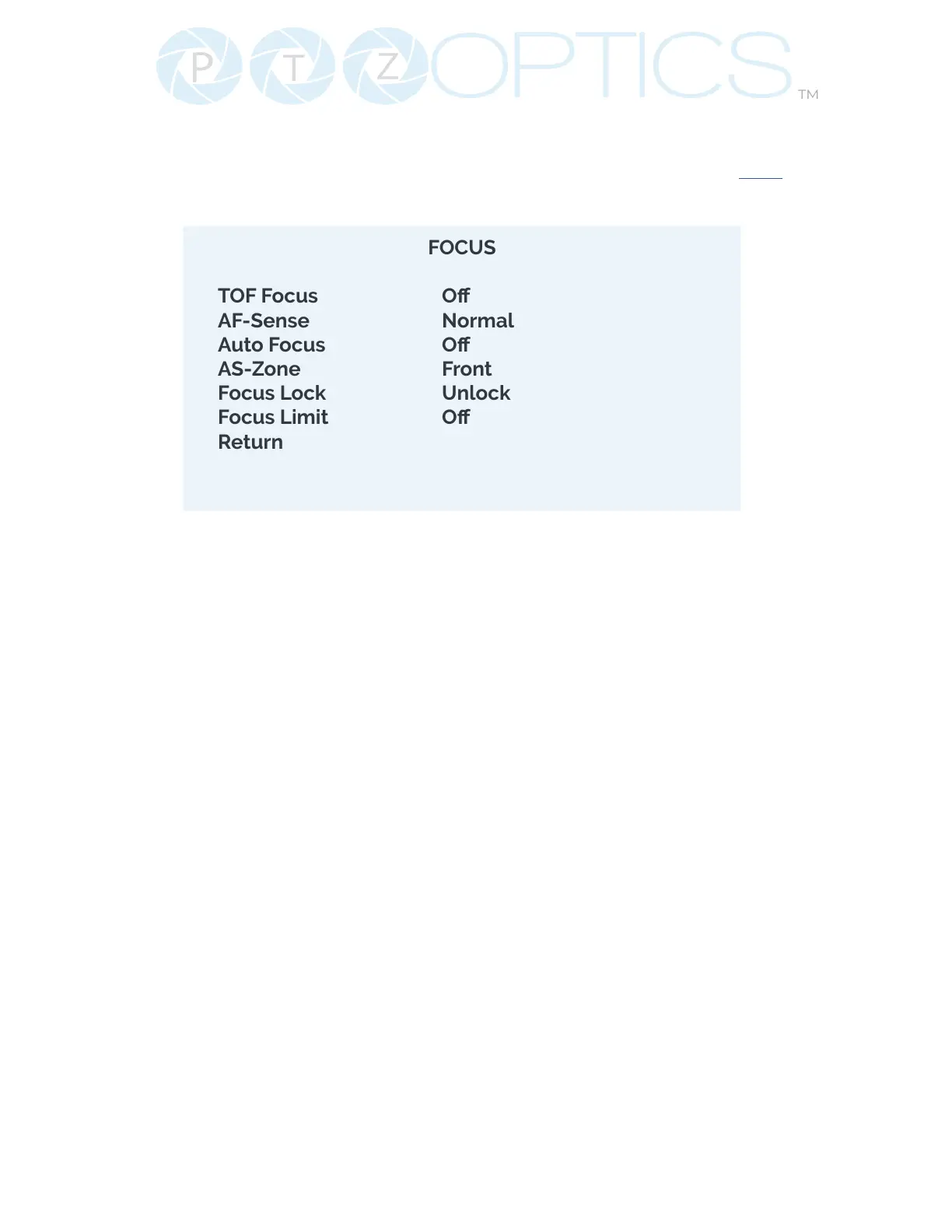
Return to the main menu and scroll down to select the Focus Menu. Please copy the settings
in the image below and exit the menu. Please see the Studio Pro manual linked here for a de-
tailed explanation of this menu.
Exit this menu and use the Near Focus button on the bottom of the IR remote, to bring the
subject into focus. If you’ve created enough space between the subject and the background,
the subject will be in focus and the background will be blurred.
Step 7:
If you would like to save the bokeh setup you’ve created, simply set it as a camera preset. To
do this, press the [Preset] button on your IR remote, followed by the number you would like to
assign it to.
FOCUS
TOF Focus O
AF-Sense Normal
Auto Focus O
AS-Zone Front
Focus Lock Unlock
Focus Limit O
Return


 To Next Page