EasyManua.ls Logo

Pulsar KRYPTON 2 - Page 44

Pulsar KRYPTON 2
73 pages
Print Icon
To Next Page IconTo Next Page
To Previous Page IconTo Previous Page
Loading...
Step
1.
Enter
the
menu
to
fix
the
defective
pixels
Press
and
hold
the
MENU
6
button
to
enter
the
main
menu
.
Select
the
submenu
General
Settings
with
the
UP
5/
DOWN
7
buttons
.
A
short
press
of
the
М
ENU
6
button
opens
the
submenu
.
Use
the
UP
5/
DOWN
7
buttons
to
select
the
Defective
Pixel
Repair
menu
item
.
Press
briefly
the
MENU
6
to
open
the
submenu
.
Select
the
Defective
Pixel
Repair
option
by
briefly
pressing
the
MENU
6
button
.
Step
2.
Select
the
defective
pixel
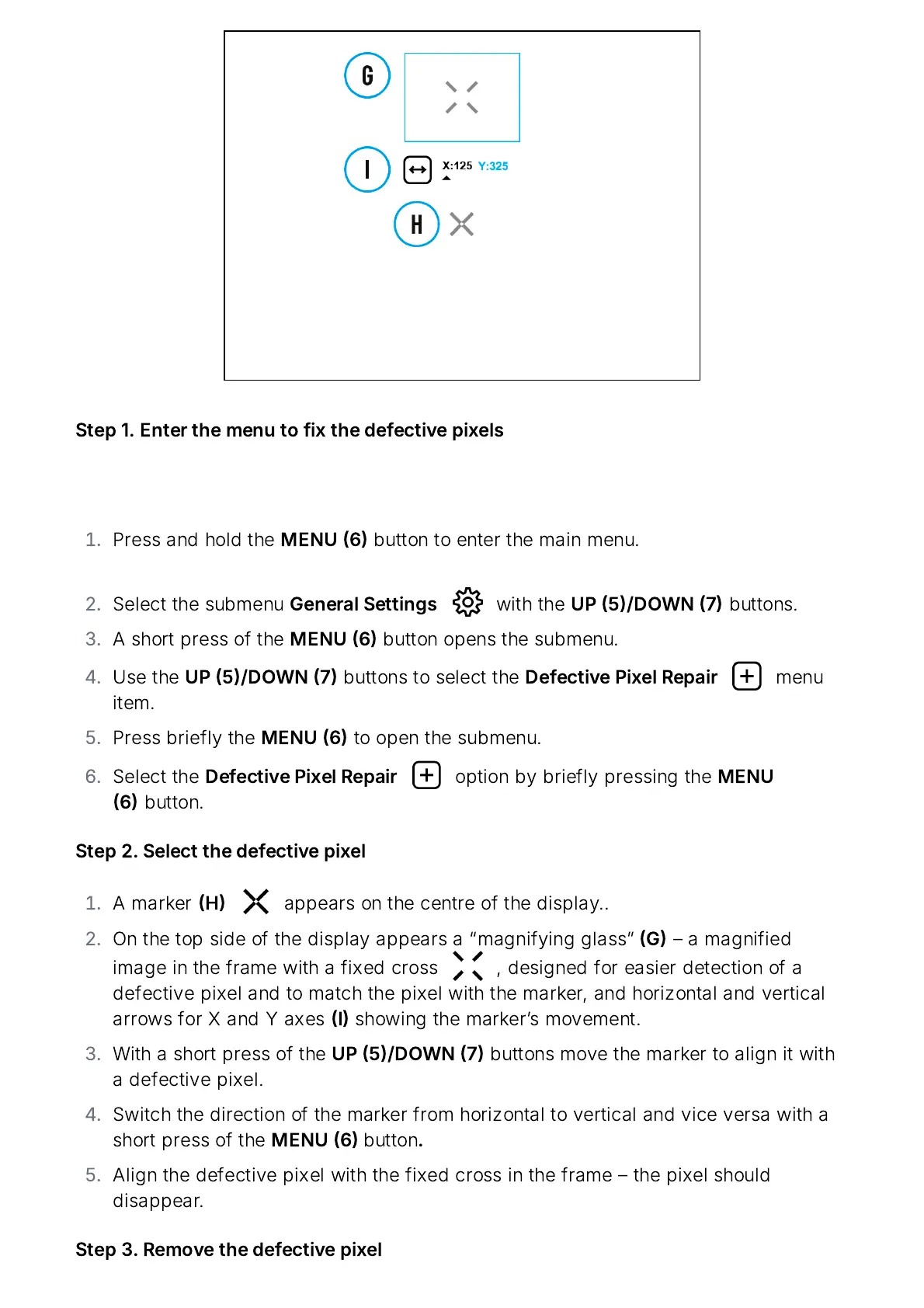
A
marker
H
appears
on
the
centre
of
the
display
..
On
the
top
side
of
the
display
appears
a
magnifying
glass
G
a
magnified
image
in
the
frame
with
a
fixed
cross
,
designed
for
easier
detection
of
a
defective
pixel
and
to
match
the
pixel
with
the
marker
,
and
horizontal
and
vertical
arrows
for
X
and
Y
axes
I
showing
the
marker
ʼ
s
movement
.
With
a
short
press
of
the
UP
5/
DOWN
7
buttons
move
the
marker
to
align
it
with
a
defective
pixel
.
Switch
the
direction
of
the
marker
from
horizontal
to
vertical
and
vice
versa
with
a
short
press
of
the
MENU
6
button
.
Align
the
defective
pixel
with
the
fixed
cross
in
the
frame
the
pixel
should
disappear
.
Step
3.
Remove
the
defective
pixel

Related product manuals