15
PULSE CENTERS | (770) 334-2226 | support@pulsecenters.com | 34 Center Rd SE , Cartersville, GA 30121
BLUETOOTH GUIDE CONTINUED
1. Confirm that the “Bluetooth” setting is enabled on your phone.
2. Confirm that the “Location” setting is enabled on your phone.
3. Confirm that you gave the “Pulse Connections App” permission to be used
on your phone in “Settings/Apps Manage- ment.”
4. Confirm that you accepted the most recent software release or app
updates on your phone. (Failure to do so could prevent you
from being able to use the Pulse Connections App.)
5. Hard-close the app, restart your phone, and log back into the app to try to
sync again.
6. If all of the above have been confirmed and the device still won’t
sync, contact our Product Specialists at support@pulsecenters.com
or support@pulseequine.com, or call (888) 952-7030 and select
Option #2 or #3.
TROUBLESHOOTING STEPS:
■ TROUBLESHOOTING STEPS: Contact our Product Specialists at
support@pulsecenters.com or support@pulseequine.com, or
call (888) 952-7030 and select Option #2 or #3.
■ ERROR MESSAGE: “Failed to Initiate Device Scan. The Device was
Unable to Begin Scanning for Pulse Centers devices using Bluetooth
LE. Reference Code: Chromium, Zinc or Sulfur”
TROUBLESHOOTING ERROR MESSAGES CONTINUED
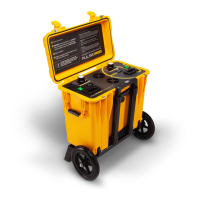
■ The Bluetooth machine will not display any lights until it has been synced.
■ If the machine is synced but not displaying any lights, this means the
machine isn’t receiving power.
□ Plug the machine into a confirmed working power source.
□ If the green ‘on/off’ light is off, contact our Product Specialists at
support@pulsecenters.com or support@pulseequine.com, or call
(888) 952-7030 and select Option #2 or #3.
USE THE COLOR OF THE LIGHT IN THE SYSTEM TO
FURTHER TROUBLESHOOT:



 To Next Page