19
Parental Control
To tag a movie as Allow for children, select a movie (or a group
of movies), then press the MENU button on the RC and click on
Allow for children. Then, enter a 4-digit pin code.
Personal Categories
By default, the movies and TV shows are automatically associated to
categories. But you can create your own categories and associate
manually your movies. To create a category, go to Categories, then
press MENU and click on Create a category. Then, enter a name and
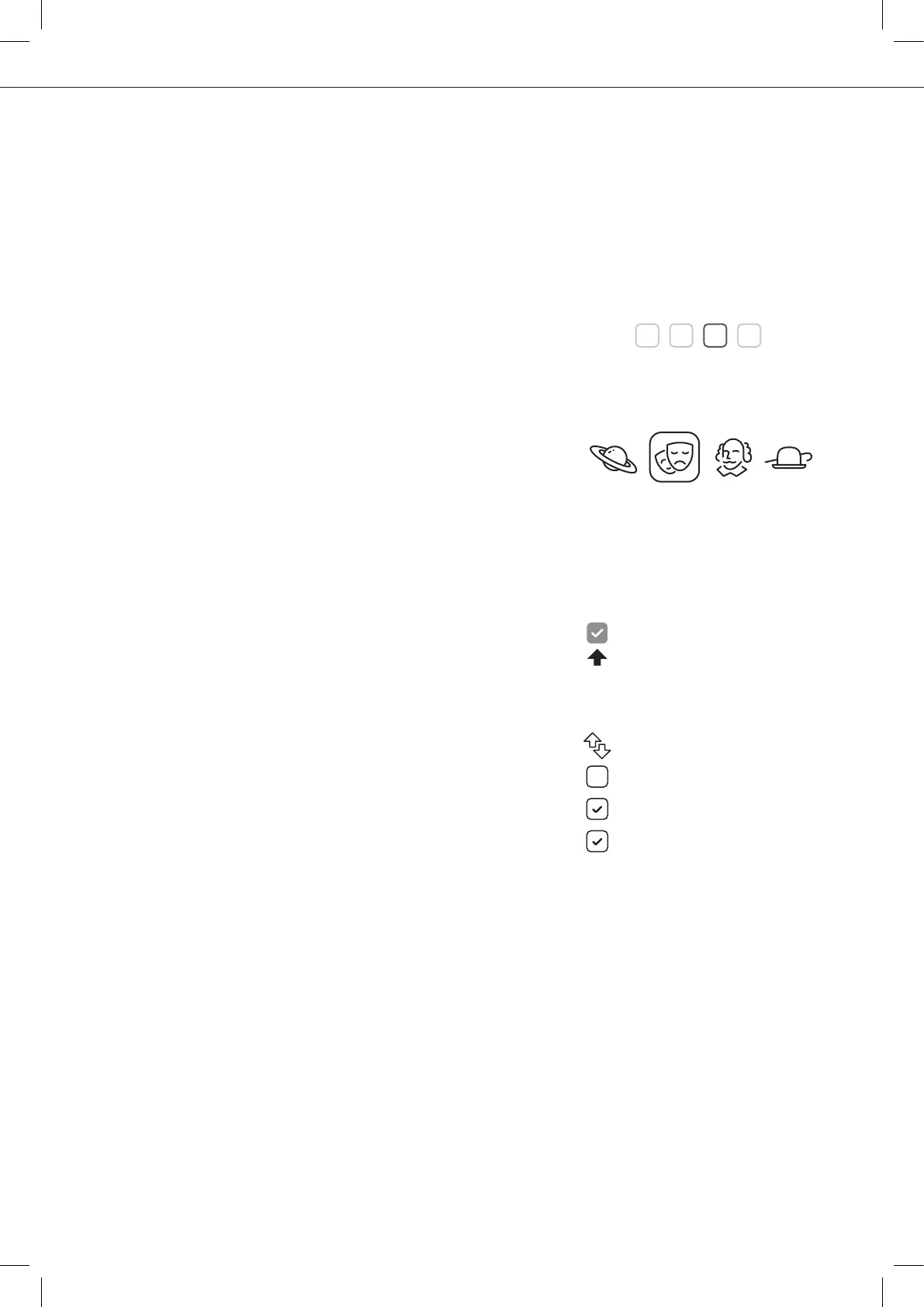
choose an icon. The contextual menu gives also access to additional
options such as: modify the position, edit or remove.
R_video On Start-Up
To activate this function, press MENU, then go to Settings, click on
the second tab and switch ON the option in the list.
Filter and Sort
To sort your movies, press MENU, then go to Filter and sort. Then
click on the first item. Then select the sorting: A to Z, Z to A,
Release date, Duration, Addition... To filter your movies, please
click the following options: Seen, Ongoing, or Not seen.
Decreasing Release date
Filters
Seen videos
Ongoing videos
Not seen videos
Please enter a 4-digit pin code.
This code will allow you to lock your collection
and restrict access to movie tagged ‘‘Allowed for
children’’.
Parental code
* *
7
Auto launch R_video on start-up
Auto-start
Search Engine
To search a movie, TV show or even movies from specific actor or director, press MENU, then on the
first row, click on the search engine. Then, enter your search (title, actor, director). The results will be
filtered by Movie, TV Show, Actor and Director.
Sagas / Groups
The films from sagas are automatically placed in groups and sorted by release date. A saga cover
dedicated to the collection is associated with the group and movies are displayed in a stunning carousel
with great 3D motion effects!



 To Next Page