21
Firmware Upgrade
Usually, if a new firmware is available, you will be informed on the sartup of the player. To access the
Firmware upgrade page and manually launch the update of firmware online, go to Setup >
Miscellaneous > Firmware Upgrade. You will see the current firmware version. Click on Check
Available Update. If a new version is available, you will be able to download it and install it. If there is
no new firmware version available, a popup windows will appear to confirm it. To manually upgrade the
firmware using a USB flash drive, please visit the R_volution Knowledge Base:
rvolution.uservoice.com/knowledgebase
Factory Reset
In case of problem, try turn OFF your media player and unplug the power cable during 10 min. It could
solve the problem. If it does not help, please try the following procedure. Be careful, however. This will
reset all your settings and account information. But you will not lose your movie collection.
1. Go to Setup > General
2. Click Reset Settings button, then click on Reset settings to confirm the procedure.
3. Please wait during the reset process.
Warning! Do not restart or switch off your player during the full process
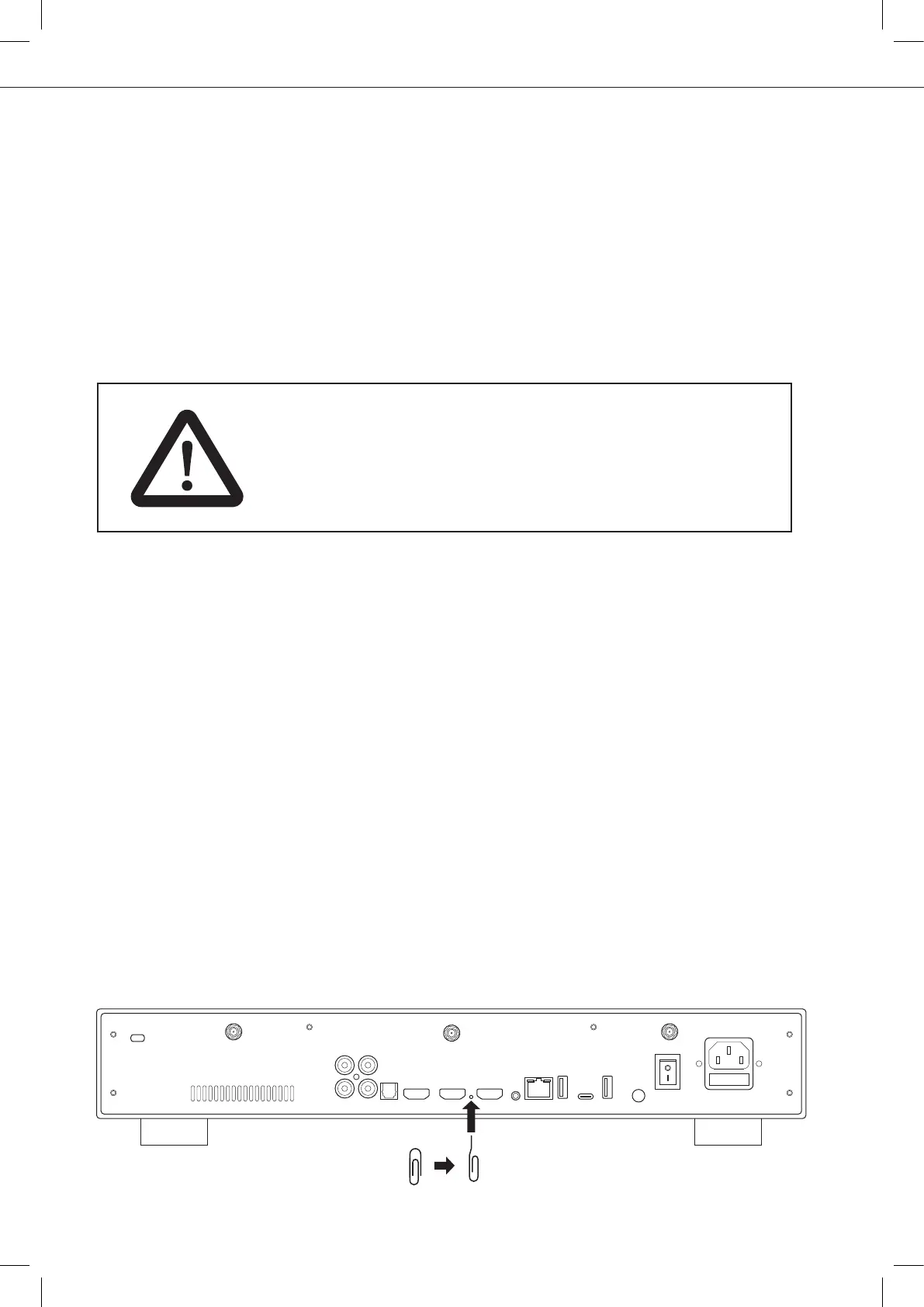
Hardware Reset
If you do not get any video signal, you can boot into Recovery menu:
1. Start the media player.
2. During power-on press and hold Reset button located
on the back of the media player using a paper clip.
3. Then do "Wipe data".
DISCLAIMER
On some cases — especially if you come from a more recent firmware — during
the process, the TV screen can switch to GREEN or BLACK for a while. This is
normal! Please absolutly not restart or switch off your player during the full
process. In such case, please wait 10 min before to restart your media player.
Paper clip
Open
Paper clip



 To Next Page