dIAMOND APP
15
Other lanes with players are at least 8 ft apart
No fans or HVAC units are turned on and blowing around the unit
No other players are practicing behind the player recording data
Completing a Session:
Finish session in bottom right-hand corner.
If the processing wheel appears but no data is recorded, not enough clear readings were captured.
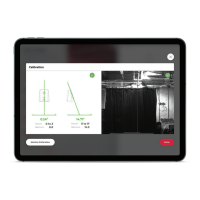
Continue your session as normal. If no readings continue to occur, please recalibrate. If they continue to
occur, please reach out to customer support.
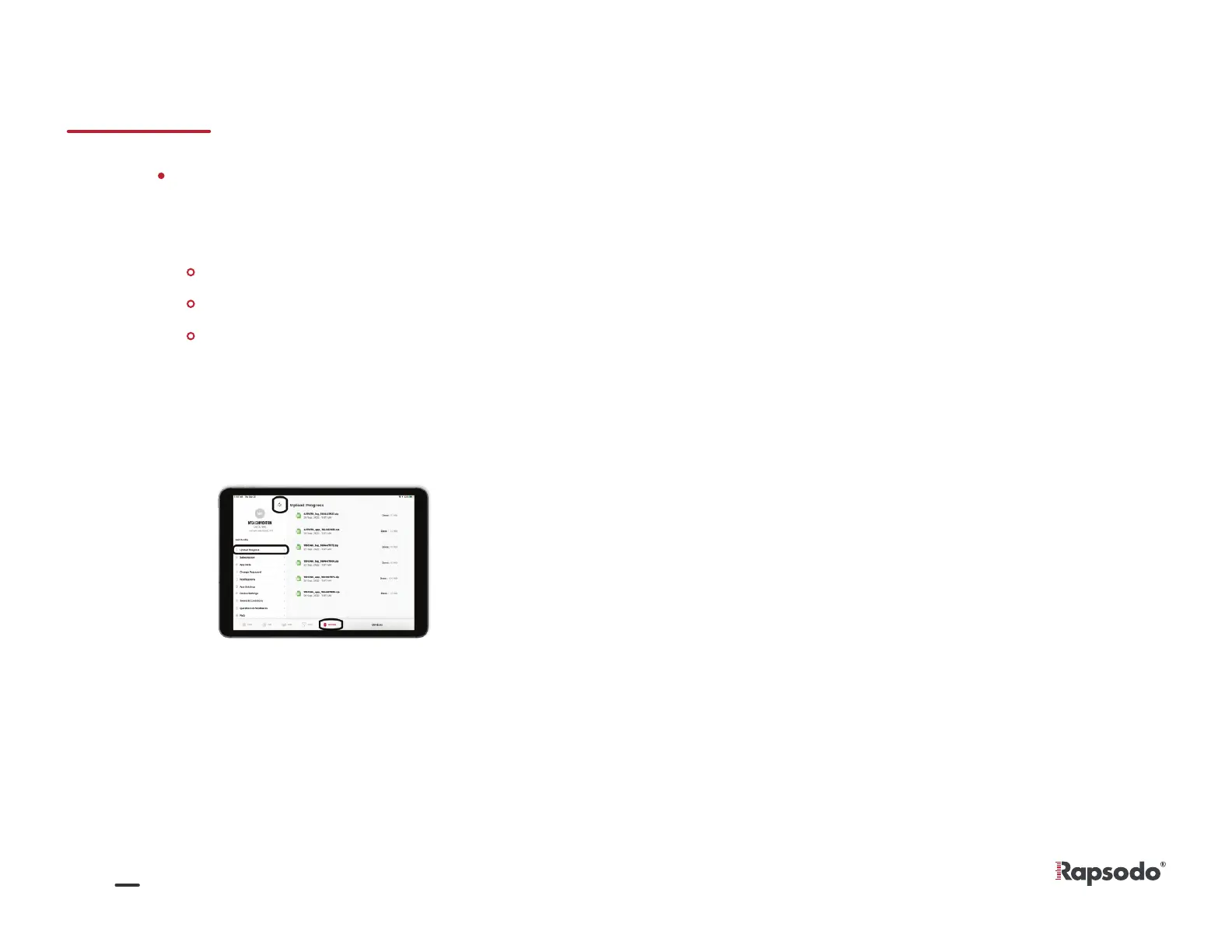
Open Rapsodo Diamond App go to Settings > Upload Progress > And select the arrows in the top left
corner.
Arrows will start spinning, leave app open and awake until all files have been uploaded in the progress bar.
1.
3.
4.
Go to the Rapsodo cloud online, those sessions will now appear under the player. If sessions are not
visible, please allow your iPad more time to sync the data.
5.
Connect to Internet (Wi-Fi)
2.


 To Next Page