Waking Ray
When you stop interacting with Ray, the screen dims in order
to conserve battery life. After a longer period of inactivity,
Ray goes to sleep and the screen shuts o. Wake up Ray by
pressing the Lock button.
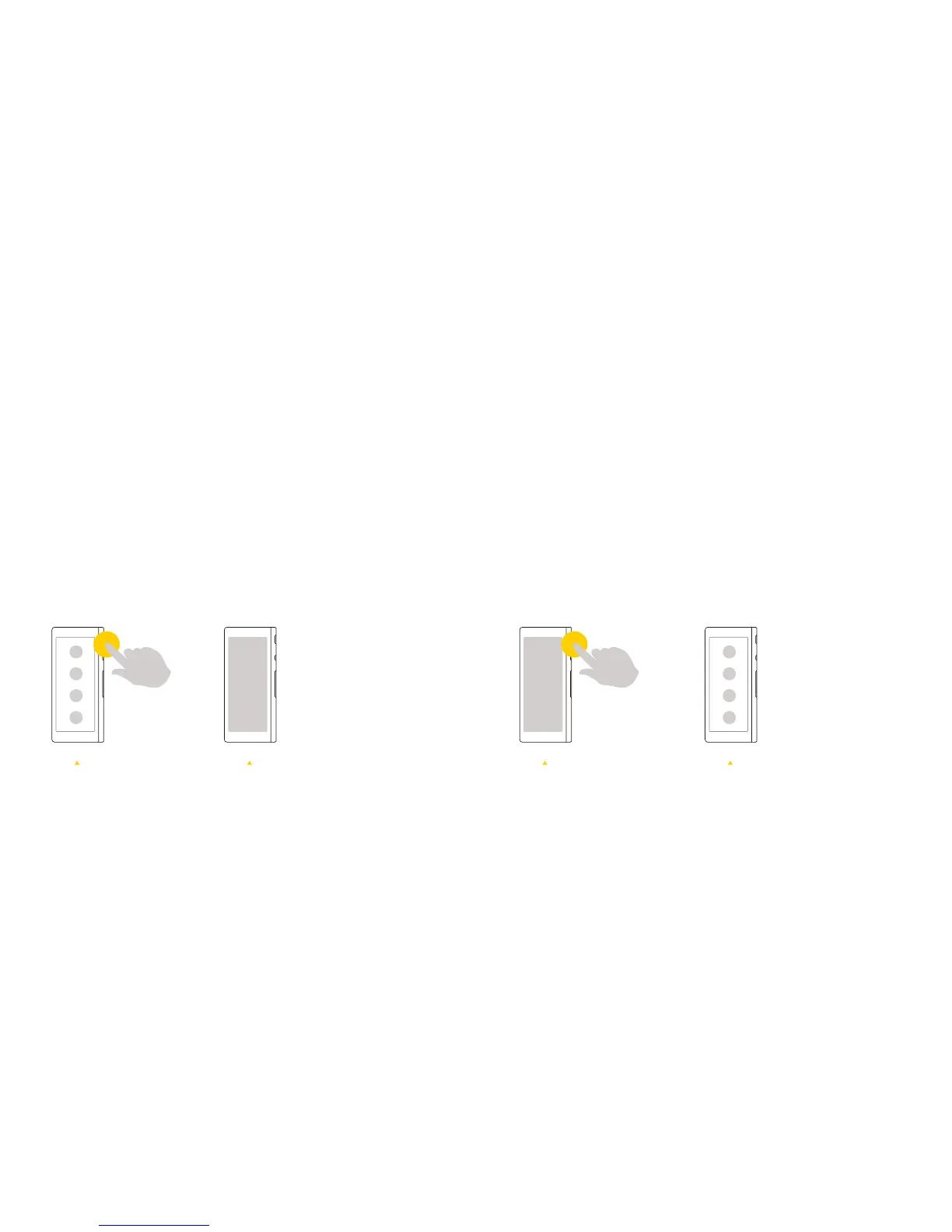
Locking Ray
Screen Lock
Pressing the Lock button while the device is on will turn o Ray’s
screen and conserve power. Tap the Lock button again to continue
using Ray.
Press the
“Lock” button
Press the
“Lock” button
Ray will wake
back up
The screen
will shut o
How to Wake Ray
9 10



 To Next Page