EasyManua.ls Logo

Raymarine E70368 - User Manual

Raymarine E70368
84 pages
Print Icon
To Next Page IconTo Next Page
Loading...
© 2020 Raymarine UK Limited
87298-3Document number:
01-2020Date:
English (en-US)
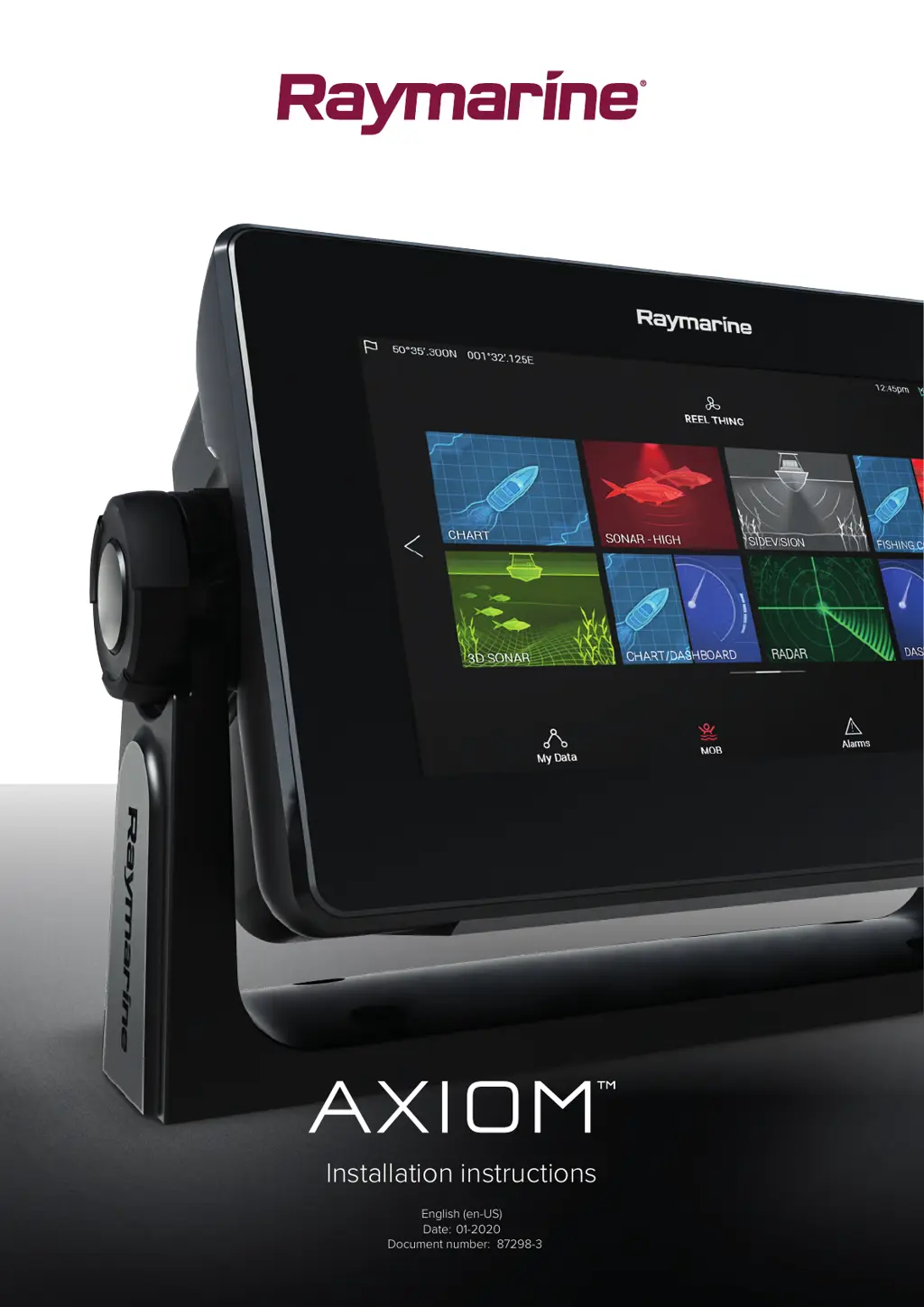
Installation instructions

Table of Contents

Questions and Answers

  • J
    Jacob WardAug 17, 2025
    How to fix a Raymarine Monitor that won't turn on?
    • M
      Matthew BrownAug 17, 2025
      If your Raymarine Monitor doesn't turn on or keeps turning off, here are some things to check: * Make sure the relevant fuses and breakers are in good condition and properly connected; replace them if needed. * Verify the power cable is correctly oriented, fully inserted into the display connector, and locked in place. * Confirm the power supply is wired correctly, referring to the installation instructions if necessary.
  • B
    Bradley DixonAug 23, 2025
    What to do if Raymarine Monitor connection is slow or keeps dropping?
    • L
      Leon RoseAug 23, 2025
      If your Raymarine Monitor's connection is slow or keeps dropping, it might be due to: * Wi-Fi performance degrades over distance. Move devices closer together. * Interference being caused by other Wi-Fi enabled or older Bluetooth enabled devices. Change the Wi-Fi Channel of the device you are trying to connect to and retry the connection. * Interference from devices on other vessels. Change the Wi-Fi Channel of the device you are trying to connect to and retry the connection.
  • G
    Glenn AllenAug 26, 2025
    How to troubleshoot a Raymarine E70368 that cannot find a network?
    • J
      Joshua ChenAug 26, 2025
      If your Raymarine Monitor cannot find a network, consider the following: * Ensure Wi-Fi is enabled on both Wi-Fi devices and rescan available networks. * Some devices may automatically turn off Wi-Fi when not in use to save power. Power cycle / reboot devices and rescan available networks. * Try to enable broadcasting of the device’s network using the Wi-Fi settings on the device you are trying to connect to. * Move devices closer together or, if possible remove the obstructions and then rescan available network.
  • A
    amy15Aug 31, 2025
    What to do if Raymarine E70368 Monitor touchscreen is not working?
    • B
      Brittney DawsonAug 31, 2025
      If the touchscreen on your Raymarine Monitor is not working as expected: * Check if TouchLock is enabled. Swipe your finger from left to right across the Power button swipe area to de-activate the TouchLock. * Ensure you are operating the screen with bare fingers. Bare fingers must make contact with the screen for correct operation. * If there are water deposits on the screen, carefully clean and dry the screen in accordance with the instructions provided.
  • J
    joseph48Sep 5, 2025
    Why does my Raymarine E70368 display behave erratically?
    • R
      Russell GrahamSep 6, 2025
      If your Raymarine Monitor is behaving erratically with frequent unexpected resets, system crashes, or other erratic behavior, consider the following: * Intermittent problem with power to the display: Check relevant fuses and breakers. * Software mismatch on system (upgrade required): Go to www.raymarine.com and click on support for the latest software downloads. * Corrupt data / other unknown issue: Perform a factory reset. Important: This will result in the loss of any settings and data (such as waypoints) stored on the product.
  • R
    Ryan AustinSep 8, 2025
    Why is the Raymarine E70368 mobile application running slowly or not at all?
    • B
      bmeltonSep 8, 2025
      If the mobile application for your Raymarine Monitor is running slowly or not at all, check these things: * Raymarine app not installed: Install mobile app from relevant app store. * Raymarine app version not compatible with MFD software: Ensure mobile app and MFD software are latest available versions. * Mobile apps not enabled on MFD: Enable “Viewing only” or “Remote Control” as required in the Mobile Apps setting on your MFD.
  • D
    Dominique LeeSep 12, 2025
    What to do if Raymarine E70368 will not start up (restart loop)?
    • S
      Sara MooneySep 12, 2025
      In the unlikely event that the Raymarine Monitor will not start up (restart loop) due to software corruption, try downloading and installing the latest software from the Raymarine website.
  • S
    Sarah MooneySep 13, 2025
    Why does my Raymarine E70368 show a “No Fix” GNSS status?
    • E
      Eric LoganSep 14, 2025
      The “No Fix” GNSS status icon on your Raymarine Monitor may be displayed due to: * Geographic location or prevailing conditions preventing satellite fix. Check periodically to see if a fix is obtained in better conditions or another geographic location. * GNSS (GPS) connection fault. Ensure that external GNSS connections and cabling are correct and fault free. * External GNSS (GPS) receiver in poor location. Ensure GNSS (GPS) receiver has a clear view of the sky. * GNSS (GPS) installation problem. Refer to the installation instructions.
  • A
    Ashley RobbinsNov 19, 2025
    Why can't I connect my Raymarine E70368 to the network?
    • J
      Jonathan HartNov 19, 2025
      If you're having trouble connecting your Raymarine Monitor to the network, consider these potential causes and solutions: * Ensure that Wi-Fi is enabled on your devices. * Some devices may automatically turn off Wi-Fi when not in use to save power. Power cycle/reboot devices and retry the connection. * Verify that you are trying to connect to the correct Wi-Fi network. * Make sure you are using the correct passphrase. * Bulkheads, decks, and other heavy structures can degrade and even block the Wi-Fi signal. Try repositioning the devices so the structure is removed from the direct line of sight between the devices. * Interference being caused by other Wi-Fi enabled or older Bluetooth enabled devices. Try changing the Wi-Fi Channel of the device you are trying to connect to and...
  • C
    cfisherNov 27, 2025
    Why is the scrolling image not displaying on my Raymarine E70368 Monitor?
    • C
      cindy50Nov 27, 2025
      If the scrolling image is not being displayed on your Raymarine Monitor, check the following: * Sonar disabled: Select Ping Enable from the Sonar app’s Sounder menu. * Incorrect transducer selected: Check that the correct transducer is selected in the Sonar app’s Transducer menu. * Damaged cables: Check that the transducer cable connector is fully inserted and locked in position. * Damaged or fouled transducer: Check the condition of the transducer ensuring it is not damaged and is free from debris/fouling, clean or replace as necessary. * Wrong transducer fitted: Ensure the transducer is compatible with your system. * External sonar module: SeaTalkhs ™ / RayNet network problem: Check that the unit is correctly connected to the multifunction display or Raymarine network switch...

Summary

Chapter 3 Installation

3.1 Selecting a location

Guidelines for choosing an optimal installation site considering ventilation, power, and interference.

Chapter 4 Connections

4.2 Power connection

Detailed instructions on how to properly connect the MFD to a 12V DC power supply.

4.4 Transducer connection

Information on connecting compatible transducers to the MFD's built-in sonar module.

Chapter 6 Troubleshooting

6.3 Power up troubleshooting

Solutions for issues where the product does not turn on or repeatedly restarts.

6.5 Sonar troubleshooting

Guidance on resolving issues with sonar display, depth readings, and image quality.

6.7 Touchscreen troubleshooting

Steps to resolve problems with the touchscreen not responding or operating incorrectly.

Raymarine E70368 Specifications

General IconGeneral
Display TypeLCD
Brightness1000 nits
Waterproof RatingIPX6
Screen Resolution800 x 480 pixels
TouchscreenYes
Resolution800 x 480
ConnectivityNMEA 2000, Ethernet
Video InputHDMI

Related product manuals