EasyManua.ls Logo

Raymarine eS78 - User Manual

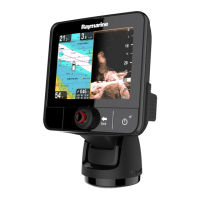
Raymarine eS78
388 pages
Print Icon
To Next Page IconTo Next Page
Loading...
LightHouse™
OPERATION
INSTRUCTIONS
Release 15
English
© 2015 Raymarine UK Limited
Date: 09-2015
Document number: 81360-2-EN

Table of Contents

Questions and Answers

  • J
    James JohnsonAug 18, 2025
    What to do if my Raymarine Monitor shows no depth reading or lost bottom lock?
    • T
      Tara WestAug 18, 2025
      If your Raymarine Monitor shows no depth reading or has lost bottom lock, check the transducer location to ensure it's installed correctly. Also, verify the transducer angle, adjusting if it's too great. If the transducer has a kick-up mechanism, ensure it hasn't kicked up. Check the power supply voltage under load, and inspect the transducer for damage or fouling.
  • F
    fcainAug 20, 2025
    Why does my Raymarine Monitor not turn on or keep turning off?
    • M
      michaelholmesAug 21, 2025
      Your Raymarine Monitor might not be turning on or keeps turning off due to several reasons: a blown fuse or tripped breaker (check and replace if necessary, and inspect for cable damage if fuses repeatedly blow), a poor or damaged power supply cable or connections (ensure the cable is fully inserted and locked, check for damage or corrosion, and flex the cable to check for reboots), incorrect power connection (ensure the installation instructions have been followed), or an insufficient power source (check the power supply voltage under load).
  • S
    Savannah ByrdAug 23, 2025
    What to do if my Raymarine Monitor displays a “No Fix” GPS status icon?
    • M
      Michelle WoodAug 23, 2025
      If your Raymarine Monitor displays a 'No Fix' GPS status icon, it could be due to your geographic location or prevailing conditions preventing a satellite fix (check periodically in better conditions or another location), a GPS connection fault (ensure external GPS connections and cabling are correct), or an external GPS antenna in a poor position (ensure the GPS antenna has a clear view of the sky).
  • J
    Joshua StewartAug 26, 2025
    What to do if my Raymarine Monitor will not boot up (re-boot loop)?
    • R
      Rebecca DiazAug 26, 2025
      If your Raymarine Monitor will not boot up, it could be due to the power supply and connection issues. Also, in the unlikely event that the product's software has become corrupted, please try re-flashing the latest software from the Raymarine website. On display products, as a last resort, you can try to perform a ‘Power on Reset’; however, this will delete all settings/presets and user data and revert the unit back to factory defaults.
  • E
    estarkAug 28, 2025
    What does it mean if my Raymarine Monitor displays 'No Data' or 'No scanner message'?
    • D
      Daniel BentonAug 28, 2025
      If your Raymarine Monitor displays 'No Data' or 'No scanner message', check the scanner power supply cable to ensure it's sound and connections are tight and free from corrosion. Also, check that the scanner is correctly connected to a Raymarine network switch or SeaTalkhs crossover coupler, as applicable. Ensure the scanner pedestal switch is in the ON position.
  • M
    martinezhunterAug 30, 2025
    How to fix a Raymarine Monitor radar that will not initialize (Voltage control module (VCM) stuck in “sleep mode”)?
    • D
      Deanna EdwardsAug 31, 2025
      If your Raymarine Monitor radar will not initialize because the Voltage Control Module (VCM) is stuck in 'sleep mode', check the power connection at the VCM. Ensure the voltage at the input is 12/24V and the voltage at the output is 40V.
  • S
    Scott HoustonSep 2, 2025
    Why does my Raymarine Marine GPS System say “No Fix”?
    • A
      amber56Sep 2, 2025
      If the Raymarine Marine GPS System displays a “No Fix” GPS status icon, it could be due to several reasons. First, geographic location or prevailing conditions might be preventing a satellite fix; check periodically to see if a fix is obtained in better conditions or another geographic location. Second, there may be a GPS connection fault; ensure that external GPS connections and cabling are correct and fault free. Third, the external GPS antenna might be in a poor position; ensure it has a clear view of the sky.
  • H
    Hannah GarciaSep 7, 2025
    What to do if Raymarine Marine GPS System won't boot up?
    • C
      Cassandra BellSep 7, 2025
      If your Raymarine Marine GPS System product will not boot up or is in a re-boot loop, first refer to the solutions for 'Product does not turn on or keeps turning off'. If the issue persists, it could be due to software corruption. Try re-flashing the latest software from the Raymarine website. As a last resort, on display products, you can try to perform a ‘Power on Reset’; however, this will delete all settings/presets and user data (such as waypoints and tracks) and revert the unit back to factory defaults.
  • P
    Pamela ThomasSep 9, 2025
    How do I fix a Raymarine Marine GPS System with no depth reading?
    • A
      Ann WhiteSep 9, 2025
      If your Raymarine Marine GPS System is showing no depth reading or has lost bottom lock, there are several potential causes. Check that the transducer has been installed in accordance with the instructions provided with it. If the transducer angle is too great, the beam can miss the bottom, so adjust the transducer angle and recheck. If the transducer has a kick-up mechanism, check that it has not kicked up due to hitting an object. With the product under load, use a multi-meter to check the power supply voltage as close to the unit as possible to establish the actual voltage when the current is flowing.
  • T
    Taylor CohenSep 12, 2025
    How do I correct the bearing on my Raymarine Marine GPS System radar?
    • E
      Emma SparksSep 12, 2025
      If the bearing of a target on the radar screen of your Raymarine Marine GPS System is incorrect, the radar bearing alignment likely requires correcting. Check and adjust the radar bearing alignment.

Summary

Important Information

Safety Warnings

Crucial warnings regarding navigation, safety, and operational precautions for safe use.

Getting Started

Unit Controls and Basic Operation

Covers powering on/off, series controls, keypad, touchscreen, multi-touch, and homescreen overview.

System Setup and Configuration

Details initial setup, GNSS status, autopilot, engine ID, AIS, preferences, memory cards, simulator, pairing, and software updates.

Managing Display Data

Saving and Restoring User Data

Instructions for saving, restoring, and managing waypoints, routes, tracks, and system settings.

Screenshots and System Reset

Covers taking screenshots and performing system resets for settings and data.

Customizing Your Display

Autopilot Control

Overview, Enabling, and Basic Operation

Covers autopilot features, enabling control, engaging, disengaging, and adjusting heading.

Setup, Commissioning, and Alarms

Details pilot setup, vessel settings, drive settings, commissioning, status symbols, and alarms.

Alarm Management

Alarms Overview and Manager

Explains alarm severity, acknowledgment, and the Alarm Manager for configuration.

Alarm Options and History

Details configuration options for safety, general, and engine alarms, including thresholds and history.

Man Overboard (MOB)

Man Overboard Functionality

Instructions on activating, cancelling, and displaying Man Overboard (MOB) data and icons.

Fuel Manager

AIS (Automatic Identification System)

AIS Overview and Prerequisites

Explains AIS functionality, target types, status symbols, and necessary hardware for AIS usage.

Collision Avoidance and Target Interception

Details dangerous targets, collision avoidance features, and target interception graphics.

Waypoints, Routes and Tracks

Waypoint Management

Covers waypoint overview, display examples, context menus, placement, groups, and editing.

Route Creation and Navigation

Explains route features, building routes from tracks, automatic route generation, and reviewing routes.

Chart Application

Chart Application Overview and Setup

Covers overview, electronic charts, selection, GPS check, orientation, and motion modes.

Navigation Features and Tools

Details navigate menu options, waypoints, routes, tracks, collision avoidance, and race features.

Fishfinder Application

Sonar Technologies and System Setup

Covers sonar technologies, modules, overview, sonar check, multiple modules, setup, and maintenance.

Radar Application

Radar Overview and Basic Operation

Covers overview, features, scanner status, multiple scanners, radar check, context menu, and range/quality.

Collision Avoidance and Target Tracking

Details collision avoidance features, MARPA, vectors, guard zones, trails, and tracked targets.

Data Application

Wi-Fi and Mobile Applications

Weather Application (North America Only)

Troubleshooting

General and Power Issues

Addresses problems with power not turning on, or the unit keeping turning off.

System and Application Troubleshooting

Covers Radar, GPS, Auto Route, Sonar, Thermal Camera, Video, Wi-Fi, Bluetooth, and Touchscreen issues.

Technical Support

Raymarine Product Support and Servicing

Information on accessing product support, warranty, service, and repairs via website, phone, and email.

Raymarine eS78 Specifications

General IconGeneral
Display Size7 inches
Display Resolution800 x 480 pixels
ChartplotterYes
Sonar CapabilityYes
Wi-Fi ConnectivityYes
NMEA 2000 CompatibleYes
Waterproof RatingIPX6 and IPX7
EthernetYes
CartographyNavionics, C-MAP
Radar CompatibleYes
Display TypeLCD
GPS ReceiverYes

Related product manuals