EasyManua.ls Logo

Raymarine E70372 - User Manual

Raymarine E70372
360 pages
Print Icon
To Next Page IconTo Next Page
Loading...
© 2017 Raymarine UK Limited
87319-2Document number:
10-2017Date:
English (en-US)
Installation instructions

Table of Contents

Questions and Answers

  • D
    Darin MarshallAug 9, 2025
    How to fix Wi-Fi issues on Raymarine E70372?
    • D
      Daniel DavenportAug 9, 2025
      Having trouble with Wi-Fi on your Raymarine Marine GPS System? Here's what to check: * **Wi-Fi not enabled:** Make sure Wi-Fi is enabled on both devices and rescan for available networks. * **Wi-Fi automatically turning off:** Power cycle/reboot devices and rescan for available networks, as some devices may turn off Wi-Fi to save power. * **Device not broadcasting:** Try enabling broadcasting of the device’s network in the Wi-Fi settings. If that doesn't work, manually enter the device’s Wi-Fi Name/SSID and passphrase in the connection settings. * **Devices out of range/signal blocked:** Move devices closer together or remove obstructions and rescan for available networks.
  • M
    Madeline MccoyAug 13, 2025
    What to do if Raymarine E70372 display is behaving erratically?
    • B
      Barbara GrahamAug 13, 2025
      If your Raymarine Marine GPS System display is behaving erratically, try the following: * **Check fuses and breakers:** Inspect the relevant fuses and breakers. * **Inspect power supply cable:** Check the power supply cable for any damage and ensure all connections are tight and free from corrosion. * **Verify power source:** Ensure the power source provides the correct voltage and sufficient current. * **Software update:** Check for software updates on the Raymarine website. * **Factory reset:** As a last resort, perform a factory reset. Note: This will erase all settings and data stored on the product, so save any important data beforehand.
  • K
    Karl ReedAug 17, 2025
    Why is my Raymarine E70372 Marine GPS System connection so slow?
    • H
      Hunter PrattAug 17, 2025
      If your Raymarine Marine GPS System connection is slow or keeps dropping, consider the following: * **Distance:** Move devices closer together, as Wi-Fi performance degrades over distance. For fixed installations like a Quantum Radar, enable the Wi-Fi connection on an MFD closer to the device. * **Interference:** Change the Wi-Fi Channel of the device you are trying to connect to and retry the connection. Temporarily switch off each device in turn until you have identified the device causing the interference.
  • B
    Benjamin OlsonAug 26, 2025
    What causes no depth reading on my Raymarine E70372?
    • M
      mannchloeAug 27, 2025
      If your Raymarine Marine GPS System shows no depth reading or has lost bottom lock, check these potential issues: * **Transducer location:** Ensure the transducer is installed according to its instructions. * **Transducer angle:** Adjust the transducer angle if it's too great, as the beam might be missing the bottom. * **Transducer kicked-up:** If the transducer has a kick-up mechanism, ensure it hasn't kicked up due to hitting an object. * **Insufficient power source:** Check the power supply voltage as close to the unit as possible under load. * **Damaged or fouled transducer:** Check the transducer for damage and ensure it's free from debris/fouling.
  • B
    brianna95Aug 30, 2025
    What to do if Raymarine E70372 Marine GPS System displays 'No Fix' GNSS status?
    • T
      torresamberAug 30, 2025
      If the “No Fix” GNSS status icon is displayed on your Raymarine Marine GPS System, consider the following: * **Geographic location or conditions:** Check periodically to see if a fix is obtained in better conditions or another geographic location. * **GNSS connection fault:** Ensure that external GNSS connections and cabling are correct and fault free. * **External GNSS receiver location:** Ensure the GNSS receiver has a clear view of the sky. * **GNSS installation problem:** Refer to the installation instructions.
  • V
    Vincent RamseyNov 3, 2025
    How to troubleshoot a Raymarine E70372 Marine GPS System that won't turn on?
    • N
      Nathan BenderNov 3, 2025
      If your Raymarine Marine GPS System isn't turning on or keeps turning off, there are several potential causes: * **Blown fuse/tripped breaker:** Check the condition of the fuses and breakers, replacing them if necessary. If the fuse keeps blowing, inspect for cable damage, broken connector pins, or incorrect wiring. * **Poor power supply cable/connections:** Ensure the power cable connector is fully inserted and locked. Look for damage or corrosion on the cable and connectors, replacing if needed. Flex the power cable near the display connector to see if it causes the unit to restart or lose power. Also, check the vessel's battery voltage and the condition of the battery terminals and power supply cables, ensuring they are secure, clean, and free from corrosion. * **Incorrect power ...
  • H
    hinesjessicaNov 21, 2025
    Why is scrolling image not being displayed on Raymarine Marine GPS System?
    • G
      Garrett OnealNov 21, 2025
      If the scrolling image isn't being displayed on your Raymarine Marine GPS System, here's what you can check: * **Sonar disabled:** Ensure 'Ping Enable' is selected in the Sonar app's Sounder menu. * **Incorrect transducer selected:** Verify the correct transducer is selected in the Sonar app's Transducer menu. * **Damaged cables:** Check the transducer cable connector is fully inserted and locked. Inspect the power supply cable and connectors for damage or corrosion. Flex the cable near the display connector to check for loose connections. Also, check the vessel's battery voltage, the condition of the battery terminals, and power supply cables. * **Damaged or fouled transducer:** Check the transducer's condition, ensuring it's not damaged and free from debris/fouling. * **Wrong ...

Summary

Chapter 2: Document and Product Information

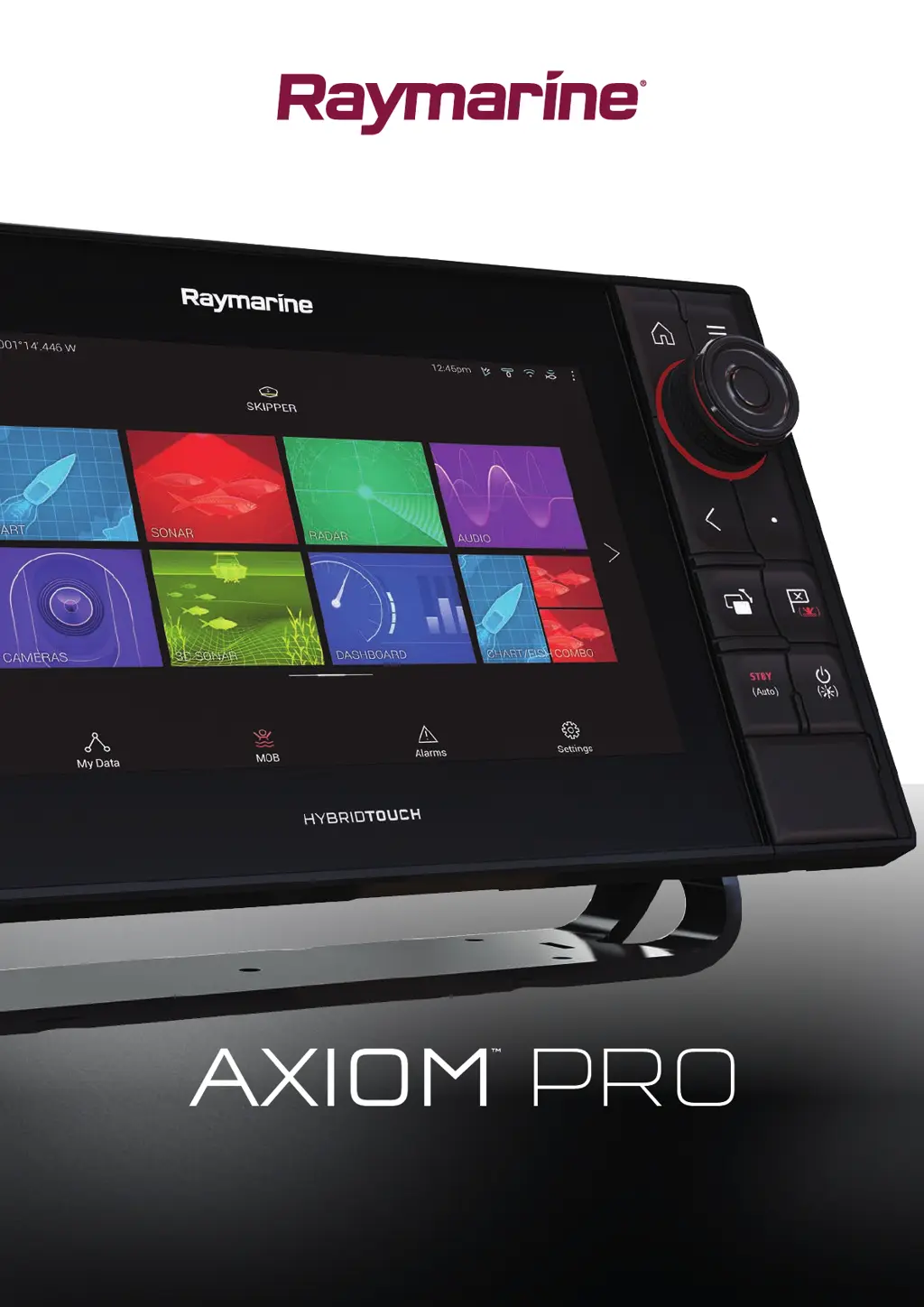
Axiom Pro Multifunction Displays

Details on specific Axiom Pro MFD models and their features.

Chapter 3: Installation

3.1 Selecting a Location

Guidelines for choosing an optimal installation location for the MFD.

General Location Requirements

Key factors affecting product performance, including ventilation and power supply.

Compass Safe Distance

Recommendations for maintaining adequate distance from magnetic compasses.

GPS Location Requirements

Environmental factors affecting internal GPS antenna performance.

Touchscreen Location Requirements

Considerations for touchscreen performance based on installation environment.

Wi-Fi Location Requirements

Factors influencing Wi-Fi performance and signal strength.

3.2 Mounting Options

Overview of surface mounting and bracket (trunnion) mounting possibilities.

3.3 Surface Mounting

Step-by-step instructions for surface mounting the MFD unit.

3.4 Bracket (Trunnion) Mounting

Instructions for mounting the MFD using the supplied trunnion bracket.

Chapter 4: Connections

4.1 Connections Overview

Diagrams and descriptions of MFD connection ports and options.

Axiom Pro Connection Options

Details of GA150, NMEA 2000, Network, and Accessory connections.

Axiom Pro RVX Transducer Connection Options

Connection types for RealVision 3D and 1kW transducers on RVX models.

Axiom Pro S Transducer Connection Options

Connection types for CPT-S transducers via adaptor cables on S models.

4.2 Power Connection

Instructions for connecting the power cable to a 12 or 24 V dc power supply.

Implementation: Direct Connection to Battery

Guidance on connecting the power cable directly to the vessel's battery.

Implementation: Connection to Distribution Panel

Guidance on connecting the power cable to a distribution panel.

4.5 Transducer Connection

Connecting a transducer to the MFD if it includes a built-in sonar module.

Chapter 5: Maintaining Your Display

5.1 Service and Maintenance

Information on product maintenance, repair, and user-serviceable parts.

5.2 Product Cleaning

Best practices for cleaning the display unit, screen, and sun cover.

Chapter 6: Troubleshooting

6.1 Troubleshooting

Guidance on possible causes and corrective actions for common problems.

6.2 Power Up Troubleshooting

Solutions for issues related to the MFD not turning on or restarting.

Performing a Power on Reset

Steps to perform a factory reset to revert the unit to default settings.

6.3 GNSS Troubleshooting

Solutions for problems related to GNSS satellite fix and connection.

6.4 Sonar Troubleshooting

Solutions for issues with sonar scrolling, depth readings, and image quality.

6.5 Wi-Fi Troubleshooting

Solutions for problems with Wi-Fi connection, network discovery, and data transfer.

6.6 Touchscreen Troubleshooting

Solutions for issues where the touchscreen does not operate as expected.

6.7 Miscellaneous Troubleshooting

Solutions for general problems like erratic display behavior or system crashes.

Chapter 7: Technical Support

7.1 Raymarine Product Support and Servicing

Information on accessing Raymarine product support, warranty, service, and repairs.

Chapter 8: Technical Specification

8.1 Axiom Pro Technical Specification

Detailed technical specifications for Axiom Pro MFD models.

8.2 Internal Sonar Specification

Technical specifications for the internal sonar modules of Axiom Pro products.

8.3 Internal GNSS (GPS; GLONASS) Receiver Specification

Technical specifications for the internal GNSS receiver.

Raymarine E70372 Specifications

General IconGeneral
BrandRaymarine
ModelE70372
CategoryMarine GPS System
LanguageEnglish

Related product manuals